# Text-to-Speech Not Working? Complete Troubleshooting Guide & Solutions

Published: February 4, 2026 · Author: Deepak Gupta

Text to speech not working? The cause is almost always one of 5 things. It's the sound output, a speech setting or missing voice data, a recent update, a dropped connection to a cloud voice, or the text itself. Check them in that order. Most problems are fixed in the first 2 steps, without reinstalling anything.

*Last updated: October 6, 2026. Settings paths were checked against Microsoft, Google and Apple support pages on that date.*

This guide is for anyone whose computer, phone, video editor or online voice tool has stopped reading text aloud, or reads it badly. Start with the quick checks, then jump to your device.

<div style="margin:28px 0;padding:20px 22px;background:#ffffff;border:1px solid #dbeafe;border-left:4px solid #1d4ed8;border-radius:12px"><div style="font:700 18px/1.3 var(--kv-font-heading);color:#172554;margin-bottom:12px">Key Takeaways</div><ul style="list-style:none;margin:0;padding:0"><li style="margin:0 0 10px;padding-left:28px;position:relative;font:400 16px/1.6 var(--kv-font-body);color:#1f2937"><span aria-hidden="true" style="position:absolute;left:0;top:2px;width:20px;height:20px;border-radius:50%;background:#1d4ed8;color:#ffffff;font:700 12px/20px var(--kv-font-body);text-align:center">&#10003;</span><strong>Start with sound, not software.</strong> Volume, mute, the selected output device and speaker setup cause many "silent" TTS problems.</li><li style="margin:0 0 10px;padding-left:28px;position:relative;font:400 16px/1.6 var(--kv-font-body);color:#1f2937"><span aria-hidden="true" style="position:absolute;left:0;top:2px;width:20px;height:20px;border-radius:50%;background:#1d4ed8;color:#ffffff;font:700 12px/20px var(--kv-font-body);text-align:center">&#10003;</span><strong>Missing voice data stops speech.</strong> If a language's voice isn't installed on Windows or Android, the device can't read that text.</li><li style="margin:0 0 10px;padding-left:28px;position:relative;font:400 16px/1.6 var(--kv-font-body);color:#1f2937"><span aria-hidden="true" style="position:absolute;left:0;top:2px;width:20px;height:20px;border-radius:50%;background:#1d4ed8;color:#ffffff;font:700 12px/20px var(--kv-font-body);text-align:center">&#10003;</span><strong>Updates can break things, and later updates fix them.</strong> Install the latest updates instead of disabling security settings.</li><li style="margin:0 0 10px;padding-left:28px;position:relative;font:400 16px/1.6 var(--kv-font-body);color:#1f2937"><span aria-hidden="true" style="position:absolute;left:0;top:2px;width:20px;height:20px;border-radius:50%;background:#1d4ed8;color:#ffffff;font:700 12px/20px var(--kv-font-body);text-align:center">&#10003;</span><strong>Long or messy text causes errors.</strong> Symbols, very long inputs and unpunctuated text can make an engine fail, cut out or mash words together.</li><li style="margin:0 0 10px;padding-left:28px;position:relative;font:400 16px/1.6 var(--kv-font-body);color:#1f2937"><span aria-hidden="true" style="position:absolute;left:0;top:2px;width:20px;height:20px;border-radius:50%;background:#1d4ed8;color:#ffffff;font:700 12px/20px var(--kv-font-body);text-align:center">&#10003;</span><strong>Run a "Hello world" test.</strong> If a short, plain sentence plays, your settings are fine and the original text is the problem.</li></ul></div>

**On this page:** [Common causes](#5-common-causes) · [Quick checks](#quick-checks-first) · [Windows](#fixing-tts-on-windows) · [Android](#fixing-tts-on-android) · [iPhone and iPad](#fixing-tts-on-iphone-and-ipad) · [Video editors and online tools](#failures-in-editors-and-tools) · [Text problems](#when-the-text-is-the-problem) · [Switching tools](#switching-to-online-ai-voices) · [FAQ](#frequently-asked-questions)

## 5 common causes

Most TTS failures fall into 5 groups. Match what you see to a row, then try the first fix.

<table>
<thead>
<tr><th>Cause</th><th>What you notice</th><th>First fix</th></tr>
</thead>
<tbody>
<tr><td>Sound output</td><td>Silence, or a voice that is very quiet or muffled</td><td>Check volume, mute and the selected output device; set speakers to stereo</td></tr>
<tr><td>Settings or missing voice data</td><td>Nothing plays for one language, or the feature is off</td><td>Turn the speech feature on and install the voice for that language</td></tr>
<tr><td>Software update or conflict</td><td>TTS stopped right after an update</td><td>Install the latest updates, then restart</td></tr>
<tr><td>Connection to a cloud voice</td><td>Timeouts, long waits, audio that stops halfway</td><td>Check your internet connection, sign out and back in, try again</td></tr>
<tr><td>The text itself</td><td>Errors on one script only, garbled words, cut-off audio</td><td>Remove symbols, add punctuation, split long text</td></tr>
</tbody>
</table>

<img src="https://cdn.kveeky.com/portals/685cb8c517a4ca6f01a7884c/686ef597027b1d23f092b348/text-to-speech-not-working-troubleshooting-guide/mermaid-diagram-1.svg" alt="Flow diagram showing text input going into a TTS engine, which produces a clear voice on success or silence, a timeout or distorted audio when a network error or driver conflict occurs." width="100%" style="width: 100%; display: block;" />

## Quick checks first

These take a minute and solve a large share of problems.

<div style="margin:24px 0;padding:18px 20px;border:1px solid #dbeafe;border-radius:12px;background:#ffffff"><div style="font:700 17px/1.3 var(--kv-font-heading);color:#172554;margin-bottom:6px">Quick checks: tick each one as you go</div><p style="margin:0 0 10px;font:400 15px/1.5 var(--kv-font-body);color:#4b5563">Work from top to bottom. Stop at the first one that brings the voice back.</p><label style="display:flex;align-items:flex-start;gap:12px;min-height:44px;padding:8px 0;font:400 16px/1.5 var(--kv-font-body);color:#1f2937;cursor:pointer"><input type="checkbox" style="width:22px;height:22px;margin-top:2px;flex:none;accent-color:#1d4ed8"><span><strong>Check volume and mute.</strong> Look at the system volume, the app's own volume and any hardware mute switch.</span></label><label style="display:flex;align-items:flex-start;gap:12px;min-height:44px;padding:8px 0;font:400 16px/1.5 var(--kv-font-body);color:#1f2937;cursor:pointer"><input type="checkbox" style="width:22px;height:22px;margin-top:2px;flex:none;accent-color:#1d4ed8"><span><strong>Check the output device.</strong> Make sure sound is going to the speakers or headphones you are using, not a disconnected device.</span></label><label style="display:flex;align-items:flex-start;gap:12px;min-height:44px;padding:8px 0;font:400 16px/1.5 var(--kv-font-body);color:#1f2937;cursor:pointer"><input type="checkbox" style="width:22px;height:22px;margin-top:2px;flex:none;accent-color:#1d4ed8"><span><strong>Close apps that hold the audio.</strong> Video calls, games and music apps can take control of the sound device.</span></label><label style="display:flex;align-items:flex-start;gap:12px;min-height:44px;padding:8px 0;font:400 16px/1.5 var(--kv-font-body);color:#1f2937;cursor:pointer"><input type="checkbox" style="width:22px;height:22px;margin-top:2px;flex:none;accent-color:#1d4ed8"><span><strong>Run the "Hello world" test.</strong> Paste "Hello world." into the same app. If it plays, your text is the problem; skip to the <a href="#when-the-text-itself-is-the-problem" style="color:#1d4ed8">text section</a>.</span></label><label style="display:flex;align-items:flex-start;gap:12px;min-height:44px;padding:8px 0;font:400 16px/1.5 var(--kv-font-body);color:#1f2937;cursor:pointer"><input type="checkbox" style="width:22px;height:22px;margin-top:2px;flex:none;accent-color:#1d4ed8"><span><strong>Restart the app, then the device.</strong> A restart clears stuck audio and speech services.</span></label></div>

## Fixing TTS on Windows

Windows uses its own speech voices for Narrator and for many apps that read text aloud.

### Turn on Narrator and add voices

1. Press the Windows logo key + Ctrl + N to open Narrator settings.
2. To add a modern voice, select **Add** under **Add natural voices** and pick a voice to download.
3. For older apps, select **Add legacy voices**, then **Add voices**, and choose the language you need.

If one language never speaks, the voice for that language is usually not installed. Microsoft lists which languages have voices in its Narrator support pages.

### Fix silent or muffled speech

- **Set speakers to stereo.** Windows may think you have 5.1 surround sound when you use stereo speakers or a laptop. Then voices mixed into the center channel can go quiet or vanish.
- **Turn off audio enhancements** in the sound device's properties if speech sounds distorted.
- **Update or reinstall the audio driver** from Device Manager if a yellow warning icon appears.

### Text to speech stopped after a Windows update

Updates sometimes break features that later updates fix. For example, after the October 11, 2022 updates, Microsoft confirmed some SSL and TLS connections could fail. Out-of-band updates on October 17, 2022 (KB5020435 for Windows 10, KB5020387 for Windows 11) addressed it.

Cloud voices rely on those secure connections, so install the latest updates first. Earlier versions of this guide suggested disabling TLS 1.3 to work around timeouts. We no longer recommend that, because it weakens your connection security.

## Fixing TTS on Android

1. Open **Settings**, then **Accessibility**, then **Text-to-speech output**.
2. Check the **preferred engine**, the **language**, the **speech rate** and the **pitch**.
3. Press **Play** to hear a short sample. If it plays, the engine works.
4. If a language is missing, choose **Install voice data** and download it.
5. Still silent? Clear the cache of the speech engine app in **Settings > Apps**, then restart the phone.

Some apps also need permission to play audio in the background. If speech stops when the screen turns off, check the app's battery and background settings.

## Fixing TTS on iPhone and iPad

1. Go to **Settings > Accessibility > Spoken Content**.
2. Turn on **Speak Selection** to hear text you select, or **Speak Screen** to hear the whole screen with a two-finger swipe down from the top.
3. Open **Voices**, choose a voice and make sure it has finished downloading.
4. Use **Pronunciations** to fix a word your iPhone keeps saying wrong.
5. Turn the ring or silent switch off, check the volume and restart the device.

For a full walkthrough of these features, see our [iPhone and iPad text-to-speech guide](https://kveeky.com/blog/ios-text-to-speech-complete-guide-iphone-ipad-2025).

## Failures in editors and tools

Video editors and online voice tools often send your text to a cloud voice service. That adds 3 new failure points: the connection, your account and limits on how much text one request can take.

- **Timeout errors.** The tool waited for audio that never arrived. Check your connection, then try a shorter piece of text.
- **Sign-in problems.** Sign out of the tool's account and back in to refresh your session.
- **Text length limits.** Many tools limit how much text you can send in one request. Check your tool's limit and split long scripts into smaller parts.
- **Credits or plan limits.** Online voice tools meter usage. If generation stops, check whether you've used your monthly allowance.
- **Browser issues.** Allow sound for the site, disable extensions that block scripts, or try a different browser.

If you're making a video voiceover, our guide on [how to convert text to speech in videos](https://kveeky.com/blog/how-to-convert-text-to-speech-in-videos) covers the full workflow, from script to finished file.

### Voice preview or voice download failed

A "preview failed" or "download failed" message usually means the voice model or sample could not download. Check your connection and free storage space, then retry. If it keeps failing, remove the voice and download it again.

## When the text is the problem

If the "Hello world" test works but your script fails, the text is the cause.

<img src="https://cdn.kveeky.com/portals/685cb8c517a4ca6f01a7884c/686ef597027b1d23f092b348/text-to-speech-not-working-troubleshooting-guide/mermaid-diagram-4.svg" alt="Flow diagram for a failing script: check for special characters and length, clean the text, split it into chunks, test a simpler format and check which app has audio focus." width="100%" style="width: 100%; display: block;" />

<div style="margin:28px 0;padding:20px 22px;background:#eff6ff;border:1px solid #dbeafe;border-radius:12px"><div style="font:700 17px/1.3 var(--kv-font-heading);color:#172554;margin-bottom:6px">Try it: clean a script that fails</div><p style="margin:0 0 12px;font:400 16px/1.6 var(--kv-font-body);color:#1f2937">Copy this messy line, paste it into the tool that failed, and note what goes wrong. Then compare it with the fixed version in the table below.</p><div id="tts-messy" style="padding:14px 16px;background:#ffffff;border:1px solid #dbeafe;border-radius:10px;font:400 16px/1.6 var(--kv-font-body);color:#1f2937;overflow-wrap:anywhere">Tea &amp; cake + a chat, it's 100% worth it says Saoirse</div><div style="display:flex;flex-wrap:wrap;align-items:center;gap:12px;margin-top:12px"><button type="button" aria-live="polite" style="min-height:44px;padding:0 18px;border:0;border-radius:10px;background:#1d4ed8;color:#ffffff;font:600 16px/1 var(--kv-font-body);cursor:pointer" onclick="var t=document.getElementById('tts-messy').innerText,b=this;function ok(){b.textContent='Copied';setTimeout(function(){b.textContent='Copy messy line'},1800)}if(navigator.clipboard&&navigator.clipboard.writeText){navigator.clipboard.writeText(t).then(ok,function(){})}else{var r=document.createRange();r.selectNodeContents(document.getElementById('tts-messy'));var s=window.getSelection();s.removeAllRanges();s.addRange(r)}">Copy messy line</button></div></div>

| What was wrong | Before | After |
|---|---|---|
| Symbols | Tea & cake + a chat | Tea and cake and a chat |
| Percent sign | 100% | 100 percent |
| Hard name | Saoirse | Sur-sha |
| No end punctuation | ...says Saoirse | ...says Sur-sha. |

- **Write out symbols.** Replace "&", "%", "+" and math symbols with words such as "and" and "percent".
- **Split long text.** Very long inputs can time out or make a voice run words together. Generate one paragraph at a time.
- **Add punctuation.** End every sentence and list item with a period so the voice knows where to pause.
- **Check the language.** The voice must match the language of the text. A voice for one language may skip or garble words in another.
- **Fix pronunciation errors in the text.** Spell hard names the way they sound, for example "Sur-sha" for "Saoirse".

Our guide to [writing an AI voiceover script](https://kveeky.com/blog/ai-voiceover-script) explains these fixes in more detail. If the voice works but sounds flat, these tips on how to [make AI speech sound less robotic](https://kveeky.com/blog/how-to-make-your-ai-voiceover-sound-less-robotic-in-5-minutes) help.

## Switching to online AI voices

Built-in TTS is made to read text to you. If you need a voiceover file for a video, course or podcast, an online AI voice generator avoids most driver, voice-pack and update problems.

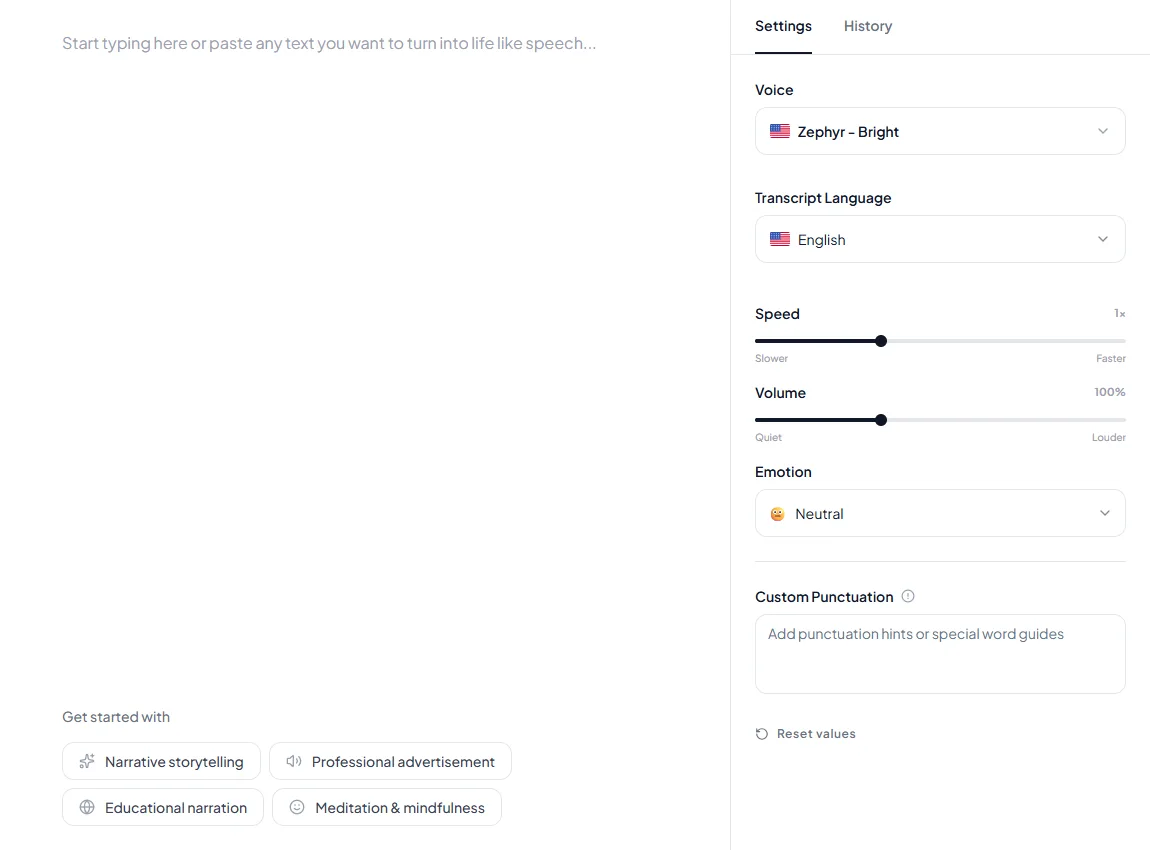
In Kveeky, for example, you paste a script, pick from 700+ voices and download the audio. You can adjust speed, volume and emotion, and the free plan gives 500 credits a month (about 40 seconds) with no credit card. For Word documents, our [Microsoft Word text-to-speech tutorial](https://kveeky.com/blog/microsoft-word-text-to-speech-integration-tutorial) covers the built-in reading tools.

<figure style="margin:28px 0;padding:0"><img src="/blog/product/app-text-to-speech.webp" alt="The Kveeky text-to-speech editor with a script in the text box and the Settings tab open, showing the Voice picker and the Transcript Language, Speed, Volume, Emotion and Custom Punctuation controls." width="1150" height="850" loading="lazy" decoding="async" style="display:block;width:100%;height:auto;border-radius:14px;border:1px solid #dbeafe"><figcaption style="margin-top:12px;font:400 15px/1.5 var(--kv-font-body);color:#4b5563">This is the Kveeky text-to-speech editor after you sign in. Paste one paragraph, open the Settings tab and pick a Voice and Transcript Language that match your text. Use Speed and Volume if playback is too fast or quiet, and Custom Punctuation for pronunciation hints.</figcaption></figure>

<!-- topic-links:start -->
## Related guides

Keep going with these related guides:

- [AI Chat with PDF: A Practical Guide for Scriptwriters & Voiceover Creators](https://kveeky.com/blog/ai-chat-pdf-guide-creators)
- [The Lazy Creator's Guide to Batch-Producing 30 Videos in a Weekend](https://kveeky.com/blog/lazy-creators-guide-batch-producing-30-videos-weekend)
<!-- topic-links:end -->

## Frequently asked questions

### Why is my text to speech not working on my phone?

Usually the speech feature is off, the volume is muted, or the voice for your language isn't downloaded. On Android, check Settings > Accessibility > Text-to-speech output. On iPhone, check Settings > Accessibility > Spoken Content.

### Why does text to speech sound muffled or robotic?

Muffled speech often comes from a speaker setup mismatch, such as 5.1 surround on stereo speakers. Robotic delivery usually comes from the text: long sentences, missing punctuation or symbols. Fix the audio setup first, then the script.

### Why does text to speech stop partway through long text?

Many tools limit how much text one request can take, and long requests can time out. Split the text into paragraphs and generate them one at a time.

### Why won't text to speech read my language?

The device or tool needs a voice for that language. Install the language's voice data on your device, or choose a tool that has voices for it.

### Is speech to text not working the same problem?

No. Speech to text turns your voice into text, so it depends on the microphone and microphone permissions. Text to speech depends on speakers, speech settings and voice data.

### How do I fix TTS pronunciation errors?

Spell the word the way it sounds, add punctuation around it, or use your device's pronunciation settings. On iPhone, use the Pronunciations option in Spoken Content.

## How we checked this guide

This guide is written by Deepak Gupta for the [Kveeky](https://kveeky.com/) team. **Disclosure: Kveeky makes an AI voice generator.** Settings paths come from the platform makers' own support pages:

- Windows Narrator voices: [Microsoft Support, Supported languages and voices](https://support.microsoft.com/en-us/accessibility/windows/narrator/appendix-a-supported-languages-and-voices), retrieved 2026-10-06.
- The October 2022 TLS issue and fix: [Microsoft KB5020387](https://support.microsoft.com/en-us/servicing/os/windows-11/2022/10/october-17-2022-kb5020387-os-build-22000-1100-out-of-band) and [Microsoft KB5020435](https://support.microsoft.com/en-us/servicing/os/windows-10/2022/10/october-17-2022-kb5020435-os-builds-19042-2132-19043-2132-and-19044-2132-out-of-band), retrieved 2026-10-06.
- Android: [Google Android Accessibility Help, Text-to-speech output](https://support.google.com/accessibility/android/answer/6006983), retrieved 2026-10-06.
- iPhone: [Apple iPhone User Guide, Spoken Content](https://support.apple.com/guide/iphone/hear-iphone-speak-the-screen-iph96b214f0/ios), retrieved 2026-10-06.
- Kveeky plan details: [Kveeky pricing](https://kveeky.com/pricing/), retrieved 2026-10-06. No Kveeky usage data is used in this guide.

Next step: run the "Hello world" test in the app that failed, then follow the section for your device. If you need a voice in a specific language, check our [text-to-speech language pages](https://kveeky.com/languages) to see which voices you can preview.

<script type="application/ld+json">
{"@context":"https://schema.org","@type":"FAQPage","mainEntity":[
{"@type":"Question","name":"Why is my text to speech not working on my phone?","acceptedAnswer":{"@type":"Answer","text":"Usually the speech feature is off, the volume is muted, or the voice for your language isn't downloaded. On Android, check Settings > Accessibility > Text-to-speech output. On iPhone, check Settings > Accessibility > Spoken Content."}},
{"@type":"Question","name":"Why does text to speech sound muffled or robotic?","acceptedAnswer":{"@type":"Answer","text":"Muffled speech often comes from a speaker setup mismatch, such as 5.1 surround on stereo speakers. Robotic delivery usually comes from the text: long sentences, missing punctuation or symbols. Fix the audio setup first, then the script."}},
{"@type":"Question","name":"Why does text to speech stop partway through long text?","acceptedAnswer":{"@type":"Answer","text":"Many tools limit how much text one request can take, and long requests can time out. Split the text into paragraphs and generate them one at a time."}},
{"@type":"Question","name":"Why won't text to speech read my language?","acceptedAnswer":{"@type":"Answer","text":"The device or tool needs a voice for that language. Install the language's voice data on your device, or choose a tool that has voices for it."}},
{"@type":"Question","name":"Is speech to text not working the same problem?","acceptedAnswer":{"@type":"Answer","text":"No. Speech to text turns your voice into text, so it depends on the microphone and microphone permissions. Text to speech depends on speakers, speech settings and voice data."}},
{"@type":"Question","name":"How do I fix TTS pronunciation errors?","acceptedAnswer":{"@type":"Answer","text":"Spell the word the way it sounds, add punctuation around it, or use your device's pronunciation settings. On iPhone, use the Pronunciations option in Spoken Content."}}
]}
</script>
