# How to Add AI Voiceover to Articulate Storyline, Rise and Moodle (2026)

Published: October 21, 2026 · Author: Hitesh Kumawat

To add voiceover to Articulate Storyline, generate one audio file per slide with an AI voice tool, then use Insert > Audio > Audio from File on each slide. In Rise 360 you attach the file to an audio block, and in Moodle you upload it as a File resource or inside a SCORM package.

*Last updated: October 16, 2026. Steps and file limits were checked on Articulate's and Moodle's own documentation on that date.*

<div style="margin:28px 0;padding:20px 22px;background:var(--kv-blue-50);border:1px solid var(--kv-blue-100);border-radius:var(--kv-radius-md);min-width:0;box-sizing:border-box;overflow-wrap:anywhere;border-left:4px solid var(--kv-blue-700)"><div style="font:700 17px/1.3 var(--kv-font-heading);color:var(--kv-blue-950);margin-bottom:8px">Quick answer</div><p style="margin:0;font:400 16px/1.6 var(--kv-font-body);color:var(--kv-gray-800)">Write one script row per slide, generate one file per slide, name each file with the slide ID (for example M2-S04), and import it where your tool expects audio. MP3 plays in Storyline, Rise and Moodle. Use the picker below to get the exact steps for your tool.</p></div>

This guide is for instructional designers, trainers and course creators who already have a script and need the audio inside the course. It covers the import steps for Storyline 360, Rise 360 and Moodle, a file naming system, a calculator for how many files and credits you need, and a pre-publish checklist. For the bigger picture of scripts, voices and cost, start with our [e-learning voiceover guide](/blog/e-learning-voiceover-guide).

**Disclosure:** Kveeky makes an AI voice generator, and we use it in the examples. The import steps work with audio from any tool.

## Which tool are you adding voiceover to?

Pick your tool and the steps appear below. Each answer comes from Articulate's or Moodle's own help pages, retrieved October 16, 2026.

<div style="margin:28px 0;padding:20px 22px;background:var(--kv-blue-50);border:1px solid var(--kv-blue-100);border-radius:var(--kv-radius-md);min-width:0;box-sizing:border-box;overflow-wrap:anywhere"><div style="font:700 17px/1.3 var(--kv-font-heading);color:var(--kv-blue-950);margin-bottom:8px">Step picker: where does the audio go?</div><p style="margin:0 0 12px;font:400 15px/1.5 var(--kv-font-body);color:var(--kv-gray-600)">Choose your authoring or learning platform.</p><div id="avp-btns" role="group" aria-label="Choose your tool" style="display:flex;flex-wrap:wrap;gap:8px;margin-bottom:14px"><button type="button" data-k="sl" aria-pressed="false" style="min-height:44px;padding:8px 14px;border:1px solid var(--kv-blue-100);border-radius:var(--kv-radius-sm);background:var(--kv-white);color:var(--kv-blue-700);font:600 15px/1.3 var(--kv-font-body);cursor:pointer">Storyline 360</button><button type="button" data-k="rise" aria-pressed="false" style="min-height:44px;padding:8px 14px;border:1px solid var(--kv-blue-100);border-radius:var(--kv-radius-sm);background:var(--kv-white);color:var(--kv-blue-700);font:600 15px/1.3 var(--kv-font-body);cursor:pointer">Rise 360</button><button type="button" data-k="mdl" aria-pressed="false" style="min-height:44px;padding:8px 14px;border:1px solid var(--kv-blue-100);border-radius:var(--kv-radius-sm);background:var(--kv-white);color:var(--kv-blue-700);font:600 15px/1.3 var(--kv-font-body);cursor:pointer">Moodle (own audio)</button><button type="button" data-k="scorm" aria-pressed="false" style="min-height:44px;padding:8px 14px;border:1px solid var(--kv-blue-100);border-radius:var(--kv-radius-sm);background:var(--kv-white);color:var(--kv-blue-700);font:600 15px/1.3 var(--kv-font-body);cursor:pointer">Moodle (Storyline or Rise course)</button></div><div id="avp-out" aria-live="polite" style="padding:14px 16px;background:var(--kv-white);border:1px solid var(--kv-blue-100);border-radius:var(--kv-radius-sm);font:400 16px/1.6 var(--kv-font-body);color:var(--kv-gray-800)">Pick a tool above to see the steps.</div><script>(function(){try{var box=document.getElementById("avp-btns"),out=document.getElementById("avp-out");if(!box||!out)return;var A={sl:"<strong>Storyline 360.</strong><ol style=\"margin:8px 0 0;padding-left:22px\"><li>Open the slide in Slide View.</li><li>Go to the Insert tab, open the Audio drop-down and choose Audio from File.</li><li>Pick your file and click Open. You can also drag the file onto the slide.</li><li>For a long slide, import several short clips and place them back to back on the timeline.</li></ol>",rise:"<strong>Rise 360.</strong><ol style=\"margin:8px 0 0;padding-left:22px\"><li>Add a Multimedia audio block, or select a block that supports audio.</li><li>In the content sidebar, choose the Add or Replace audio icon.</li><li>Choose Upload and select your file (up to 5 GB per file).</li><li>Turn on Transcribe audio file, where it is offered, and type or paste your script as the transcript.</li></ol>",mdl:"<strong>Moodle with your own audio.</strong><ol style=\"margin:8px 0 0;padding-left:22px\"><li>Turn editing on in your course.</li><li>Drag the audio file onto the course page, or add it as a File resource.</li><li>Check the Multimedia plugins filter is enabled so a player shows instead of a bare link.</li><li>Open the page as a learner and press play.</li></ol>",scorm:"<strong>Moodle with a Storyline or Rise course.</strong><ol style=\"margin:8px 0 0;padding-left:22px\"><li>Put the audio inside the course first, using the Storyline or Rise steps.</li><li>Publish for LMS from Storyline or Rise.</li><li>In Moodle, turn editing on and choose SCORM Package from the activity chooser.</li><li>Upload the published package in the Package section and click Save and return to course.</li></ol>"};var bs=box.querySelectorAll("button");for(var i=0;i<bs.length;i++){bs[i].addEventListener("click",function(){var k=this.getAttribute("data-k");for(var j=0;j<bs.length;j++){bs[j].setAttribute("aria-pressed","false");bs[j].style.background="var(--kv-white)";bs[j].style.color="var(--kv-blue-700)"}this.setAttribute("aria-pressed","true");this.style.background="var(--kv-blue-700)";this.style.color="var(--kv-white)";out.innerHTML=A[k]||""})}}catch(e){}})();</script></div>

## What do you need before you add voiceover?

You need an approved script split by slide, one voice and one set of settings for the whole course, and a plan for file names. Doing this first saves the most rework, because every later fix means replacing one file.

> **Key Takeaways**
>
> - **One file per slide.** Short files stay in sync with the slide and are cheap to regenerate.
> - **Name files with the slide ID.** `M2-S04.mp3` tells you exactly which slide to update when a policy changes.
> - **Storyline imports 8 audio formats,** including MP3 (Articulate, retrieved 2026-10-16).
> - **Rise 360 plays "all major audio file formats"** up to 5 GB per file, and offers a transcript option where available (Articulate, retrieved 2026-10-16).
> - **Moodle needs the Multimedia plugins filter** to show a player for audio you embed (Moodle docs, retrieved 2026-10-16).

If you have not written the script yet, use the slide-row template in our [AI voiceover script guide](/blog/ai-voiceover-script) and the word budgets in the [e-learning voiceover guide](/blog/e-learning-voiceover-guide).

### Which audio file type should you use?

Use MP3 unless a tool rejects it. All three tools accept it, and it keeps files small.

<div style="margin:16px 0 12px"><label for="avf-q" style="display:block;margin-bottom:6px;font:600 15px/1.4 var(--kv-font-body);color:var(--kv-gray-800)">Filter the table (try "mp3", "5 GB" or "filter")</label><input id="avf-q" type="search" placeholder="Type to filter the rows" style="box-sizing:border-box;width:100%;min-width:0;min-height:44px;padding:0 12px;border:1px solid var(--kv-blue-100);border-radius:var(--kv-radius-sm);font:400 16px/1 var(--kv-font-body);color:var(--kv-gray-800);background:var(--kv-white)"><p id="avf-c" aria-live="polite" style="margin:8px 0 0;font:400 14px/1.4 var(--kv-font-body);color:var(--kv-gray-600)"></p><script>(function(){try{var q=document.getElementById("avf-q"),t=document.getElementById("avf-table"),c=document.getElementById("avf-c");if(!q||!t||!c)return;q.addEventListener("input",function(){var s=q.value.toLowerCase().trim(),rs=t.querySelectorAll("tbody tr"),n=0;for(var i=0;i<rs.length;i++){var ok=!s||rs[i].textContent.toLowerCase().indexOf(s)>-1;rs[i].style.display=ok?"":"none";if(ok)n++}c.textContent=s?("Showing "+n+" of "+rs.length+" rows."):""})}catch(e){}})();</script></div>

<div style="overflow-x:auto;max-width:100%">

<table id="avf-table">
<thead>
<tr><th style="white-space:nowrap">Platform</th><th>Audio it plays or imports</th><th>Where the audio goes</th><th>Limits to know</th></tr>
</thead>
<tbody>
<tr><td style="white-space:nowrap">Storyline 360</td><td>AAC, AIF, AIFF, M4A, MP3, OGG, WAV, WMA</td><td>On the slide, as a clip on the timeline</td><td>Built-in text to speech converts up to 10,000 characters at a time</td></tr>
<tr><td style="white-space:nowrap">Rise 360</td><td>"All major audio file formats"</td><td>A Multimedia audio block, or audio on supported blocks</td><td>Up to 5 GB per file; the support article does not mention autoplay</td></tr>
<tr><td style="white-space:nowrap">Moodle (media embedding)</td><td>.mp3, .aac, .flac, .m4a, .oga, .ogg, .wav with the default player</td><td>Course page, File resource or URL resource</td><td>The Multimedia plugins filter must be enabled</td></tr>
<tr><td style="white-space:nowrap">Moodle (SCORM package)</td><td>Whatever the Storyline or Rise course plays</td><td>Inside the published package</td><td>Storyline publishes to SCORM 1.2, SCORM 2004, xAPI or AICC</td></tr>
</tbody>
</table>

</div>

Sources: Articulate support articles on adding audio, text to speech, Rise media and LMS publishing, and the Moodle docs on media embedding and the SCORM activity (all retrieved October 16, 2026, listed at the end).

## How do you add AI voiceover to Articulate Storyline?

Generate the audio outside Storyline, then import it with Insert > Audio > Audio from File on each slide. Storyline also has built-in text to speech, which is a good placeholder while the script is still changing.

Storyline's own text to speech needs an internet connection and converts up to 10,000 characters at a time, according to Articulate. It can later be swapped for recorded narration with Replace Audio on the Options tab, and your closed captions are kept. That makes a clean two-step plan: draft with the built-in voice, then replace each clip with your final audio.

1. **Open the slide in Slide View.** Expected result: the timeline is visible at the bottom.
2. **Insert > Audio > Audio from File.** Expected result: a file picker opens.
3. **Select the slide's file** (for example `M2-S04.mp3`) and click Open. Expected result: an audio clip appears on the slide's timeline.
4. **Line up the slide's animations** with the narration by moving objects on the timeline.
5. **Repeat for every slide,** then preview the whole module.

Keep each slide's audio to one clip where you can. When a script is too long for one clip, split it by sentence and place the clips back to back on the timeline, as Articulate suggests for text to speech.

## How do you add voiceover to Articulate Rise 360?

Add a Multimedia audio block, choose Upload in the content sidebar, and select your file. Rise 360 plays all major audio formats up to 5 GB per file, and some other blocks also accept audio.

In the sidebar, Articulate lists three sources for a block's audio: AI audio, Record and Upload. Upload is the one that takes your own file. Where it is available, turn on Transcribe audio file and type your script as the transcript, so learners can open it from the audio player. The article says that if you generate audio with Articulate's own AI Assistant, the script is used as the transcript automatically.

The support article does not say whether Rise audio plays automatically, so test this in a preview before you promise learners a hands-free experience. Forward seeking is on by default and can be switched off on the audio block if you want learners to hear the whole clip.

One decision matters here. Rise is built from blocks, not slides, so one file per block is the natural unit. Name files by lesson and block (for example `L3-B02.mp3`) and keep your script rows in the same order.

## How do you add voiceover to a Moodle course?

For your own audio, drag the file onto the course page or add it as a File resource. For a Storyline or Rise course, put the audio inside the course and upload the published SCORM package instead.

Moodle's media embedding page says audio can be added as a File resource or linked as a URL resource, and that it also displays in Moodle's text editor. The default player supports .mp3, .aac, .flac, .m4a, .oga, .ogg and .wav, but only when the Multimedia plugins filter is enabled. If a learner sees a bare download link instead of a player, ask your Moodle admin to check the filter under Manage media players.

For the SCORM route, use the activity chooser: pick SCORM Package, name it, upload the package in the Package section and click Save and return to course. Moodle's page says the activity accepts "any SCORM or AICC package"; the audio plays through your Storyline or Rise course, so Moodle's media player settings don't affect it.

## How do you name and organize the audio files?

Use one rule for the whole course: module, slide, then a short suffix for versions. A name like `M2-S04.mp3` matches the slide ID in your script sheet, so a content change is a one-file swap.

Copy the manifest below into a spreadsheet. It gives each file a status, so nobody imports an unapproved line.

<div style="margin:28px 0;padding:20px 22px;background:var(--kv-blue-50);border:1px solid var(--kv-blue-100);border-radius:var(--kv-radius-md);min-width:0;box-sizing:border-box;overflow-wrap:anywhere"><div style="font:700 17px/1.3 var(--kv-font-heading);color:var(--kv-blue-950);margin-bottom:8px">Copy this audio manifest</div><p style="margin:0 0 12px;font:400 15px/1.5 var(--kv-font-body);color:var(--kv-gray-600)">Tab-separated, so it pastes into spreadsheet columns. Add one row per file.</p><div id="avm-t" style="padding:14px 16px;background:var(--kv-white);border:1px solid var(--kv-blue-100);border-radius:var(--kv-radius-sm);font:400 15px/1.6 var(--kv-font-body);color:var(--kv-gray-800);overflow-x:auto;white-space:pre-wrap">File name	Slide or block	Words	Seconds	Voice and settings	Imported in	Status
M2-S04.mp3	Incident steps	75	30	Same voice, speed 1x	Storyline	Approved</div><div style="display:flex;flex-wrap:wrap;align-items:center;gap:12px;margin-top:12px"><button type="button" id="avm-b" data-copytext="File name&#9;Slide or block&#9;Words&#9;Seconds&#9;Voice and settings&#9;Imported in&#9;Status&#10;M2-S04.mp3&#9;Incident steps&#9;75&#9;30&#9;Same voice, speed 1x&#9;Storyline&#9;Approved" style="min-height:44px;padding:0 18px;border:0;border-radius:var(--kv-radius-sm);background:var(--kv-blue-700);color:var(--kv-white);font:600 16px/1 var(--kv-font-body);cursor:pointer">Copy</button></div><script>(function(){try{var b=document.getElementById("avm-b");if(!b)return;b.addEventListener("click",function(){try{var x=b.getAttribute("data-copytext")||"";if(navigator.clipboard&&navigator.clipboard.writeText){navigator.clipboard.writeText(x).then(function(){b.textContent="Copied";setTimeout(function(){b.textContent="Copy"},1800)},function(){})}}catch(e){}})}catch(e){}})();</script></div>

## How many audio files and credits does your course need?

Divide your finished minutes by seconds per slide to get the file count, then multiply by words per minute for the script length. The free plan gives 500 credits a month, which is about 40 seconds or 40 seconds of audio.

<div style="margin:28px 0;padding:20px 22px;background:var(--kv-blue-50);border:1px solid var(--kv-blue-100);border-radius:var(--kv-radius-md);min-width:0;box-sizing:border-box;overflow-wrap:anywhere"><div style="font:700 17px/1.3 var(--kv-font-heading);color:var(--kv-blue-950);margin-bottom:8px">File and free-plan calculator</div><p style="margin:0 0 12px;font:400 15px/1.5 var(--kv-font-body);color:var(--kv-gray-600)">Enter your course length and pace. The retake allowance is the extra audio you expect to regenerate (we plan 50%).</p><div style="display:flex;flex-wrap:wrap;gap:12px;margin-bottom:14px"><label for="avc-m" style="display:flex;flex-direction:column;gap:4px;flex:1 1 140px;min-width:0;font:600 14px/1.3 var(--kv-font-body);color:var(--kv-gray-800)">Finished minutes<input id="avc-m" type="number" inputmode="decimal" min="1" step="5" value="10" style="box-sizing:border-box;width:100%;min-width:0;min-height:44px;padding:0 12px;border:1px solid var(--kv-blue-100);border-radius:var(--kv-radius-sm);font:400 16px/1 var(--kv-font-body);color:var(--kv-gray-800);background:var(--kv-white)"></label><label for="avc-s" style="display:flex;flex-direction:column;gap:4px;flex:1 1 140px;min-width:0;font:600 14px/1.3 var(--kv-font-body);color:var(--kv-gray-800)">Seconds per slide<input id="avc-s" type="number" inputmode="decimal" min="5" step="5" value="30" style="box-sizing:border-box;width:100%;min-width:0;min-height:44px;padding:0 12px;border:1px solid var(--kv-blue-100);border-radius:var(--kv-radius-sm);font:400 16px/1 var(--kv-font-body);color:var(--kv-gray-800);background:var(--kv-white)"></label><label for="avc-p" style="display:flex;flex-direction:column;gap:4px;flex:1 1 140px;min-width:0;font:600 14px/1.3 var(--kv-font-body);color:var(--kv-gray-800)">Words per minute<input id="avc-p" type="number" inputmode="decimal" min="50" step="10" value="150" style="box-sizing:border-box;width:100%;min-width:0;min-height:44px;padding:0 12px;border:1px solid var(--kv-blue-100);border-radius:var(--kv-radius-sm);font:400 16px/1 var(--kv-font-body);color:var(--kv-gray-800);background:var(--kv-white)"></label><label for="avc-r" style="display:flex;flex-direction:column;gap:4px;flex:1 1 140px;min-width:0;font:600 14px/1.3 var(--kv-font-body);color:var(--kv-gray-800)">Retake allowance (%)<input id="avc-r" type="number" inputmode="decimal" min="0" step="10" value="50" style="box-sizing:border-box;width:100%;min-width:0;min-height:44px;padding:0 12px;border:1px solid var(--kv-blue-100);border-radius:var(--kv-radius-sm);font:400 16px/1 var(--kv-font-body);color:var(--kv-gray-800);background:var(--kv-white)"></label></div><div id="avc-o" aria-live="polite" style="padding:14px 16px;background:var(--kv-white);border:1px solid var(--kv-blue-100);border-radius:var(--kv-radius-sm);font:400 16px/1.6 var(--kv-font-body);color:var(--kv-gray-800)">Change a number to see the result.</div><script>(function(){try{var ids=["m","s","p","r"],o=document.getElementById("avc-o");if(!o)return;var els=[];for(var i=0;i<ids.length;i++){var e=document.getElementById("avc-"+ids[i]);if(!e)return;els.push(e)}function run(){try{var v={};for(var i=0;i<ids.length;i++){var n=parseFloat(els[i].value);v[ids[i]]=isNaN(n)||n<0?0:n}var m=v.m,s=v.s||30,p=v.p||150,r=v.r;var files=Math.ceil(m*60/s);var wps=Math.round(p*s/60);var words=Math.round(m*p);var genSec=Math.round(m*60*(1+r/100));var freeFiles=Math.floor(40/s);var months=Math.ceil(genSec/40);var h="You need about <strong>"+files+" audio files</strong> of roughly <strong>"+wps+" words</strong> each, <strong>"+words+" words</strong> in total. With a "+r+"% retake allowance you will generate about <strong>"+genSec+" seconds</strong> of audio. ";h+="The free plan (40 seconds a month) covers about <strong>"+freeFiles+" slides</strong> of this length, enough to test your hardest ones. ";if(genSec>0){h+="Producing the whole course on the free plan alone would take about <strong>"+months+" months</strong>; see the pricing page for the paid plans, which also include commercial rights."}o.innerHTML=h}catch(e){}}for(var i=0;i<els.length;i++){els[i].addEventListener("input",run);els[i].addEventListener("change",run)}run()}catch(e){}})();</script></div>

### Worked example: a 10-minute Storyline module

A 10-minute module at 30 seconds per slide has 20 slides of about 75 words, or 1,500 words at 150 words per minute. With 50% extra for retakes you generate 900 seconds of audio.

<table>
<thead>
<tr><th style="white-space:nowrap">Step</th><th>Number</th><th>How we got it</th></tr>
</thead>
<tbody>
<tr><td style="white-space:nowrap">Files</td><td>20</td><td>600 seconds / 30 seconds per slide</td></tr>
<tr><td style="white-space:nowrap">Words per file</td><td>75</td><td>150 words per minute x 0.5 minute</td></tr>
<tr><td style="white-space:nowrap">Total words</td><td>1,500</td><td>10 minutes x 150</td></tr>
<tr><td style="white-space:nowrap">Audio to generate</td><td>900 seconds</td><td>600 seconds x 1.5 for retakes</td></tr>
<tr><td style="white-space:nowrap">Free plan slides</td><td>13</td><td>40 seconds / 30 seconds, rounded down</td></tr>
</tbody>
</table>

So the free plan lets you test and approve the first 13 slides, including the hardest ones, before you pick a paid plan. For other script lengths, use the [words to minutes calculator](https://kveeky.com/resources/words-to-minutes-calculator/).

## How do you generate the slide audio with Kveeky?

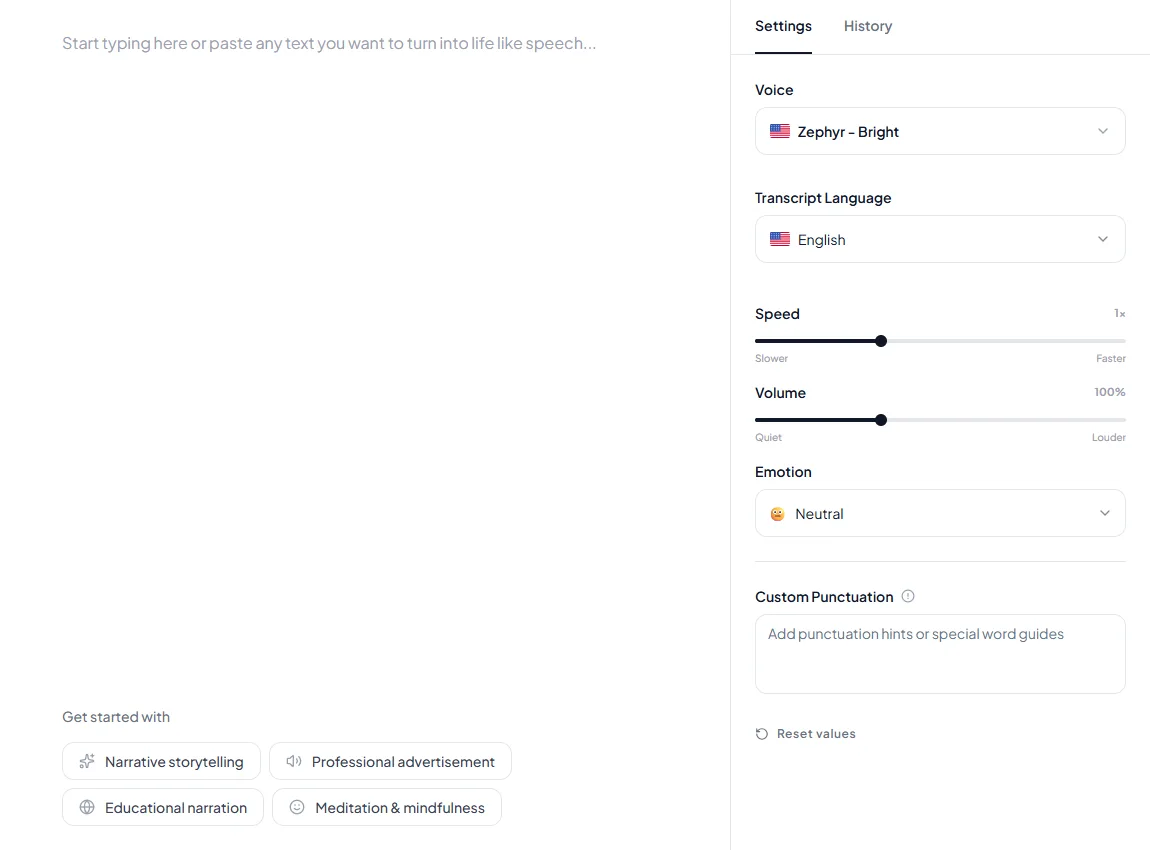
Paste one slide's narration into the editor, choose a voice, set speed, volume and emotion, press Generate speech and download the audio. [Kveeky](https://kveeky.com/) works well with the one-file-per-slide rule: paste a slide, generate it, download it, repeat.

<figure style="margin:28px 0;padding:0"><img src="/blog/product/app-text-to-speech.webp" alt="The Kveeky text-to-speech editor with a script in the text box and the Settings panel showing Voice, Transcript Language, Speed, Volume, Emotion and Custom Punctuation." width="1150" height="850" loading="lazy" decoding="async" style="display:block;width:100%;height:auto;border-radius:var(--kv-radius-md);border:1px solid var(--kv-blue-100)"><figcaption style="margin-top:10px;font:400 14px/1.5 var(--kv-font-body);color:var(--kv-gray-600)">Paste one slide in the text box, then check the Settings panel: Voice, Transcript Language, Speed, Volume and Emotion (Neutral, Happy, Love, Angry, Calm or Sad). Use the same values for every slide. Custom Punctuation takes your say-it-as notes for names and acronyms.</figcaption></figure>

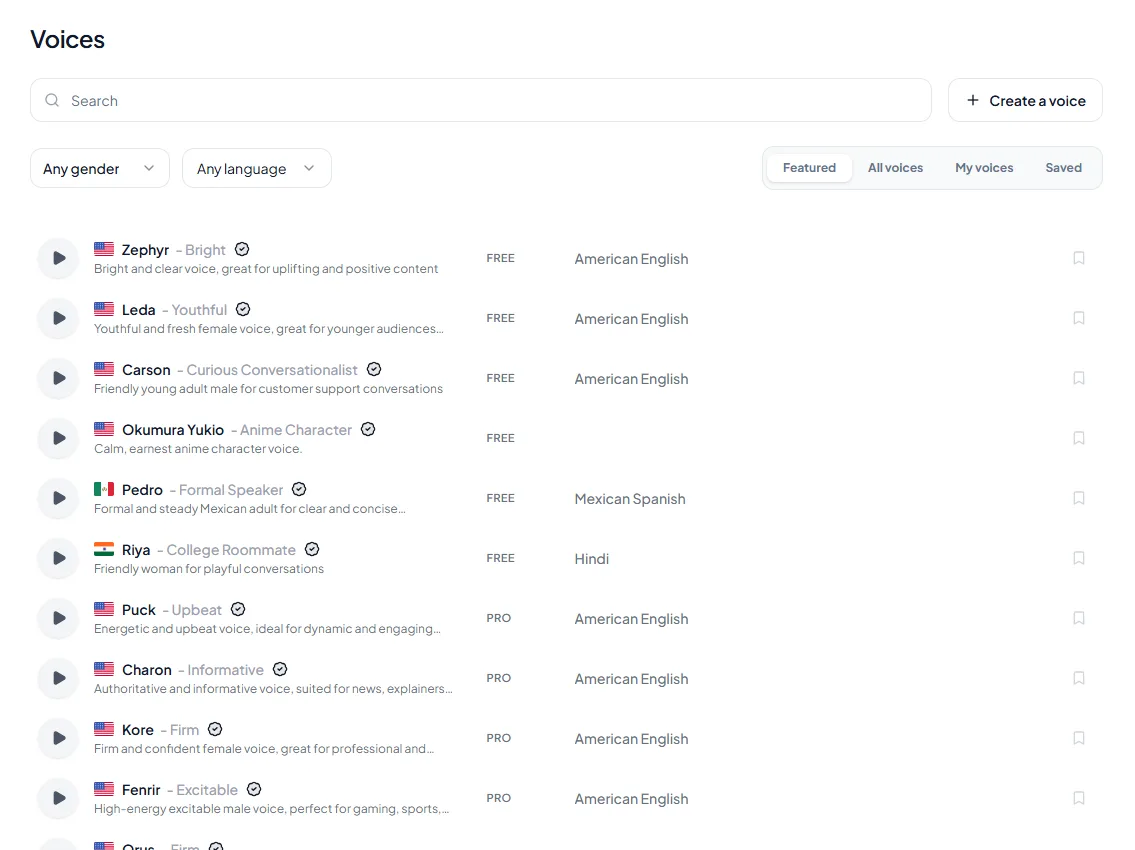
<figure style="margin:28px 0;padding:0"><img src="/blog/product/app-voice-library.webp" alt="The Kveeky voice library with search, gender and language filters, and voices tagged Free or Pro." width="1150" height="850" loading="lazy" decoding="async" style="display:block;width:100%;height:auto;border-radius:var(--kv-radius-md);border:1px solid var(--kv-blue-100)"><figcaption style="margin-top:10px;font:400 14px/1.5 var(--kv-font-body);color:var(--kv-gray-600)">Filter the voice library by language and gender, preview a voice, and note the Free or Pro tag. The free plan uses the standard voices. Pick one voice and stay with it, as our guide to <a href="/blog/multi-voice-courses-narrator-strategy" style="color:var(--kv-blue-700)">narrator strategy in courses</a> explains.</figcaption></figure>

The free plan gives 500 credits a month (about 40 seconds) with no credit card, and every paid plan includes commercial usage rights for generated audio. Course in another language? Check the voices on the [Spanish](https://kveeky.com/languages/spanish-text-to-speech) or [German](https://kveeky.com/languages/german-text-to-speech) pages, or browse [all AI voices](https://kveeky.com/ai-voices). Our [e-learning voiceover page](https://kveeky.com/voiceover/e-learning/) has course-specific examples.

## What should you check before you publish?

Play the whole course once in the real target, not just the authoring preview. Most audio problems, such as a missing player or a clipped word, only show up in the LMS.

<div style="margin:28px 0;padding:20px 22px;background:var(--kv-white);border:1px solid var(--kv-blue-100);border-radius:var(--kv-radius-md);min-width:0;box-sizing:border-box;overflow-wrap:anywhere"><div style="font:700 17px/1.3 var(--kv-font-heading);color:var(--kv-blue-950);margin-bottom:8px">Pre-publish checklist</div><p style="margin:0 0 12px;font:400 15px/1.5 var(--kv-font-body);color:var(--kv-gray-600)">Tick each item once you have checked it in the published course.</p><label style="display:flex;align-items:flex-start;gap:12px;min-height:44px;padding:8px 0;font:400 16px/1.6 var(--kv-font-body);color:var(--kv-gray-800);cursor:pointer"><input type="checkbox" class="avk-c" style="width:22px;height:22px;margin-top:2px;flex:none;accent-color:var(--kv-blue-700)"><span>Every file name matches a slide or block ID in the script sheet.</span></label><label style="display:flex;align-items:flex-start;gap:12px;min-height:44px;padding:8px 0;font:400 16px/1.6 var(--kv-font-body);color:var(--kv-gray-800);cursor:pointer"><input type="checkbox" class="avk-c" style="width:22px;height:22px;margin-top:2px;flex:none;accent-color:var(--kv-blue-700)"><span>The same voice, speed, volume and emotion setting is used in every file.</span></label><label style="display:flex;align-items:flex-start;gap:12px;min-height:44px;padding:8px 0;font:400 16px/1.6 var(--kv-font-body);color:var(--kv-gray-800);cursor:pointer"><input type="checkbox" class="avk-c" style="width:22px;height:22px;margin-top:2px;flex:none;accent-color:var(--kv-blue-700)"><span>Names, acronyms and numbers sound right at normal speed.</span></label><label style="display:flex;align-items:flex-start;gap:12px;min-height:44px;padding:8px 0;font:400 16px/1.6 var(--kv-font-body);color:var(--kv-gray-800);cursor:pointer"><input type="checkbox" class="avk-c" style="width:22px;height:22px;margin-top:2px;flex:none;accent-color:var(--kv-blue-700)"><span>Slide animations land on the right words, and no audio is cut off when the slide advances.</span></label><label style="display:flex;align-items:flex-start;gap:12px;min-height:44px;padding:8px 0;font:400 16px/1.6 var(--kv-font-body);color:var(--kv-gray-800);cursor:pointer"><input type="checkbox" class="avk-c" style="width:22px;height:22px;margin-top:2px;flex:none;accent-color:var(--kv-blue-700)"><span>Captions or transcripts are added and match the audio.</span></label><label style="display:flex;align-items:flex-start;gap:12px;min-height:44px;padding:8px 0;font:400 16px/1.6 var(--kv-font-body);color:var(--kv-gray-800);cursor:pointer"><input type="checkbox" class="avk-c" style="width:22px;height:22px;margin-top:2px;flex:none;accent-color:var(--kv-blue-700)"><span>The package or page was tested in the real LMS as a learner, on desktop and phone.</span></label><label style="display:flex;align-items:flex-start;gap:12px;min-height:44px;padding:8px 0;font:400 16px/1.6 var(--kv-font-body);color:var(--kv-gray-800);cursor:pointer"><input type="checkbox" class="avk-c" style="width:22px;height:22px;margin-top:2px;flex:none;accent-color:var(--kv-blue-700)"><span>The intro tells learners the narration is AI-generated.</span></label><p id="avk-out" aria-live="polite" style="margin:8px 0 0;font:600 15px/1.4 var(--kv-font-body);color:var(--kv-blue-700)">Ticked: 0 of 7</p><script>(function(){try{var b=document.querySelectorAll(".avk-c"),o=document.getElementById("avk-out");if(!o||!b.length)return;function u(){var n=0;for(var i=0;i<b.length;i++){if(b[i].checked)n++}o.textContent=n==b.length?"All "+n+" done":"Ticked: "+n+" of "+b.length}for(var i=0;i<b.length;i++){b[i].addEventListener("change",u)}}catch(e){}})();</script></div>

Captions matter beyond good practice. WCAG 2.2 success criterion 1.2.2 requires captions for prerecorded audio in synchronized media; our [accessible course design guide](/blog/inclusive-course-design-accessibility-guide) explains what else to cover. If the voice sounds flat on playback, see [how to make an AI voiceover sound less robotic](/blog/how-to-make-your-ai-voiceover-sound-less-robotic-in-5-minutes).

<div style="margin:28px 0;padding:20px 22px;background:var(--kv-white);border:1px solid var(--kv-blue-100);border-radius:var(--kv-radius-md);min-width:0;box-sizing:border-box;overflow-wrap:anywhere"><div style="font:700 17px/1.3 var(--kv-font-heading);color:var(--kv-blue-950);margin-bottom:8px">Show me: when it goes wrong</div><p style="margin:0 0 12px;font:400 15px/1.5 var(--kv-font-body);color:var(--kv-gray-600)">Open what you need.</p><details style="border-top:1px solid var(--kv-blue-100);padding:10px 0"><summary style="min-height:44px;display:flex;align-items:center;cursor:pointer;font:600 16px/1.4 var(--kv-font-body);color:var(--kv-blue-950)">Moodle shows a download link, not a player</summary><div style="padding:4px 0 8px;font:400 16px/1.6 var(--kv-font-body);color:var(--kv-gray-800)">The Multimedia plugins filter is probably off. Moodle's docs say it must be enabled, and players are managed under Manage media players in Site administration. Ask your admin, or use the SCORM route.</div></details><details style="border-top:1px solid var(--kv-blue-100);padding:10px 0"><summary style="min-height:44px;display:flex;align-items:center;cursor:pointer;font:600 16px/1.4 var(--kv-font-body);color:var(--kv-blue-950)">Audio in Rise does not start by itself</summary><div style="padding:4px 0 8px;font:400 16px/1.6 var(--kv-font-body);color:var(--kv-gray-800)">Articulate's media article does not describe autoplay, so plan for learners pressing play. Say so in the lesson text ("Press play to hear this section") and offer the transcript.</div></details><details style="border-top:1px solid var(--kv-blue-100);padding:10px 0"><summary style="min-height:44px;display:flex;align-items:center;cursor:pointer;font:600 16px/1.4 var(--kv-font-body);color:var(--kv-blue-950)">One slide changed after I imported everything</summary><div style="padding:4px 0 8px;font:400 16px/1.6 var(--kv-font-body);color:var(--kv-gray-800)">Regenerate that one line, keep the same file name, and replace the clip (in Storyline, use Replace Audio on the Options tab). Update the manifest status so nobody ships the old version.</div></details></div>

**Keep reading:** [E-learning voiceover guide](/blog/e-learning-voiceover-guide) · [AI voiceover script guide](/blog/ai-voiceover-script) · [Multiple narrators in one course](/blog/multi-voice-courses-narrator-strategy) · [Narrate a long course](/blog/narrate-long-course-without-vocal-strain) · [Why students drop off your course](/blog/course-narration-quality-and-dropouts) · [Fix training video voiceover](/blog/fix-corporate-training-video-voiceover) · [Kveeky pricing](https://kveeky.com/pricing)

<div style="margin:32px 0;padding:18px 20px;border:1px solid var(--kv-blue-100);border-radius:var(--kv-radius-md);background:var(--kv-white);display:flex;flex-wrap:wrap;align-items:center;justify-content:space-between;gap:12px"><div style="flex:1 1 300px;font:400 16px/1.55 var(--kv-font-body);color:var(--kv-gray-800)"><strong>Want to hear your hardest slide in an AI voice?</strong> Kveeky's free plan needs no credit card, and every paid plan includes commercial rights.</div><a href="https://app.kveeky.com?utm_source=blog&utm_medium=cta&utm_campaign=add-voiceover-articulate-storyline-rise-moodle&utm_content=end" style="display:inline-block;background:var(--kv-blue-700);color:var(--kv-white);font:700 15px/1 var(--kv-font-body);padding:12px 18px;border-radius:var(--kv-radius-sm);text-decoration:none;white-space:nowrap">Try Kveeky free</a></div>

## Frequently asked questions

### How do I add voiceover to Articulate Storyline?

Go to Insert > Audio > Audio from File on the slide and pick your file. You can also drag the file onto the slide. Storyline accepts AAC, AIF, AIFF, M4A, MP3, OGG, WAV and WMA.

### Can I add AI voiceover to Articulate Rise?

Yes. Add a Multimedia audio block, choose Upload in the sidebar and select your file. Rise 360 plays all major audio formats, up to 5 GB per file.

### How do I add audio to Moodle?

Drag the file onto the course page or add it as a File resource. Moodle needs the Multimedia plugins filter enabled to show a player. For a Storyline or Rise course, upload the published SCORM package.

### What audio format works in Storyline, Rise and Moodle?

MP3 works in all three. Storyline lists it among 8 formats, Rise supports all major formats, and Moodle's default player plays .mp3 among others.

### Should I use Storyline's built-in text to speech or my own audio?

Use the built-in voice as a placeholder while the script changes, then replace it with your final audio. Articulate says the Replace Audio option keeps your closed captions.

### How many audio files does a 10-minute course need?

About 20 files if each slide runs 30 seconds, or around 75 words per slide at 150 words per minute.

## How we checked this guide

This guide is written by Hitesh Kumawat for the [Kveeky](https://kveeky.com/) team. **Disclosure: Kveeky makes an AI voice generator.** No Kveeky usage data is used in this guide, and we did not run listening tests. Kveeky plan details come from kveeky.com/pricing.

- Storyline 360 audio import and formats: [Articulate, Adding Audio](https://www.articulatesupport.com/article/Storyline-360-Adding-Audio), retrieved 2026-10-16.
- Storyline text to speech limits and Replace Audio: [Articulate, Converting Text to Speech](https://www.articulatesupport.com/article/Storyline-360-Converting-Text-to-Speech), retrieved 2026-10-16.
- Storyline LMS output formats: [Articulate, Publishing to an LMS](https://www.articulatesupport.com/article/Storyline-360-Publishing-to-an-LMS), retrieved 2026-10-16.
- Rise 360 audio blocks, 5 GB limit, transcript option: [Articulate, Manage Course Media](https://www.articulatesupport.com/article/Rise-360-Manage-Course-Media), retrieved 2026-10-16.
- Moodle audio formats and filter: [Moodle docs, Media embedding](https://docs.moodle.org/405/en/Media_embedding), retrieved 2026-10-16. SCORM steps: [Moodle docs, SCORM activity](https://docs.moodle.org/405/en/SCORM_activity), retrieved 2026-10-16.
- WCAG 2.2 criterion 1.2.2: [W3C, WCAG 2.2](https://www.w3.org/TR/WCAG22/), retrieved 2026-10-15.
- 150 words per minute: National Center for Voice and Speech, as cited on our words to minutes calculator.

The 50% retake allowance is our planning assumption. Menus change between Storyline, Rise and Moodle versions, so confirm on your own version.

Your next step: take one approved slide, generate it, and import it in your tool before you produce the rest. Start with [Kveeky's e-learning voiceover page](https://kveeky.com/voiceover/e-learning/).
<script type="application/ld+json">
{"@context":"https://schema.org","@type":"FAQPage","mainEntity":[
{"@type":"Question","name":"How do I add voiceover to Articulate Storyline?","acceptedAnswer":{"@type":"Answer","text":"Go to Insert > Audio > Audio from File on the slide and pick your file. You can also drag the file onto the slide. Storyline accepts AAC, AIF, AIFF, M4A, MP3, OGG, WAV and WMA."}},
{"@type":"Question","name":"Can I add AI voiceover to Articulate Rise?","acceptedAnswer":{"@type":"Answer","text":"Yes. Add a Multimedia audio block, choose Upload in the sidebar and select your file. Rise 360 plays all major audio formats, up to 5 GB per file."}},
{"@type":"Question","name":"How do I add audio to Moodle?","acceptedAnswer":{"@type":"Answer","text":"Drag the file onto the course page or add it as a File resource. Moodle needs the Multimedia plugins filter enabled to show a player. For a Storyline or Rise course, upload the published SCORM package."}},
{"@type":"Question","name":"What audio format works in Storyline, Rise and Moodle?","acceptedAnswer":{"@type":"Answer","text":"MP3 works in all three. Storyline lists it among 8 formats, Rise supports all major formats, and Moodle's default player plays .mp3 among others."}},
{"@type":"Question","name":"Should I use Storyline's built-in text to speech or my own audio?","acceptedAnswer":{"@type":"Answer","text":"Use the built-in voice as a placeholder while the script changes, then replace it with your final audio. Articulate says the Replace Audio option keeps your closed captions."}},
{"@type":"Question","name":"How many audio files does a 10-minute course need?","acceptedAnswer":{"@type":"Answer","text":"About 20 files if each slide runs 30 seconds, or around 75 words per slide at 150 words per minute."}}
]}
</script>
