# iOS Text-to-Speech: Complete Guide to Voice Features on iPhone & iPad (2025)
Published: January 30, 2026 · Author: Hitesh Kumawat
iOS text to speech is built into every iPhone and iPad. Go to Settings > Accessibility > Read & Speak. Turn on Speak Selection to hear text you highlight, or Speak Screen to hear the whole screen with a two-finger swipe down. You can also change the voice, the speaking rate and pronunciations there.
*Last updated: October 6, 2026. Every step was checked against Apple's iPhone and iPad User Guides (iOS 27 and iPadOS 27) on that date.*
This guide is for anyone who wants an iPhone or iPad to read text out loud: students, busy professionals, people with low vision or reading difficulties, and creators checking a script. It covers the built-in reading tools, voice settings, Live Speech, Personal Voice, and what to use when you need an audio file instead of playback.
Key Takeaways
✓The settings live in one place. On iOS 27 and iPadOS 27, go to Settings > Accessibility > Read & Speak. On iOS 18 and earlier, the same menu is called Spoken Content (Apple Support, retrieved 2026-10-06).
✓2 main reading modes: Speak Selection reads text you highlight. Speak Screen reads everything on screen when you swipe down with 2 fingers from the top.
✓You control the sound. Read & Speak lets you pick a voice and dialect, set a default language, turn on Detect Languages, change the speaking rate and add custom pronunciations.
✓Personal Voice is for personal use. Apple says it works with Live Speech and apps you allow, and only for your own personal, noncommercial use.
✓Playback is not a file. Apple's Read & Speak pages describe listening, not saving audio. For a voiceover you can publish, use a voice generator that lets you download the audio.
**On this page:** [Built-in features](#iphone-built-in-tts-features) · [Turn on iOS text to speech](#turning-on-ios-tts) · [Change the voice](#changing-the-iphone-voice) · [Accessibility Reader](#accessibility-reader) · [Live Speech](#live-speech) · [Personal Voice](#personal-voice) · [Audio files](#saving-ios-tts-as-audio) · [Troubleshooting](#troubleshooting-ios-tts) · [FAQ](#frequently-asked-questions)
## iPhone built-in TTS features
Your iPhone has 5 built-in ways to turn text into speech. You don't need to install an app for any of them. Apple says you can have iPhone read text out loud "even if VoiceOver is turned off".
Feature
What it does
Best for
Where to find it
Speak Selection
Reads text you highlight after you tap Speak
A paragraph, an email, a line of a script
Accessibility > Read & Speak
Speak Screen
Reads all the text on the screen
Long articles, books, documents
Accessibility > Read & Speak > Speak Screen
Accessibility Reader
Shows text in a full-screen view and can read it aloud
Personal Voice is not a reading mode. It's a synthesized copy of your own voice that you can use with Live Speech and some other features. The iPad has the same Read & Speak options as the iPhone, so every step below works on both.
## Turning on iOS TTS
Turn on Speak Selection and Speak Screen once, and they stay available in every app. These steps come from Apple's [iPhone User Guide](https://support.apple.com/guide/iphone/hear-whats-on-the-screen-or-typed-iph96b214f0/ios) and [iPad User Guide](https://support.apple.com/guide/ipad/hear-whats-on-the-screen-or-typed-ipad9a247097/ipados), retrieved 2026-10-06.
1. Open the **Settings** app.
2. Tap **Accessibility**, then tap **Read & Speak**.
3. Turn on **Speak Selection** to hear text you select.
4. Tap **Speak Screen**, then turn on **Speak Screen** to hear all text on the screen.
5. Optional: turn on **Show Controller** to keep the playback controls on screen.
### How to use Speak Selection
Select the text you want to hear, then tap **Speak** in the menu that appears. This is the fastest way to check how one sentence of a script sounds.
### How to use Speak Screen
Swipe down with 2 fingers from the top of the screen. The controls let you pause, change the rate, move forward or back, or use Speak on Touch to tap the text you want read. You can also ask Siri something like "Speak screen."
### What about iOS 18 and earlier?
On iOS 18, the menu is **Settings > Accessibility > Spoken Content** instead of Read & Speak. The iOS 18 guide also lists **Highlight Content**, which highlights words as they're read. **Typing Feedback** speaks what you type, character by character or word by word ([Apple iOS 18 guide](https://support.apple.com/guide/iphone/hear-whats-on-the-screen-or-typed-iph96b214f0/18.0/ios/18.0), retrieved 2026-10-06).
## Changing the iPhone voice
You change the voice, language and speed in the same Read & Speak menu. Apple lists these options under "Change how spoken content sounds":
1. Open **Settings**, tap **Accessibility**, then tap **Read & Speak**.
2. Tap **Voices** to choose a voice and dialect.
3. Set a **Default Language** for iPhone to speak.
4. Turn on **Detect Languages** if your text mixes languages, such as English and Spanish. iPhone then detects and speaks each language automatically.
5. Drag the **Speaking Rate** slider to make speech faster or slower.
6. Tap **Pronunciations** to dictate or spell out how certain words should be said.
Pronunciations is the setting most people miss. Use it for brand names, people's names and technical terms that the voice reads wrongly. It saves you from hearing the same mistake every time.
Try it: a pronunciation test
Copy this text, paste it into Notes, select it and tap Speak. Every word the voice gets wrong is a candidate for Pronunciations. Add it there, then play the text again to hear the fix.
Saoirse and Siobhan took the train to Reykjavik. The report covers HTTP, GIF and SQL.
Tip: try the same text with a different voice under Voices, then keep the one that gets more words right.
## Accessibility Reader
Accessibility Reader shows the text of an app or web page in a full-screen view. You choose the font, layout and background color. It can also read the text aloud. Apple says you can use it with any app ([Apple Support](https://support.apple.com/guide/iphone/read-listen-text-apps-accessibility-reader-iph406a46ab8/ios), retrieved 2026-10-06).
1. Go to **Settings > Accessibility > Read & Speak**.
2. Tap **Accessibility Reader**, then turn it on.
3. Turn on **Autoplay** if you want it to start reading as soon as it opens.
4. Open an app and start Accessibility Reader. Triple-click the side button (Accessibility Shortcut), use Control Center, or pick it from the share menu.
On iPhones that support Apple Intelligence, Accessibility Reader can also summarize long text, translate it into one of your preferred languages, and clean up content by removing ads. On iOS 27, Apple lists these for iPhone 15 Pro, iPhone 15 Pro Max and iPhone 16 models or later. Apple Intelligence isn't available in all languages or regions.
## Live Speech
Live Speech speaks what you type out loud. Apple built it for people who can't speak or have lost their speech, and it works in person and in calls such as FaceTime ([Apple Support](https://support.apple.com/guide/iphone/type-to-speak-iphcf92d2d9b/ios), retrieved 2026-10-06).
1. Go to **Settings > Accessibility > Live Speech**, then turn on **Live Speech**.
2. Triple-click the side button or Home button, depending on your model.
3. Tap the Live Speech window, type what you want to say, then tap **Speak**.
You can choose from dozens of system voices or your own Personal Voice. You can also save phrases you use often, grouped into categories like school or work. Apple notes Live Speech isn't available in all languages.
## Personal Voice
Personal Voice creates a synthesized voice that sounds like you. You record a series of sentences, and your device processes them securely on the device, then notifies you when the voice is ready ([Apple Support](https://support.apple.com/en-us/104993), retrieved 2026-10-06).
1. Make sure a passcode is set. The option doesn't appear without one.
2. Go to **Settings > Accessibility > Personal Voice**.
3. Tap **Create a Personal Voice** and follow the onscreen instructions.
4. To pause, tap **Done**. To resume, tap your Personal Voice, then tap **Continue Recording**.
5. Optional: turn on **Share Across Devices** to use it on your other iCloud devices.
### Which devices support Personal Voice?
Apple's two pages give different lists, so check both. The iOS 27 iPhone User Guide lists iPhone 15 Pro models and iPhone 16 models and later, in English (U.S.), Mandarin Chinese (China mainland) and Spanish (Mexico). Apple's separate support article, published October 13, 2025, lists iPhone 12 or later on iOS 17 or later, plus newer iPad Air, iPad Pro and Apple silicon Macs.
### Can you use Personal Voice for videos?
No, not for public or paid work. Apple says Personal Voice is "for your own personal, noncommercial use." It can be used only with Live Speech and third-party apps you allow. It's an accessibility feature, not a voiceover tool.
## Saving iOS TTS as audio
Not with the built-in features. Apple's pages for Read & Speak, Accessibility Reader and Live Speech describe listening and speaking, not saving speech as an audio file. That's fine for reading, but it doesn't help if you need a voiceover for a video, podcast or course.
For that job you need a text-to-speech tool that exports audio. [Kveeky](https://kveeky.com/) is one option, and it's how we make our own voiceovers:
1. Paste your script into the [Kveeky voice generator](https://kveeky.com/) in a web browser.
2. Pick one of 700+ AI voices across 40+ languages.
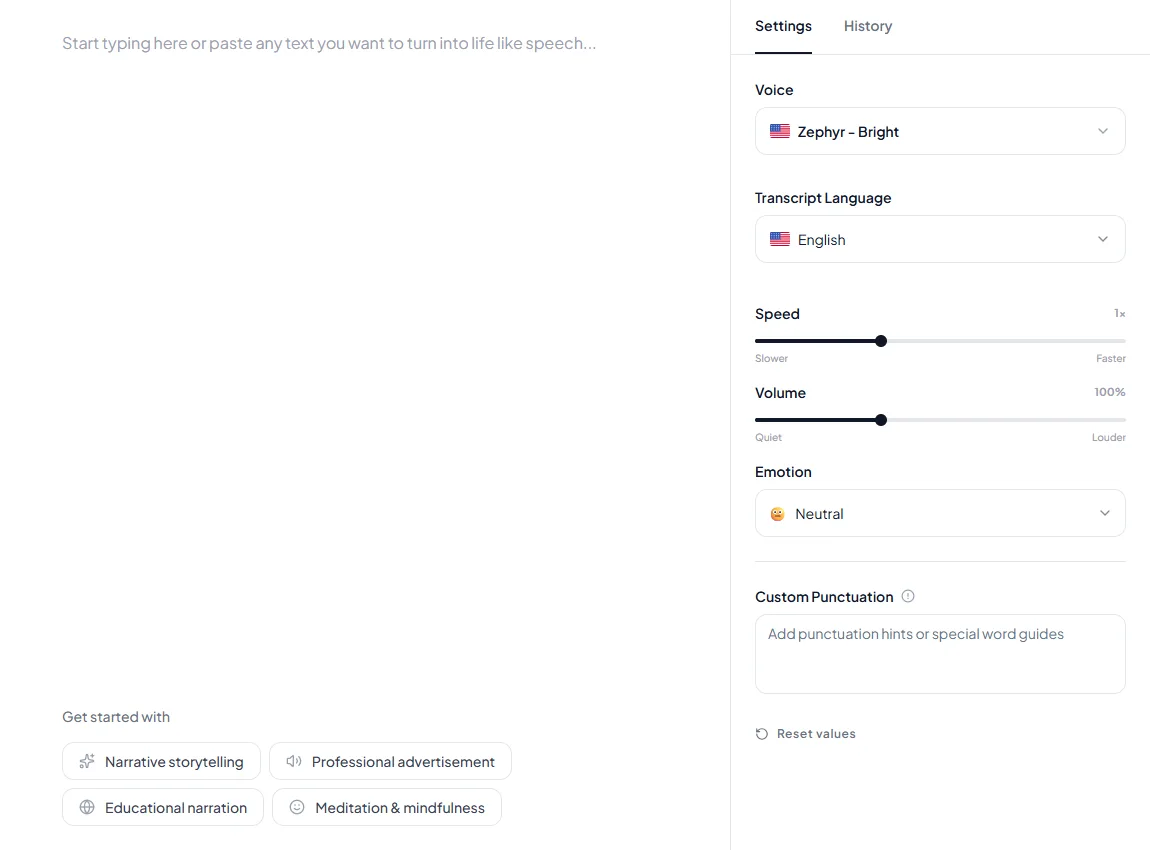
3. Adjust speed, volume and emotion, and add custom punctuation hints.
4. Download the result as an audio file.
A good split: use iOS text to speech to proofread a script by ear, then export the final voiceover from a generator.
### How Kveeky helps
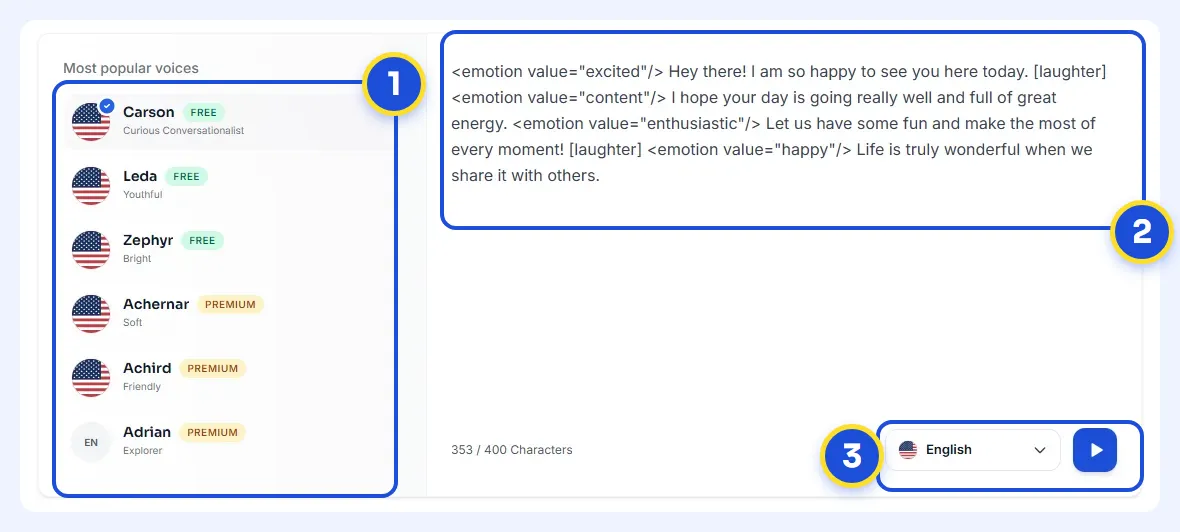
1Pick a voice. Voices are tagged Free or Premium.
2Type or paste a short line. Pick an emotion if you want one.
3Choose the language and press play to hear it.
Try it yourself in the free voice demo on Kveeky, no sign-up needed. For longer scripts and downloads, use the free plan.
The free plan gives you 500 credits a month (about 40 seconds) with standard voices and no credit card. Every paid plan includes commercial usage rights, starting at $9/month or $7.50/month billed yearly, as listed on the [Kveeky pricing page](https://kveeky.com/pricing/). If you want to compare more tools that save files, see our guide to [AI text to speech reader and exporter tools](https://kveeky.com/blog/ai-text-to-speech-reader-exporter-tools).
This is the Kveeky text-to-speech editor after you sign in. Paste your script in the text box, then open the Settings tab to pick a Voice and set Speed, Volume and Emotion (6 options). Use Custom Punctuation for pronunciation hints, the same job as Pronunciations on your iPhone.
## Troubleshooting iOS TTS
Most problems come from a setting that's off or a gesture that's slightly wrong.
- **Speak Screen does nothing.** Check that Speak Screen is on in Read & Speak. Start the 2-finger swipe from the very top edge of the screen.
- **No Speak button when you select text.** Turn on Speak Selection, then select the text again.
- **The voice says a word wrongly.** Add the word under Read & Speak > Pronunciations.
- **The voice reads a second language with the wrong accent.** Turn on Detect Languages, or set the right Default Language.
- **The reader picks up menus and ads.** Open the page in Accessibility Reader instead of using Speak Screen.
- **You can't find Read & Speak.** On iOS 18 and earlier, look for Spoken Content instead.
If text to speech fails in other apps or on other devices too, our [text to speech troubleshooting guide](https://kveeky.com/blog/text-to-speech-not-working-troubleshooting-guide) covers more fixes.
## Who else uses TTS
Listening to text helps many people focus or catch mistakes. If you're curious about reading support, we look at the research in [is text to speech beneficial for ADHD](https://kveeky.com/blog/is-text-to-speech-beneficial-for-adhd). On a computer, the same idea works in Word: see our [Microsoft Word text to speech tutorial](https://kveeky.com/blog/microsoft-word-text-to-speech-integration-tutorial). For free tools that go beyond your phone, our roundup of the [best free AI voiceover generators](https://kveeky.com/blog/10-best-free-ai-voice-generatorover-tools) compares 10 options.
On Android or Chrome instead? See our [Google text to speech guide](https://kveeky.com/blog/google-text-to-speech).
## Frequently asked questions
### Does iPhone have built-in text to speech?
Yes. Go to Settings > Accessibility > Read & Speak and turn on Speak Selection or Speak Screen. Speak Selection reads highlighted text, and Speak Screen reads the whole screen when you swipe down with 2 fingers from the top.
### How do I change the text to speech voice on iPhone?
Go to Settings > Accessibility > Read & Speak, then tap Voices and choose a voice and dialect. In the same menu you can set the speaking rate, a default language and custom pronunciations.
### How do I do text to speech on iPad?
The steps are the same as on iPhone. Go to Settings > Accessibility > Read & Speak and turn on Speak Selection or Speak Screen. Then select text and tap Speak, or swipe down with 2 fingers from the top.
### Where is Spoken Content on iPhone?
On iOS 18 and earlier, it's under Settings > Accessibility > Spoken Content. In the iOS 27 User Guide, the same options are under Settings > Accessibility > Read & Speak.
### Can I save iPhone text to speech as an MP3?
Apple's Read & Speak pages describe playback, not saving audio files. To get an audio file, paste your text into a voice generator that exports audio, such as Kveeky.
### Can I use Personal Voice in a YouTube video?
No. Apple says Personal Voice is only for your own personal, noncommercial use, with Live Speech and apps you allow. For published videos, use a voice generator whose plan includes commercial rights.
## How we checked this guide
This guide is written by Hitesh Kumawat for the [Kveeky](https://kveeky.com/) team. **Disclosure: Kveeky makes an AI voice generator.** No Kveeky usage data is used in this guide.
- iPhone steps: Apple iPhone User Guide pages for [Read & Speak](https://support.apple.com/guide/iphone/hear-whats-on-the-screen-or-typed-iph96b214f0/ios) (iOS 27 and [iOS 18](https://support.apple.com/guide/iphone/hear-whats-on-the-screen-or-typed-iph96b214f0/18.0/ios/18.0)), [Accessibility Reader](https://support.apple.com/guide/iphone/read-listen-text-apps-accessibility-reader-iph406a46ab8/ios), [Live Speech](https://support.apple.com/guide/iphone/type-to-speak-iphcf92d2d9b/ios) and [Personal Voice](https://support.apple.com/guide/iphone/record-your-personal-voice-iph51936468d/ios), all retrieved October 6, 2026.
- iPad steps: Apple iPad User Guide, [Read & Speak](https://support.apple.com/guide/ipad/hear-whats-on-the-screen-or-typed-ipad9a247097/ipados) (iPadOS 27), retrieved October 6, 2026.
- Personal Voice requirements: Apple Support article [Create a Personal Voice on iPhone, iPad, or Mac](https://support.apple.com/en-us/104993), published October 13, 2025, retrieved October 6, 2026.
- Kveeky plans and features: [kveeky.com/pricing](https://kveeky.com/pricing/), retrieved October 6, 2026.
Menu names change between iOS versions. If a step doesn't match your screen, check the version selector on Apple's guide page.
Need a voiceover file rather than playback? Paste your script into Kveeky, pick a voice, and download an MP3 to use in your next [YouTube voiceover](https://kveeky.com/voiceover/youtube-videos/).