# Text to Video AI Generator: Create Videos from Text

Published: September 18, 2025 · Author: Hitesh Kumawat

Text to video AI turns written input into video. Generative models such as Google's Veo create new footage from a prompt, while script-to-video tools match your script to stock footage and captions. Most finished videos combine short AI clips with a voiceover, edited together on a timeline.

*Last updated: October 6, 2026. Model specs below come from Google's Veo documentation, checked on that date.*

This guide is for creators and marketers who want to create videos from text without filming. It explains how the technology works and how text-to-video differs from image-to-video. It also covers prompts, and how to add narration so the result feels like one video, not a set of clips.

> **Key Takeaways**
>
> - **2 main types:** generative models create new footage from a prompt; script-to-video tools assemble stock footage, captions and voice around your script.
> - **Clips are short.** Google's Veo 3.1 makes clips of 4, 6 or 8 seconds, so longer videos are built from many clips.
> - **Image-to-video gives more control.** Veo can animate a starting image, or generate between a first and last frame you supply.
> - **Narration works best as its own layer.** Generating one voiceover for the whole script keeps the voice consistent across clips.
> - **Prompts alone don't make you the author.** The US Copyright Office says prompts alone don't provide sufficient human control for copyright.

**On this page:** [What it is](#what-is-text-to-video-ai) · [How it works](#how-text-to-video-works) · [Text vs image input](#text-to-video-vs-image-to-video) · [Step by step](#creating-a-video-from-text) · [Adding a voiceover](#adding-narration) · [Prompts](#writing-prompts) · [Choosing a tool](#choosing-a-generator) · [Limits and rights](#limits-copyright-disclosure) · [FAQ](#frequently-asked-questions)

## What is text to video AI

A text to video AI generator is software that creates a video from written input. That input can be a short prompt, a full script or an article. The tools fall into 3 groups.

<table>
<thead>
<tr><th>Type</th><th>Input</th><th>What you get</th><th>Best for</th></tr>
</thead>
<tbody>
<tr><td>Generative video model</td><td>A prompt describing one shot</td><td>A new, short clip, sometimes with sound</td><td>B-roll, scene openers, product shots, visual ideas</td></tr>
<tr><td>Script-to-video tool</td><td>A script or article</td><td>A video assembled from stock clips, captions and an AI voice</td><td>Social videos, listicles, blog-to-video</td></tr>
<tr><td>Avatar video tool</td><td>A script</td><td>A digital presenter speaking your script</td><td>Training, internal updates, talking-head explainers</td></tr>
</tbody>
</table>

Each type solves a different problem. If you need a presenter, compare avatar tools in our [HeyGen alternatives guide](https://kveeky.com/blog/heygen-alternatives-top-ai-tools). If you want to try generators without paying, start with our list of [free AI video generation tools](https://kveeky.com/blog/free-ai-video-generation-tools-to-try).

<div style="margin:28px 0;padding:20px 22px;background:var(--kv-blue-50);border:1px solid var(--kv-blue-100);border-radius:var(--kv-radius-lg);box-shadow:var(--kv-shadow-sm)"><div style="font:700 17px/1.3 var(--kv-font-heading);color:var(--kv-blue-950);margin-bottom:6px">Which type of tool do you need?</div><p style="margin:0 0 14px;font:400 15px/1.5 var(--kv-font-body);color:var(--kv-gray-600)">Tap the sentence that sounds like your project.</p><div style="display:flex;flex-direction:column;gap:8px"><button type="button" class="tv-opt" data-i="0" aria-pressed="false" style="min-height:44px;padding:8px 14px;text-align:left;border:1px solid var(--kv-blue-700);border-radius:var(--kv-radius-md);background:var(--kv-white);color:var(--kv-blue-700);font:600 15px/1.35 var(--kv-font-body);cursor:pointer">I need a presenter speaking to camera</button><button type="button" class="tv-opt" data-i="1" aria-pressed="false" style="min-height:44px;padding:8px 14px;text-align:left;border:1px solid var(--kv-blue-700);border-radius:var(--kv-radius-md);background:var(--kv-white);color:var(--kv-blue-700);font:600 15px/1.35 var(--kv-font-body);cursor:pointer">I have a script or article and want a fast social video</button><button type="button" class="tv-opt" data-i="2" aria-pressed="false" style="min-height:44px;padding:8px 14px;text-align:left;border:1px solid var(--kv-blue-700);border-radius:var(--kv-radius-md);background:var(--kv-white);color:var(--kv-blue-700);font:600 15px/1.35 var(--kv-font-body);cursor:pointer">I want original short shots or B-roll</button><button type="button" class="tv-opt" data-i="3" aria-pressed="false" style="min-height:44px;padding:8px 14px;text-align:left;border:1px solid var(--kv-blue-700);border-radius:var(--kv-radius-md);background:var(--kv-white);color:var(--kv-blue-700);font:600 15px/1.35 var(--kv-font-body);cursor:pointer">I have a product photo or brand image to animate</button></div><div id="tv-out" aria-live="polite" style="margin-top:14px;padding:14px 16px;background:var(--kv-white);border:1px solid var(--kv-blue-100);border-radius:var(--kv-radius-md);font:400 16px/1.6 var(--kv-font-body);color:var(--kv-gray-800);display:none"></div></div>
<script>
(function(){try{var C=[["Avatar video tool", "It turns a script into a digital presenter. Good for training, internal updates and talking-head explainers.", "/blog/heygen-alternatives-top-ai-tools", "Compare avatar tools in the HeyGen alternatives guide"], ["Script-to-video tool", "It matches your script to stock footage, captions and an AI voice. Results are predictable but less original.", "/blog/free-ai-video-generation-tools-to-try", "Try free AI video generation tools"], ["Generative video model", "It creates a new short clip from a prompt describing one shot, sometimes with sound.", "/blog/ai-video-generation-from-text-prompts", "Read about AI video generation from text prompts"], ["Generative model with image input", "Start from your image so you control the first frame. Veo can also use a first and last frame, or up to 3 reference images.", "/blog/ultimate-guide-to-ai-video-generation", "Read the ultimate guide to AI video generation"]],b=document.querySelectorAll(".tv-opt"),o=document.getElementById("tv-out");if(!o||!b.length)return;function pick(k){for(var i=0;i<b.length;i++){var on=i===k;b[i].setAttribute("aria-pressed",on?"true":"false");b[i].style.background=on?"var(--kv-blue-700)":"var(--kv-white)";b[i].style.color=on?"var(--kv-white)":"var(--kv-blue-700)"}o.style.display="block";o.innerHTML="<strong>"+C[k][0]+".</strong> "+C[k][1]+' <a href="'+C[k][2]+'" style="color:var(--kv-blue-700);font-weight:600">'+C[k][3]+"</a>."}for(var i=0;i<b.length;i++){(function(k){b[k].addEventListener("click",function(){pick(k)})})(i)}}catch(e){}})();
</script>


## How text to video works

Generative text-to-video models work in 3 broad stages. The details vary by model, but the idea is the same.

1. **Understanding the text.** The model converts your prompt into a numerical representation of its meaning: the subject, the action, the setting and the style.
2. **Generating frames.** Many current models use diffusion. They start from random noise and refine it step by step into frames that match the prompt.
3. **Keeping frames consistent.** The hard part is temporal consistency: a person or object has to look the same and move smoothly from one frame to the next.

Script-to-video tools work differently. They break your script into scenes, search a stock library for matching footage, add captions and attach an AI voice. They don't invent new footage, so results are more predictable but less original.

## Text-to-video vs image-to-video

Text-to-video starts from words only. Image-to-video starts from a picture you supply, so you control how the first frame looks.

Google's Veo 3.1 documentation shows the options side by side. You can generate from a text prompt alone, animate "an initial image", or generate a clip "by specifying the first and last frames". You can also add up to 3 reference images to keep a person, character or product looking the same.

<table>
<thead>
<tr><th>Input</th><th>What you control</th><th>Use it when</th></tr>
</thead>
<tbody>
<tr><td>Text only</td><td>The idea; the model decides the look</td><td>You're exploring ideas or need generic B-roll</td></tr>
<tr><td>Starting image</td><td>The first frame and its style</td><td>You have a product photo, illustration or brand image</td></tr>
<tr><td>First and last frame</td><td>Where the shot starts and ends</td><td>You need a specific transition or reveal</td></tr>
<tr><td>Reference images</td><td>How a person, character or product looks</td><td>You need the same subject across several clips</td></tr>
</tbody>
</table>

For brand and product work, image-to-video usually wastes fewer attempts. For quick ideas and abstract visuals, text-only is faster.

## Creating a video from text

Here's a workflow that turns a script into a finished video. It works whether you use a generative model, stock footage or both.

1. **Write the script first.** Keep it to the length you need, at about 1 sentence per shot. Our guide to [writing an AI voiceover script](/blog/ai-voiceover-script) has templates.
2. **Generate the voiceover.** Record or generate narration for the full script before you make visuals. The voice sets the pacing.
3. **Plan the shots.** Mark where each shot changes in the script, and write one prompt per shot.
4. **Generate or collect visuals.** Use a text-to-video model for key shots, and stock footage or screen recordings for the rest.
5. **Assemble on a timeline.** Cut each clip to the voiceover, then add music under the narration.
6. **Add captions and review.** Many viewers watch without sound, so captions matter. Watch the whole video once before you export.

Expect to regenerate some shots. Our guide on [how long it takes to make a video with AI](https://kveeky.com/blog/time-required-for-ai-video-creation-process) and the overview of text-to-video models breaks down time by stage, including vendor-documented render times.

## Adding narration

Some models now generate audio with the video. Veo 3.1 generates audio natively, and its docs suggest putting speech in quotes in the prompt. That's useful for short clips with a line of dialogue or sound effects.

For a narrated video, a separate voiceover usually works better. Each clip is only a few seconds long, so per-clip speech can drift in tone and pacing between clips. One voiceover track for the whole script keeps the narrator consistent from start to finish.

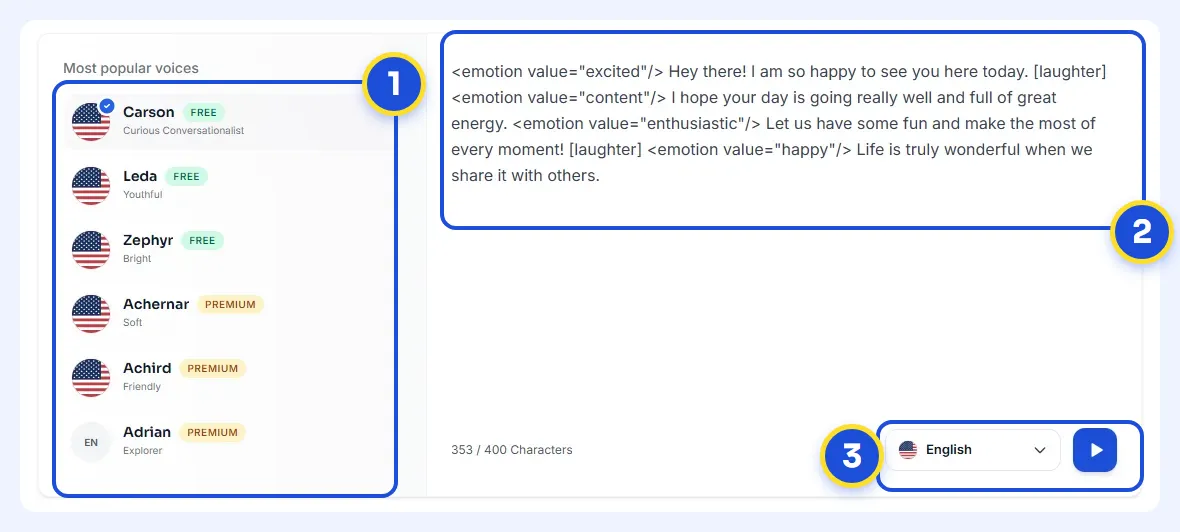
Here's how to make that track in [Kveeky](https://kveeky.com):

1. Paste your full script and choose from 700+ voices across 40+ languages.
2. Set the speed and volume, and pick an emotion (Neutral, Happy, Love, Angry, Calm or Sad) that fits the video.
3. Generate, listen once and regenerate any line that sounds off.
4. Download the audio and use it as the spine of your edit.

Kveeky makes the voice, not the video. The free plan gives 500 credits a month (about 40 seconds) with no credit card, which covers several short videos. Our [guide to AI voiceover for video](https://kveeky.com/blog/ai-voiceover-for-video) covers editing the narration onto your timeline.

<div style="margin:28px 0;padding:20px 22px;background:var(--kv-blue-50);border:1px solid var(--kv-blue-100);border-radius:var(--kv-radius-lg);box-shadow:var(--kv-shadow-sm)"><div style="font:700 17px/1.3 var(--kv-font-heading);color:var(--kv-blue-950);margin-bottom:6px">Size your voiceover and your free credits</div><p style="margin:0 0 14px;font:400 15px/1.5 var(--kv-font-body);color:var(--kv-gray-600)">Estimate only. It assumes about 150 words a minute and the free plan's 500 credits a month (about 40 seconds, 40 seconds).</p><div style="display:flex;flex-wrap:wrap;gap:12px"><div style="flex:1 1 200px"><label for="tv-shots" style="display:block;margin:0 0 4px;font:600 15px/1.4 var(--kv-font-body);color:var(--kv-gray-800)">Number of shots</label><input id="tv-shots" type="number" inputmode="numeric" min="1" value="5" style="width:100%;box-sizing:border-box;min-height:44px;padding:0 12px;border:1px solid var(--kv-gray-300);border-radius:var(--kv-radius-md);background:var(--kv-white);color:var(--kv-gray-900);font:400 16px/1.4 var(--kv-font-body)"></div><div style="flex:1 1 200px"><label for="tv-len" style="display:block;margin:0 0 4px;font:600 15px/1.4 var(--kv-font-body);color:var(--kv-gray-800)">Seconds per shot</label><select id="tv-len" style="width:100%;box-sizing:border-box;min-height:44px;padding:0 12px;border:1px solid var(--kv-gray-300);border-radius:var(--kv-radius-md);background:var(--kv-white);color:var(--kv-gray-900);font:400 16px/1.4 var(--kv-font-body)"><option value="4">4 seconds</option><option value="6" selected>6 seconds</option><option value="8">8 seconds</option></select></div></div><div id="tv-est" aria-live="polite" style="margin-top:14px;padding:14px 16px;background:var(--kv-white);border:1px solid var(--kv-blue-100);border-radius:var(--kv-radius-md);font:400 16px/1.6 var(--kv-font-body);color:var(--kv-gray-800)"></div><p style="margin:10px 0 0;margin:0 0 14px;font:400 15px/1.5 var(--kv-font-body);color:var(--kv-gray-600)">The 4, 6 and 8 second options are the Veo 3.1 clip lengths named in this guide. For other scripts, use the <a href="https://kveeky.com/resources/words-to-minutes-calculator" style="color:var(--kv-blue-700)">words to minutes calculator</a>.</p></div>
<script>
(function(){try{var s=document.getElementById("tv-shots"),l=document.getElementById("tv-len"),o=document.getElementById("tv-est");if(!s||!l||!o)return;function u(){var n=Math.max(0,Math.floor(+s.value||0)),sec=n*(+l.value);if(!sec){o.textContent="Enter the number of shots.";return}var w=Math.round(sec/60*150),cr=Math.round(sec*500/40),v=Math.floor(40/sec);o.innerHTML="<strong>"+n+" shots = "+sec+" seconds.</strong> Aim for about "+w+" words of narration. That uses roughly "+cr+" of your 500 free credits"+(v>=1?", so about "+v+" video"+(v===1?"":"s")+" of this length fit in a free month.":". It is longer than the whole free monthly allowance; see the pricing page.")}s.addEventListener("input",u);l.addEventListener("change",u);u()}catch(e){}})();
</script>


<figure style="margin:28px 0;padding:0"><a href="https://kveeky.com/"><img src="https://cdn.kveeky.com/portals/public-uploads/c033eba2-39d4-4683-a5a9-c8cf2ffc6d01.webp" alt="The Kveeky homepage voice demo with three numbered areas: the voice list, the script box and the language and play controls." width="1180" height="532" loading="lazy" decoding="async" style="display:block;width:100%;height:auto;border-radius:14px;border:1px solid #dbeafe"></a><figcaption style="margin-top:12px"><ol style="margin:0;padding:0"><li style="display:flex;gap:10px;align-items:flex-start;margin:0 0 6px;padding:0;list-style:none"><span style="flex:0 0 24px;height:24px;border-radius:50%;background:#1d4ed8;color:#fff;font:700 13px/24px var(--kv-font-heading);text-align:center">1</span><span style="font:400 15px/1.5 var(--kv-font-body);color:#1f2937"><span style="font-weight:700">Pick a voice.</span> Voices are tagged Free or Premium.</span></li><li style="display:flex;gap:10px;align-items:flex-start;margin:0 0 6px;padding:0;list-style:none"><span style="flex:0 0 24px;height:24px;border-radius:50%;background:#1d4ed8;color:#fff;font:700 13px/24px var(--kv-font-heading);text-align:center">2</span><span style="font:400 15px/1.5 var(--kv-font-body);color:#1f2937"><span style="font-weight:700">Type or paste a short line.</span> Pick an emotion if you want one.</span></li><li style="display:flex;gap:10px;align-items:flex-start;margin:0 0 6px;padding:0;list-style:none"><span style="flex:0 0 24px;height:24px;border-radius:50%;background:#1d4ed8;color:#fff;font:700 13px/24px var(--kv-font-heading);text-align:center">3</span><span style="font:400 15px/1.5 var(--kv-font-body);color:#1f2937"><span style="font-weight:700">Choose the language and press play</span> to hear it.</span></li></ol><p style="margin:6px 0 0;font:400 14px/1.5 var(--kv-font-body);color:#6b7280">Try it yourself in the free voice demo on <a href="https://kveeky.com/" style="font:inherit;color:#1d4ed8">Kveeky</a>, no sign-up needed. For longer scripts and downloads, use the free plan.</p></figcaption></figure>

## Writing prompts

Specific prompts waste fewer generations. Google's Veo prompt guide lists the elements to include:

- **Subject:** the person, object, animal or scenery in the shot.
- **Action:** what the subject is doing, such as walking or turning their head.
- **Style:** film or art style keywords.
- **Camera:** optional terms like "aerial view" or "dolly shot".
- **Ambiance:** how color and light shape the scene.
- **Audio:** speech in quotes, and sounds described explicitly.

**Example prompt:** "Slow dolly shot toward a ceramic coffee mug on a wooden desk, morning light through a window, steam rising, soft warm colors, shallow depth of field. Quiet room tone and a faint clock ticking."

Write one prompt per shot, not one prompt for the whole video. Then keep the style words the same across prompts so the clips match.

<div style="margin:28px 0;padding:20px 22px;background:var(--kv-blue-50);border:1px solid var(--kv-blue-100);border-radius:var(--kv-radius-lg);box-shadow:var(--kv-shadow-sm)"><div style="font:700 17px/1.3 var(--kv-font-heading);color:var(--kv-blue-950);margin-bottom:6px">Build a shot prompt</div><p style="margin:0 0 14px;font:400 15px/1.5 var(--kv-font-body);color:var(--kv-gray-600)">Fill the six elements from Google's Veo prompt guide. Write one prompt per shot. It starts with this guide's example.</p><div style="display:flex;flex-wrap:wrap;gap:12px"><div style="flex:1 1 200px"><label for="tv-camera" style="display:block;margin:0 0 4px;font:600 15px/1.4 var(--kv-font-body);color:var(--kv-gray-800)">Camera</label><input id="tv-camera" type="text" value="Slow dolly shot toward" style="width:100%;box-sizing:border-box;min-height:44px;padding:0 12px;border:1px solid var(--kv-gray-300);border-radius:var(--kv-radius-md);background:var(--kv-white);color:var(--kv-gray-900);font:400 16px/1.4 var(--kv-font-body)"></div><div style="flex:1 1 200px"><label for="tv-subject" style="display:block;margin:0 0 4px;font:600 15px/1.4 var(--kv-font-body);color:var(--kv-gray-800)">Subject</label><input id="tv-subject" type="text" value="a ceramic coffee mug on a wooden desk" style="width:100%;box-sizing:border-box;min-height:44px;padding:0 12px;border:1px solid var(--kv-gray-300);border-radius:var(--kv-radius-md);background:var(--kv-white);color:var(--kv-gray-900);font:400 16px/1.4 var(--kv-font-body)"></div></div><div style="height:12px"></div><div style="display:flex;flex-wrap:wrap;gap:12px"><div style="flex:1 1 200px"><label for="tv-action" style="display:block;margin:0 0 4px;font:600 15px/1.4 var(--kv-font-body);color:var(--kv-gray-800)">Action</label><input id="tv-action" type="text" value="steam rising" style="width:100%;box-sizing:border-box;min-height:44px;padding:0 12px;border:1px solid var(--kv-gray-300);border-radius:var(--kv-radius-md);background:var(--kv-white);color:var(--kv-gray-900);font:400 16px/1.4 var(--kv-font-body)"></div><div style="flex:1 1 200px"><label for="tv-style" style="display:block;margin:0 0 4px;font:600 15px/1.4 var(--kv-font-body);color:var(--kv-gray-800)">Style</label><input id="tv-style" type="text" value="shallow depth of field" style="width:100%;box-sizing:border-box;min-height:44px;padding:0 12px;border:1px solid var(--kv-gray-300);border-radius:var(--kv-radius-md);background:var(--kv-white);color:var(--kv-gray-900);font:400 16px/1.4 var(--kv-font-body)"></div></div><div style="height:12px"></div><div style="display:flex;flex-wrap:wrap;gap:12px"><div style="flex:1 1 200px"><label for="tv-amb" style="display:block;margin:0 0 4px;font:600 15px/1.4 var(--kv-font-body);color:var(--kv-gray-800)">Ambiance</label><input id="tv-amb" type="text" value="morning light through a window, soft warm colors" style="width:100%;box-sizing:border-box;min-height:44px;padding:0 12px;border:1px solid var(--kv-gray-300);border-radius:var(--kv-radius-md);background:var(--kv-white);color:var(--kv-gray-900);font:400 16px/1.4 var(--kv-font-body)"></div><div style="flex:1 1 200px"><label for="tv-audio" style="display:block;margin:0 0 4px;font:600 15px/1.4 var(--kv-font-body);color:var(--kv-gray-800)">Audio</label><input id="tv-audio" type="text" value="Quiet room tone and a faint clock ticking" style="width:100%;box-sizing:border-box;min-height:44px;padding:0 12px;border:1px solid var(--kv-gray-300);border-radius:var(--kv-radius-md);background:var(--kv-white);color:var(--kv-gray-900);font:400 16px/1.4 var(--kv-font-body)"></div></div><div id="tv-prompt" style="margin-top:14px;padding:14px 16px;background:var(--kv-white);border:1px solid var(--kv-blue-100);border-radius:var(--kv-radius-md);font:400 16px/1.6 var(--kv-font-body);color:var(--kv-gray-800)"></div><div style="display:flex;flex-wrap:wrap;align-items:center;gap:12px;margin-top:12px"><button type="button" id="tv-copy" aria-live="polite" style="min-height:44px;padding:0 18px;border:0;border-radius:var(--kv-radius-md);background:var(--kv-blue-700);color:var(--kv-white);font:600 16px/1 var(--kv-font-body);cursor:pointer">Copy prompt</button></div></div>
<script>
(function(){try{var ids=["camera","subject","action","style","amb","audio"],el={};for(var i=0;i<ids.length;i++){el[ids[i]]=document.getElementById("tv-"+ids[i]);if(!el[ids[i]])return}var out=document.getElementById("tv-prompt"),btn=document.getElementById("tv-copy");if(!out||!btn)return;function v(k){return el[k].value.trim()}function build(){var a=[(v("camera")+" "+v("subject")).trim(),v("action"),v("style"),v("amb")].filter(Boolean).join(", ");var t=a?a+".":"";if(v("audio"))t+=(t?" ":"")+v("audio")+".";return t}function u(){out.textContent=build()||"Fill at least one element."}for(var k in el){el[k].addEventListener("input",u)}u();btn.addEventListener("click",function(){var t=build();function ok(){btn.textContent="Copied";setTimeout(function(){btn.textContent="Copy prompt"},1800)}try{if(navigator.clipboard&&navigator.clipboard.writeText){navigator.clipboard.writeText(t).then(ok,function(){})}else{var r=document.createRange();r.selectNodeContents(out);var s=window.getSelection();s.removeAllRanges();s.addRange(r)}}catch(e){}})}catch(e){}})();
</script>


## Choosing a generator

Compare tools on the things that affect your finished video, not the demo reel.

- **Clip length and resolution.** Check the maximum clip length and whether 1080p or 4K is available on your plan.
- **Image input.** Starting images and reference images give you more control over brand and product shots.
- **Audio.** Decide whether you need generated sound, or just clean visuals to put your own voiceover over.
- **Consistency tools.** Reference images or character features help when the same subject appears in several clips.
- **Commercial terms.** Read what each plan allows, especially free tiers.
- **Price per usable second.** Credits go fast when you regenerate, so estimate cost per clip you actually keep.

## Limits, copyright, disclosure

Text-to-video AI still has clear limits. Clips are short, details can drift between frames, and on-screen text may come out garbled. Plan to fix or replace some shots.

Copyright is the other limit. The US Copyright Office's January 2025 report concludes that copyright doesn't extend to purely AI-generated material, and that "prompts do not alone provide sufficient control". Human contributions, such as your own footage, script and edit, are judged case by case ([US Copyright Office](https://www.copyright.gov/ai/), retrieved 2026-10-06).

Platforms may also require disclosure. YouTube asks creators to disclose realistic AI content, such as a realistic scene that didn't actually happen ([YouTube Help](https://support.google.com/youtube/answer/14328491), retrieved 2026-10-06).

<div style="margin:28px 0;padding:20px 22px;background:var(--kv-white);border:1px solid var(--kv-blue-100);border-radius:var(--kv-radius-lg);box-shadow:var(--kv-shadow-sm)"><div style="font:700 17px/1.3 var(--kv-font-heading);color:var(--kv-blue-950);margin-bottom:6px">Before you export: 6 checks</div><p style="margin:0 0 14px;font:400 15px/1.5 var(--kv-font-body);color:var(--kv-gray-600)">Tick each one as you go. Nothing is saved or sent.</p><label style="display:flex;align-items:flex-start;gap:12px;min-height:44px;padding:8px 0;font:400 16px/1.6 var(--kv-font-body);color:var(--kv-gray-800);cursor:pointer"><input type="checkbox" class="tv-c" style="width:22px;height:22px;margin-top:2px;flex:none;accent-color:var(--kv-blue-700)"><span>I wrote the script first and kept it to about one sentence per shot.</span></label><label style="display:flex;align-items:flex-start;gap:12px;min-height:44px;padding:8px 0;font:400 16px/1.6 var(--kv-font-body);color:var(--kv-gray-800);cursor:pointer"><input type="checkbox" class="tv-c" style="width:22px;height:22px;margin-top:2px;flex:none;accent-color:var(--kv-blue-700)"><span>One voiceover track covers the whole script, so the narrator sounds the same in every clip.</span></label><label style="display:flex;align-items:flex-start;gap:12px;min-height:44px;padding:8px 0;font:400 16px/1.6 var(--kv-font-body);color:var(--kv-gray-800);cursor:pointer"><input type="checkbox" class="tv-c" style="width:22px;height:22px;margin-top:2px;flex:none;accent-color:var(--kv-blue-700)"><span>Each clip is cut to the voiceover, with music kept under the narration.</span></label><label style="display:flex;align-items:flex-start;gap:12px;min-height:44px;padding:8px 0;font:400 16px/1.6 var(--kv-font-body);color:var(--kv-gray-800);cursor:pointer"><input type="checkbox" class="tv-c" style="width:22px;height:22px;margin-top:2px;flex:none;accent-color:var(--kv-blue-700)"><span>I watched for garbled on-screen text and drifting details, and replaced those shots.</span></label><label style="display:flex;align-items:flex-start;gap:12px;min-height:44px;padding:8px 0;font:400 16px/1.6 var(--kv-font-body);color:var(--kv-gray-800);cursor:pointer"><input type="checkbox" class="tv-c" style="width:22px;height:22px;margin-top:2px;flex:none;accent-color:var(--kv-blue-700)"><span>Captions are on, because many viewers watch without sound.</span></label><label style="display:flex;align-items:flex-start;gap:12px;min-height:44px;padding:8px 0;font:400 16px/1.6 var(--kv-font-body);color:var(--kv-gray-800);cursor:pointer"><input type="checkbox" class="tv-c" style="width:22px;height:22px;margin-top:2px;flex:none;accent-color:var(--kv-blue-700)"><span>I checked whether the platform asks me to disclose realistic AI content.</span></label><div id="tv-cout" aria-live="polite" style="margin-top:14px;padding:14px 16px;background:var(--kv-white);border:1px solid var(--kv-blue-100);border-radius:var(--kv-radius-md);font:400 16px/1.6 var(--kv-font-body);color:var(--kv-gray-800)">Ticked 0 of 6.</div></div>
<script>
(function(){try{var b=document.querySelectorAll(".tv-c"),o=document.getElementById("tv-cout");if(!o||!b.length)return;function u(){var n=0;for(var i=0;i<b.length;i++){if(b[i].checked)n++}o.innerHTML=n===b.length?"<strong>All "+n+" ticked.</strong> Export when you are ready.":"Ticked "+n+" of "+b.length+"."}for(var i=0;i<b.length;i++){b[i].addEventListener("change",u)}}catch(e){}})();
</script>

## Frequently asked questions

### What is the best text to video AI?

It depends on the job. Generative models like Google's Veo suit original B-roll and short scenes. Script-to-video tools suit fast social videos from stock footage. Avatar tools suit presenter-led training videos.

### Can text to video AI add a voiceover?

Some can. Veo 3.1 generates audio with each clip, and script-to-video tools often attach an AI voice. For a consistent narrator across a whole video, generate one voiceover track separately and edit the clips to it.

### How long can a text to video AI clip be?

It varies by model. Google's Veo 3.1 makes clips of 4, 6 or 8 seconds. Longer videos are built by combining many clips in an editor.

### What is the difference between text-to-video and image-to-video?

Text-to-video creates a clip from a written prompt only. Image-to-video starts from a picture you supply, such as a first frame, which gives you more control over how the shot looks.

### Can I copyright a video made with text to video AI?

Not the purely AI-generated parts. The US Copyright Office says prompts alone don't provide enough control. Your own script, footage, voiceover and editing choices can still be protected, judged case by case.

### How do I turn text into a video for free?

Write a short script, generate a voiceover with a free AI voice plan, then combine free AI clips or stock footage in a free editor. Add captions before you export.

<div style="margin:28px 0;padding:18px 22px;border:1px solid var(--kv-blue-100);border-radius:var(--kv-radius-lg);background:var(--kv-white)"><div style="font:700 17px/1.3 var(--kv-font-heading);color:var(--kv-blue-950);margin-bottom:6px">Keep reading</div><ul style="margin:8px 0 0;padding-left:20px;font:400 16px/1.6 var(--kv-font-body);color:var(--kv-gray-800)"><li style="margin:0 0 8px">AI video generation from text prompts</li><li style="margin:0 0 8px">Ultimate guide to AI video generation</li><li style="margin:0 0 8px">Understanding text-to-video models</li><li style="margin:0 0 8px"><a href="/blog/how-to-convert-text-to-speech-in-videos" style="color:var(--kv-blue-700);font-weight:600">How to convert text to speech in videos</a></li><li style="margin:0 0 8px"><a href="/blog/ai-voiceover-script" style="color:var(--kv-blue-700);font-weight:600">How to write an AI voiceover script</a></li><li style="margin:0 0 8px"><a href="/blog/best-free-ai-voiceover-tools-for-youtube" style="color:var(--kv-blue-700);font-weight:600">Best free AI voiceover tools for YouTube</a></li><li style="margin:0 0 8px"><a href="https://kveeky.com/pricing" style="color:var(--kv-blue-700);font-weight:600">Kveeky plans and pricing</a></li><li style="margin:0 0 8px"><a href="https://kveeky.com/ai-voices" style="color:var(--kv-blue-700);font-weight:600">Browse the AI voices</a></li></ul></div>

## How we checked this guide

This guide is written by Hitesh Kumawat for the [Kveeky](https://kveeky.com/) team. **Disclosure: Kveeky makes an AI voice generator.** Kveeky doesn't make video.

- Model inputs, clip lengths, audio and prompt guidance come from [Google's Gemini API Veo documentation](https://ai.google.dev/gemini-api/docs/veo), retrieved October 6, 2026.
- Copyright conclusions come from the [US Copyright Office's Copyright and AI, Part 2 report](https://www.copyright.gov/ai/) (January 29, 2025), retrieved October 6, 2026. This isn't legal advice.
- Kveeky plan details come from [kveeky.com/pricing](https://kveeky.com/pricing/). No Kveeky usage data is used in this guide.

Ready to try it? Write a 30-second script, generate the narration on Kveeky's free plan, and build 4 to 6 shots around it. For script and pacing ideas, see our page on [AI voiceover for explainer videos](https://kveeky.com/voiceover/explainer-videos/).
<script type="application/ld+json">
{"@context":"https://schema.org","@type":"FAQPage","mainEntity":[
{"@type":"Question","name":"What is the best text to video AI?","acceptedAnswer":{"@type":"Answer","text":"It depends on the job. Generative models like Google's Veo suit original B-roll and short scenes. Script-to-video tools suit fast social videos from stock footage. Avatar tools suit presenter-led training videos."}},
{"@type":"Question","name":"Can text to video AI add a voiceover?","acceptedAnswer":{"@type":"Answer","text":"Some can. Veo 3.1 generates audio with each clip, and script-to-video tools often attach an AI voice. For a consistent narrator across a whole video, generate one voiceover track separately and edit the clips to it."}},
{"@type":"Question","name":"How long can a text to video AI clip be?","acceptedAnswer":{"@type":"Answer","text":"It varies by model. Google's Veo 3.1 makes clips of 4, 6 or 8 seconds. Longer videos are built by combining many clips in an editor."}},
{"@type":"Question","name":"What is the difference between text-to-video and image-to-video?","acceptedAnswer":{"@type":"Answer","text":"Text-to-video creates a clip from a written prompt only. Image-to-video starts from a picture you supply, such as a first frame, which gives you more control over how the shot looks."}},
{"@type":"Question","name":"Can I copyright a video made with text to video AI?","acceptedAnswer":{"@type":"Answer","text":"Not the purely AI-generated parts. The US Copyright Office says prompts alone don't provide enough control. Your own script, footage, voiceover and editing choices can still be protected, judged case by case."}},
{"@type":"Question","name":"How do I turn text into a video for free?","acceptedAnswer":{"@type":"Answer","text":"Write a short script, generate a voiceover with a free AI voice plan, then combine free AI clips or stock footage in a free editor. Add captions before you export."}}
]}
</script>
