TL;DR
- For Canva text to speech, generate the voice in a text-to-speech tool, download the audio file and upload it to your Canva design. Kveeky has no Canva integration.
On this page
For Canva text to speech, write one short script per page, generate the voice in a text-to-speech tool such as Kveeky, download the audio file and upload it to your Canva design. Kveeky has no Canva integration, so the downloaded audio file is the link between the two.
Last updated: October 29, 2026. Canva details come from canva.com search results on that date; see "How we checked this guide" for what we could not confirm.
Many people want a voice on a Canva presentation, social video or explainer without recording themselves. This guide gives the workflow, the timing math so the voice fits each page, and a checklist for the import.
Key Takeaways
- The workflow is 3 steps. Script each page, generate the audio in Kveeky, upload the audio files to Canva.
- There is no Canva integration. Kveeky doesn’t plug into Canva. You move an audio file by hand.
- One clip per page is easiest to edit. Change a line, generate it again and swap one file.
- 1 credit is 1 character. A 10-second page needs about 125 characters, so the free plan (500 credits, about 40 seconds) covers about 4 pages.
- We could not read Canva’s help pages directly (they returned an access error), so Canva-side details below are marked as such.
On this page: The 3-step workflow · Fit the voice to the page · What Canva says · Import checklist · Where Kveeky fits · FAQ
The 3-step workflow
Canva text to speech works by making the voice outside Canva and importing it. This is the same flow as our Canva voiceover page.
- Script each page. Write the narration for each page of your design as a separate block of text.
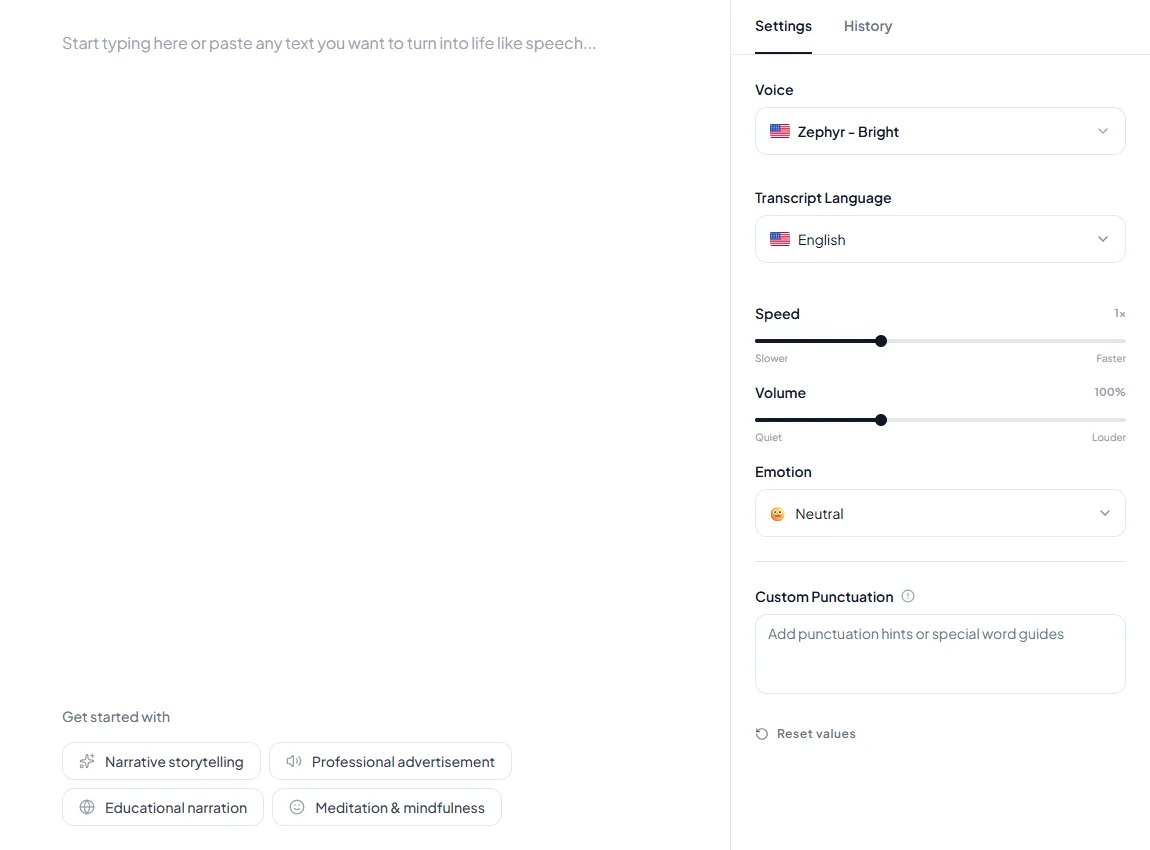
- Generate in Kveeky. Choose a voice, generate the audio and download the files.
- Upload to Canva. Upload the audio files to Canva and place one on each page of your design.
Kveeky handles steps 1 and 2. Step 3 happens in Canva, so follow Canva’s own help for the exact buttons in your version.
Show me: the editor you generate in
The editor you generate in.
Fit the voice to the page
A page of a given length holds a predictable amount of text. At 750 credits per minute of paid audio, 1 credit is 1 character, which is 12.5 characters a second.
| Page length | Narration to write | Credits used |
|---|---|---|
| 5 seconds | 63 characters | 63 credits |
| 10 seconds | 125 characters | 125 credits |
| 15 seconds | 188 characters | 188 credits |
| 20 seconds | 250 characters | 250 credits |
| 30 seconds | 375 characters | 375 credits |
This is our calculation. A 5-page presentation at 10 seconds a page uses about 625 credits, which is just over the 500 on the free plan. For a longer deck, use the words to minutes calculator and the character counter in the Kveeky script tools.
About 125 characters. Paste it into the editor to hear how long a page of this size runs.
What Canva says
Canva’s Help Centre describes uploading your own audio, then trimming, splitting, changing the volume and adding fades once it is on the timeline. It also lists a page on recording a voiceover in the editor. We found these through searches limited to canva.com on October 29, 2026. The help pages themselves returned an access error when we fetched them, so we have not read the full text.
One limit appeared in those results: uploading audio needs an internet connection, so offline editing doesn’t cover it. We could not confirm which audio file types Canva accepts for general uploads, so check Canva’s upload page before you export. If your recording is shorter than the page, Canva’s timeline lets you move the clip, as the Help Centre describes.
Import checklist
Use this list each time you add narration to a design. It keeps the timing and the files in order.
Tick each step as you go. Nothing is stored.
For slides in other tools, see our guide on text to speech for PowerPoint. If you need the file as an MP3, read text to speech MP3, and for editors beyond Canva see how to add a voiceover to a video.
Where Kveeky fits
Kveeky is a good fit when you want a short voiceover for a Canva design in a few minutes. The free plan gives 500 credits a month, about 40 seconds, with standard voices. Sign-up is required and no credit card is needed. Paid plans list commercial usage rights. Basic is $9 a month, or $7.50 a month billed yearly, for about 100 minutes. See the pricing page.
Where Kveeky is weaker: nothing happens inside Canva. If you want to type text and get a voice without leaving the design, check in Canva whether a built-in voice option exists on your plan, and compare the result. For more free tools, see free online text to speech tools.
Paste your first page of narration, pick a voice and download the audio file. Start free on app.kveeky.com. The free plan needs a sign-up and no credit card.
Frequently asked questions
Does Canva have text to speech?
We could not confirm this on Canva’s own pages, because its help pages blocked our fetch on October 29, 2026. Search results from canva.com show a Help Centre page on recording a voiceover in the editor. For a generated voice, the workflow here works whatever Canva offers: make the audio elsewhere and upload it.
Does Kveeky have a Canva integration?
No. Kveeky has no Canva app or plugin. You generate the speech in Kveeky, download the audio file and upload it to your Canva design like any other audio file.
Can I narrate a Canva presentation or video?
Yes. Make one clip per page or scene, upload the clips and place each one under its page or on the video timeline. One clip per page means a later script change only replaces one file.
How long should the narration be for each page?
Match the page length. At 750 credits per minute, 1 credit is 1 character, so a 10-second page holds about 125 characters of narration. Read it aloud once and cut anything you can’t say in the time.
Can I use the audio in a commercial Canva design?
Check the plan. Kveeky lists commercial usage rights on every paid plan and not for Free, so use a paid plan for client or ad work. Canva has its own content and licence terms for the design itself, which we did not verify.
Is it free to add an AI voiceover to Canva?
Partly. Kveeky’s free plan gives 500 credits a month, about 40 seconds of audio, with a sign-up and no credit card. That covers about 4 pages of 10 seconds. Canva’s own plan rules for uploads were not verifiable on the pages we could read.
Conclusion
For Canva text to speech, script each page, generate the audio in Kveeky, upload the files and place one per page. Check the length with the table, then listen to the whole design once before you share it.
How we checked this guide
This guide is written by Mohit Singh for the Kveeky team. Disclosure: Kveeky makes an AI voice generator. Kveeky has no Canva or Chrome integration; the workflow is generate, download, import, as on our own Canva page (kveeky.com/voiceover/canva, retrieved October 29, 2026). Plan facts: kveeky.com/pricing, retrieved October 29, 2026.
Canva: canva.com help pages (add audio, upload media, voiceover) returned an access error (HTTP 403) when we fetched them on October 29, 2026. The Canva details above come from canva.com search results on that date, including the Help Centre pages on Enhance Voice, syncing audio with video, offline editing and recording a voiceover. We left out Canva plan limits, file-type lists and any Canva text-to-speech claim we could not read. Timings are our calculation from 750 credits per minute.
Related guides
- Text to speech for PowerPoint: narrate your slides
- How to add a voiceover to a video
- Text to speech MP3: turn text into an MP3 file
- Voicemail greeting generator and 15 scripts
Turn your script into a voiceover
Paste your text, pick a voice and download the audio. Free to start, no credit card.