# Why Your YouTube Videos Sound Amateur (And It's Not Your Microphone)

Published: June 14, 2026 · Author: Deepak Gupta

Poor YouTube audio quality usually comes from the room, the distance to the mic and the mix, not the microphone. Echo from bare walls, uneven volume, music that buries the voice and no loudness check are the usual causes. Fix the room, record closer, process every voice the same way and export at YouTube's recommended settings.

*Last updated: October 6, 2026. Upload settings were checked against YouTube Help that day.*

This guide is for creators who already own a decent mic but still get a thin, echoey or uneven sound. It works the same whether you record your own voice or use an AI voiceover.

> **Key Takeaways**
>
> - **The room matters more than the mic.** Hard walls and floors bounce your voice back into the mic and make it sound hollow.
> - **Get closer.** Recording a short distance from the mic raises your voice above the room sound.
> - **Use one fixed processing chain:** noise reduction, high-pass filter, EQ, compression and a limiter, in that order.
> - **Measure loudness in LUFS**, the unit defined by ITU-R BS.1770, and keep every video at the same level.
> - **Export at YouTube's recommended audio settings:** AAC-LC or Opus, 48 kHz, stereo at 384 kbps.

**On this page:** [Common causes](#why-youtube-audio-sounds-amateur) · [The room](#fix-the-room-first) · [Mic distance](#get-closer-to-the-mic) · [Processing chain](#the-audio-processing-chain) · [Loudness](#how-loud-youtube-audio-should-be) · [Music and effects](#mixing-music-under-your-voice) · [Export settings](#youtube-audio-upload-settings) · [AI voiceovers](#less-amateur-ai-voiceovers) · [Checklist](#30-second-audio-check) · [FAQ](#frequently-asked-questions)

## Why YouTube audio sounds amateur

Most amateur-sounding audio has one of 5 causes. Match what you hear to the likely cause, then jump to the fix.

<table>
<thead>
<tr><th>What you hear</th><th>Likely cause</th><th>Fix</th></tr>
</thead>
<tbody>
<tr><td>Hollow, echoey, "in a bathroom"</td><td>Sound bouncing off hard walls, floor and ceiling</td><td>Soften the room, record closer</td></tr>
<tr><td>Hiss or hum under the voice</td><td>Background noise, fans, fridge, electrical hum</td><td>Turn off noise sources, then light noise reduction</td></tr>
<tr><td>Muddy or boomy voice</td><td>Too much low end, often from the room</td><td>High-pass filter and a small EQ cut</td></tr>
<tr><td>Volume jumps up and down</td><td>No compression, inconsistent distance</td><td>Compression, steady mic position</td></tr>
<tr><td>Music drowns the voice</td><td>Music mixed too loud</td><td>Lower the music and duck it under speech</td></tr>
</tbody>
</table>

<div style="margin:28px 0;padding:20px 22px;background:var(--kv-blue-50);border:1px solid var(--kv-blue-100);border-radius:var(--kv-radius-md)" onclick="(function(w,e){var k=e.target.closest('[data-k]');if(!k){return}var m={echo:'Likely cause: sound bouncing off hard walls, floor and ceiling. Fix: hang blankets or curtains, add a rug, record in a furnished room and sit about a hand width from the mic. Read next: Fix the room before you buy new gear.',hiss:'Likely cause: background noise such as fans, a fridge or electrical hum. Fix: turn off the noise sources first, then apply light noise reduction. Heavy settings make a voice sound watery.',mud:'Likely cause: too much low end, often from the room. Fix: a high-pass filter starting around 80 Hz and a small EQ cut between 200 and 400 Hz. Read next: The processing chain.',jump:'Likely cause: no compression, or a changing distance to the mic. Fix: keep one mic position for the whole session and add compression to even out loud and quiet words.',mus:'Likely cause: music mixed too loud. Fix: lower the music clearly below the voice and duck it automatically when you speak (sidechain compression). Read next: How to mix music and sound effects under your voice.'};w.querySelectorAll('[data-k]').forEach(function(b){b.setAttribute('aria-pressed','false');b.style.background='var(--kv-white)';b.style.color='var(--kv-blue-700)'});k.setAttribute('aria-pressed','true');k.style.background='var(--kv-blue-700)';k.style.color='var(--kv-white)';document.getElementById('ya-out').textContent=m[k.getAttribute('data-k')]})(this,event)"><div style="font:700 18px/1.3 var(--kv-font-heading);color:var(--kv-blue-950);margin:0 0 8px">What does your audio sound like? Get the fix</div><p style="margin:0 0 12px;font:400 16px/1.6 var(--kv-font-body);color:var(--kv-gray-800)">Tap what you hear. You get the likely cause and the fix from this guide.</p><div style="display:grid;grid-template-columns:repeat(auto-fit,minmax(200px,1fr));gap:10px"><button type="button" data-k="echo" aria-pressed="false" style="min-height:44px;padding:8px 16px;border:1px solid var(--kv-blue-700);border-radius:var(--kv-radius-sm);background:var(--kv-white);color:var(--kv-blue-700);font:600 15px/1.3 var(--kv-font-body);cursor:pointer;text-align:left">Hollow or echoey</button><button type="button" data-k="hiss" aria-pressed="false" style="min-height:44px;padding:8px 16px;border:1px solid var(--kv-blue-700);border-radius:var(--kv-radius-sm);background:var(--kv-white);color:var(--kv-blue-700);font:600 15px/1.3 var(--kv-font-body);cursor:pointer;text-align:left">Hiss or hum</button><button type="button" data-k="mud" aria-pressed="false" style="min-height:44px;padding:8px 16px;border:1px solid var(--kv-blue-700);border-radius:var(--kv-radius-sm);background:var(--kv-white);color:var(--kv-blue-700);font:600 15px/1.3 var(--kv-font-body);cursor:pointer;text-align:left">Muddy or boomy</button><button type="button" data-k="jump" aria-pressed="false" style="min-height:44px;padding:8px 16px;border:1px solid var(--kv-blue-700);border-radius:var(--kv-radius-sm);background:var(--kv-white);color:var(--kv-blue-700);font:600 15px/1.3 var(--kv-font-body);cursor:pointer;text-align:left">Volume jumps around</button><button type="button" data-k="mus" aria-pressed="false" style="min-height:44px;padding:8px 16px;border:1px solid var(--kv-blue-700);border-radius:var(--kv-radius-sm);background:var(--kv-white);color:var(--kv-blue-700);font:600 15px/1.3 var(--kv-font-body);cursor:pointer;text-align:left">Music drowns the voice</button></div><div id="ya-out" aria-live="polite" style="margin:14px 0 0;padding:14px 16px;background:var(--kv-white);border:1px solid var(--kv-blue-100);border-radius:var(--kv-radius-sm);font:400 16px/1.6 var(--kv-font-body);color:var(--kv-gray-800)">Pick an option above.</div></div>

## Fix the room first

A microphone records everything in the room, not just your voice. In a room with bare walls and hard floors, your voice bounces off each surface and reaches the mic a moment later. Those late copies blur your voice and make it sound thin and hollow.

A more expensive mic records that echo just as clearly. Soft materials absorb it instead:

- **Hang heavy blankets** or curtains behind and beside where you sit.
- **Add a rug** if the floor is hard.
- **Record in a smaller, furnished room**, such as a bedroom with a bed and a wardrobe full of clothes.
- **Face into the soft side of the room**, so your voice travels into absorbent material first.

## Get closer to the mic

Distance changes the ratio of voice to room. The closer you are, the louder your voice is compared with the echo and noise around you.

Try recording about a hand's width from the mic, with a pop filter if your "p" and "b" sounds pop. Then keep the same position for the whole session. Moving back and forth is one of the most common causes of uneven volume.

## The audio processing chain

Process every voiceover with the same chain, in the same order. The settings below are common starting points, not fixed rules; adjust them by ear.

1. **Noise reduction.** Remove steady hiss or hum. Use it lightly, because heavy settings make the voice sound watery.
2. **High-pass filter.** Cut the low rumble below the voice, starting around 80 Hz for most voices.
3. **EQ.** If the voice sounds muddy, try a small cut somewhere between 200 and 400 Hz.
4. **Compression.** Even out loud and quiet words, so viewers don't reach for the volume.
5. **De-esser.** Soften harsh "s" sounds if compression made them stand out.
6. **Limiter.** Set a ceiling so peaks never clip.

Save the chain as a preset in your editor. Using the same chain on every video keeps your channel sounding consistent.

<div style="margin:28px 0;padding:20px 22px;background:var(--kv-blue-50);border:1px solid var(--kv-blue-100);border-radius:var(--kv-radius-md)"><div style="font:700 18px/1.3 var(--kv-font-heading);color:var(--kv-blue-950);margin:0 0 8px">Copy: your voice processing preset notes</div><p style="margin:0 0 12px;font:400 16px/1.6 var(--kv-font-body);color:var(--kv-gray-800)">Paste this into your editor's notes or your channel handbook. The values are starting points from this guide; adjust them by ear.</p><div id="yp-t" style="padding:14px 16px;background:var(--kv-white);border:1px solid var(--kv-blue-100);border-radius:var(--kv-radius-sm);font:400 16px/1.6 var(--kv-font-body);color:var(--kv-gray-800)">Voice processing chain (channel preset)<br>1. Noise reduction - light<br>2. High-pass filter - start around 80 Hz<br>3. EQ - small cut between 200 and 400 Hz if the voice is muddy<br>4. Compression - even out loud and quiet words<br>5. De-esser - only if s sounds got harsh<br>6. Limiter - ceiling so peaks never clip, true peak below about -1 dBTP<br>Loudness: one target for the whole channel, for example around -14 LUFS integrated<br>Export: AAC-LC or Opus, 48 kHz, stereo at 384 kbps</div><div style="display:flex;flex-wrap:wrap;align-items:center;gap:12px;margin-top:12px"><button type="button" aria-live="polite" style="min-height:44px;padding:0 18px;border:0;border-radius:var(--kv-radius-sm);background:var(--kv-blue-700);color:var(--kv-white);font:600 16px/1 var(--kv-font-body);cursor:pointer" onclick="var t=document.getElementById('yp-t').innerText,b=this;try{if(navigator.clipboard&&navigator.clipboard.writeText){navigator.clipboard.writeText(t).then(function(){b.textContent='Copied';setTimeout(function(){b.textContent='Copy preset notes'},1800)},function(){})}else{var r=document.createRange();r.selectNodeContents(document.getElementById('yp-t'));var s=window.getSelection();s.removeAllRanges();s.addRange(r)}}catch(x){}">Copy preset notes</button></div></div>

## How loud YouTube audio should be

Measure loudness in LUFS (loudness units relative to full scale). The method comes from ITU-R BS.1770, the international standard for measuring programme loudness and true-peak level. Most editors and free meters show it.

YouTube's upload guidance doesn't state a loudness target. **Our suggestion:** pick one target for your channel, such as around −14 LUFS integrated, and keep true peaks below about −1 dBTP. The exact number matters less than hitting the same level on every video.

Check loudness at the end of the mix, after the limiter. If one video sounds much quieter than the last, viewers notice.

## Mixing music under your voice

Think in layers, with the voice on top:

- **Voice.** The main layer. Everything else supports it.
- **Room tone or ambience.** A quiet, steady bed that stops cuts from sounding dead.
- **Sound effects.** Short, purposeful sounds, such as a click on a screen change.
- **Music.** Set the mood, but stay clearly below the voice.

Use ducking, also called sidechain compression, to lower the music automatically when you speak. If your editor doesn't have it, lower the music by hand under each spoken line.

## YouTube audio upload settings

YouTube processes every upload for playback, so give it a clean, high-quality source. These are YouTube's recommended audio settings for uploads:

<table>
<thead>
<tr><th>Setting</th><th>YouTube's recommendation</th></tr>
</thead>
<tbody>
<tr><td>Container</td><td>MP4, with the moov atom at the front of the file (Fast Start)</td></tr>
<tr><td>Audio codec</td><td>AAC-LC, Opus or Eclipsa Audio</td></tr>
<tr><td>Channels</td><td>Stereo, or stereo + 5.1</td></tr>
<tr><td>Sample rate</td><td>48 kHz</td></tr>
<tr><td>Bitrate</td><td>128 kbps mono, 384 kbps stereo, 512 kbps 5.1</td></tr>
</tbody>
</table>

Keep your project at 48 kHz from the start, so nothing needs converting at export.

<div style="margin:28px 0;padding:20px 22px;background:var(--kv-blue-50);border:1px solid var(--kv-blue-100);border-radius:var(--kv-radius-md)" oninput="(function(){var g=function(i){return document.getElementById(i).value},b=parseFloat(g('yu-b'))||0,m=[],need=g('yu-h')=='mono'?128:384;if(g('yu-c')=='other'){m.push('YouTube recommends AAC-LC or Opus audio')}if(g('yu-r')!='48000'){m.push('export at 48 kHz and keep the project at 48 kHz from the start')}if(b>0){if(b!=need){m.push('YouTube recommends '+need+' kbps for '+g('yu-h')+' (you entered '+b+')')}}else{m.push('enter your bitrate in kbps')}document.getElementById('yu-out').textContent=m.length?'To match YouTube recommended audio settings: '+m.join('; ')+'.':'Your settings match YouTube recommended audio settings.'})()"><div style="font:700 18px/1.3 var(--kv-font-heading);color:var(--kv-blue-950);margin:0 0 8px">Check your export audio settings</div><p style="margin:0 0 12px;font:400 16px/1.6 var(--kv-font-body);color:var(--kv-gray-800)">Pick what your editor will export. The check uses the recommended settings in the table above.</p><div style="display:grid;grid-template-columns:repeat(auto-fit,minmax(150px,1fr));gap:12px"><label style="display:block;font:600 14px/1.4 var(--kv-font-body);color:var(--kv-gray-700)" for="yu-c">Audio codec<select id="yu-c" style="display:block;width:100%;box-sizing:border-box;min-height:44px;margin-top:4px;padding:0 12px;border:1px solid var(--kv-gray-300);border-radius:var(--kv-radius-sm);background:var(--kv-white);color:var(--kv-gray-900);font:400 16px/1.2 var(--kv-font-body)"><option value="aac">AAC-LC</option><option value="opus">Opus</option><option value="other">Something else</option></select></label><label style="display:block;font:600 14px/1.4 var(--kv-font-body);color:var(--kv-gray-700)" for="yu-r">Sample rate<select id="yu-r" style="display:block;width:100%;box-sizing:border-box;min-height:44px;margin-top:4px;padding:0 12px;border:1px solid var(--kv-gray-300);border-radius:var(--kv-radius-sm);background:var(--kv-white);color:var(--kv-gray-900);font:400 16px/1.2 var(--kv-font-body)"><option value="48000">48 kHz</option><option value="44100">44.1 kHz</option><option value="other">Something else</option></select></label><label style="display:block;font:600 14px/1.4 var(--kv-font-body);color:var(--kv-gray-700)" for="yu-h">Channels<select id="yu-h" style="display:block;width:100%;box-sizing:border-box;min-height:44px;margin-top:4px;padding:0 12px;border:1px solid var(--kv-gray-300);border-radius:var(--kv-radius-sm);background:var(--kv-white);color:var(--kv-gray-900);font:400 16px/1.2 var(--kv-font-body)"><option value="stereo">Stereo</option><option value="mono">Mono</option></select></label><label style="display:block;font:600 14px/1.4 var(--kv-font-body);color:var(--kv-gray-700)" for="yu-b">Bitrate (kbps)<input id="yu-b" type="number" inputmode="numeric" min="0" step="any" placeholder="e.g. 384" style="display:block;width:100%;box-sizing:border-box;min-height:44px;margin-top:4px;padding:0 12px;border:1px solid var(--kv-gray-300);border-radius:var(--kv-radius-sm);background:var(--kv-white);color:var(--kv-gray-900);font:400 16px/1.2 var(--kv-font-body)"></label></div><div id="yu-out" aria-live="polite" style="margin:14px 0 0;padding:14px 16px;background:var(--kv-white);border:1px solid var(--kv-blue-100);border-radius:var(--kv-radius-sm);font:400 16px/1.6 var(--kv-font-body);color:var(--kv-gray-800)">Choose your settings and enter a bitrate.</div></div>

## Less amateur AI voiceovers

AI voices arrive without room echo or mouth clicks, but they can still sound flat or rushed. The fixes are in the script and the settings:

- **Write for the ear.** Short sentences, one idea each, and commas where you'd pause.
- **Slow down slightly.** A small speed reduction often sounds more natural than the default.
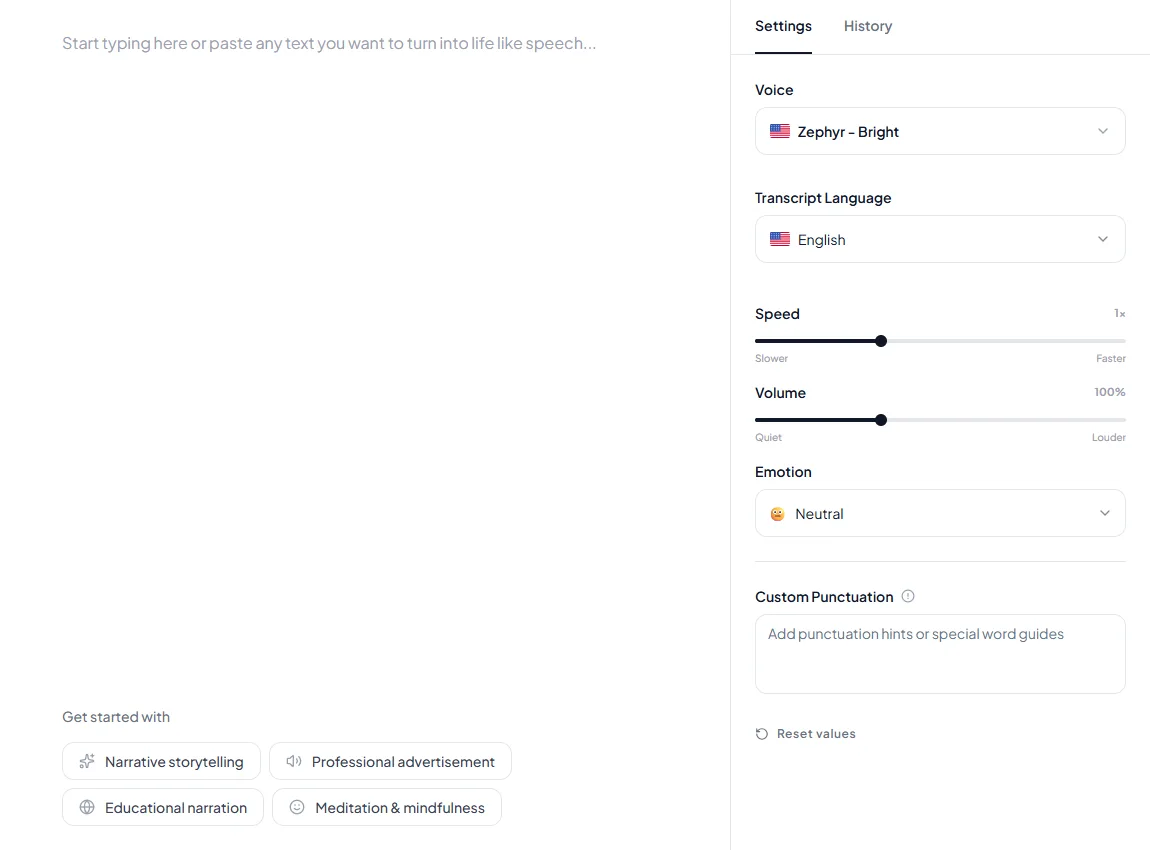
- **Add emotion where the script needs it.** In <a href="https://kveeky.com" style="color:var(--kv-blue-700)">Kveeky</a>, pick one of 6 emotions (Neutral, Happy, Love, Angry, Calm or Sad) in the Settings panel to change how a line is read.
- **Download the audio for editing.** Open the downloaded file in your editor and process it like any recording.
- **Still mix it.** Run the AI voice through the same EQ, compression and loudness steps as a recorded voice.

For more on delivery, our guide to [making an AI voiceover sound less robotic](https://kveeky.com/blog/how-to-make-your-ai-voiceover-sound-less-robotic-in-5-minutes) covers pacing and emphasis. To pick a tool first, see our comparison of [free AI voiceover tools for YouTube creators](https://kveeky.com/blog/best-free-ai-voiceover-tools-for-youtube).

<figure style="margin:28px 0;padding:0"><img src="/blog/product/app-text-to-speech.webp" alt="The Kveeky text-to-speech editor with a script box and a settings panel showing Voice, Transcript Language, Speed, Volume, Emotion and Custom Punctuation." width="1150" height="850" loading="lazy" decoding="async" style="display:block;width:100%;max-width:100%;height:auto;border-radius:var(--kv-radius-md);border:1px solid var(--kv-blue-100)"><figcaption style="margin-top:12px;font:400 15px/1.5 var(--kv-font-body);color:var(--kv-gray-600)">Where to shape an AI voice in the Kveeky editor: choose the Voice, lower Speed slightly, choose one of 6 Emotions and add Custom Punctuation for pauses and word guides in Settings, then press Generate speech. Change one setting at a time and listen before the next.</figcaption></figure>

<div style="margin:28px 0;padding:20px 22px;background:var(--kv-blue-50);border:1px solid var(--kv-blue-100);border-radius:var(--kv-radius-md)" oninput="(function(){var n=function(i){return parseFloat(document.getElementById(i).value)||0},f=function(x,d){return x.toFixed(d===undefined?1:d)},t='';var w=n('yw-w'),sec=w/150*60;if(!(w>0)){t='Enter the number of words.'}else{t='About '+f(sec,0)+' seconds ('+f(sec/60)+' min) at 150 words a minute, about '+Math.round(sec*500/40)+' credits. ';t+=sec>40?'That is longer than a month of the free plan (about 40 seconds), so check the pricing page.':'About '+Math.floor(40/sec)+' scripts this size fit in the free plan each month.'};document.getElementById('yw-out').textContent=t})()"><div style="font:700 18px/1.3 var(--kv-font-heading);color:var(--kv-blue-950);margin:0 0 8px">Estimator: how long is your AI voiceover script?</div><p style="margin:0 0 12px;font:400 16px/1.6 var(--kv-font-body);color:var(--kv-gray-800)">Paste your script into a word counter, enter the count here and see the audio length and credits. The free plan is 500 credits a month, about 40 seconds.</p><div style="display:grid;grid-template-columns:repeat(auto-fit,minmax(150px,1fr));gap:12px"><label style="display:block;font:600 14px/1.4 var(--kv-font-body);color:var(--kv-gray-700)" for="yw-w">Words in your script<input id="yw-w" type="number" inputmode="decimal" min="0" step="any" placeholder="e.g. 300" style="display:block;width:100%;box-sizing:border-box;min-height:44px;margin-top:4px;padding:0 12px;border:1px solid var(--kv-gray-300);border-radius:var(--kv-radius-sm);background:var(--kv-white);color:var(--kv-gray-900);font:400 16px/1.2 var(--kv-font-body)"></label></div><div id="yw-out" aria-live="polite" style="margin:14px 0 0;padding:14px 16px;background:var(--kv-white);border:1px solid var(--kv-blue-100);border-radius:var(--kv-radius-sm);font:400 16px/1.6 var(--kv-font-body);color:var(--kv-gray-800)">Fill in the boxes above to see your result.</div><p style="margin:10px 0 0;font:400 14px/1.5 var(--kv-font-body);color:var(--kv-gray-600)">Not counting words yet? The <a href="https://kveeky.com/resources/words-to-minutes-calculator" style="color:var(--kv-blue-700)">words to minutes calculator</a> does it for you.</p></div>

### How Kveeky helps

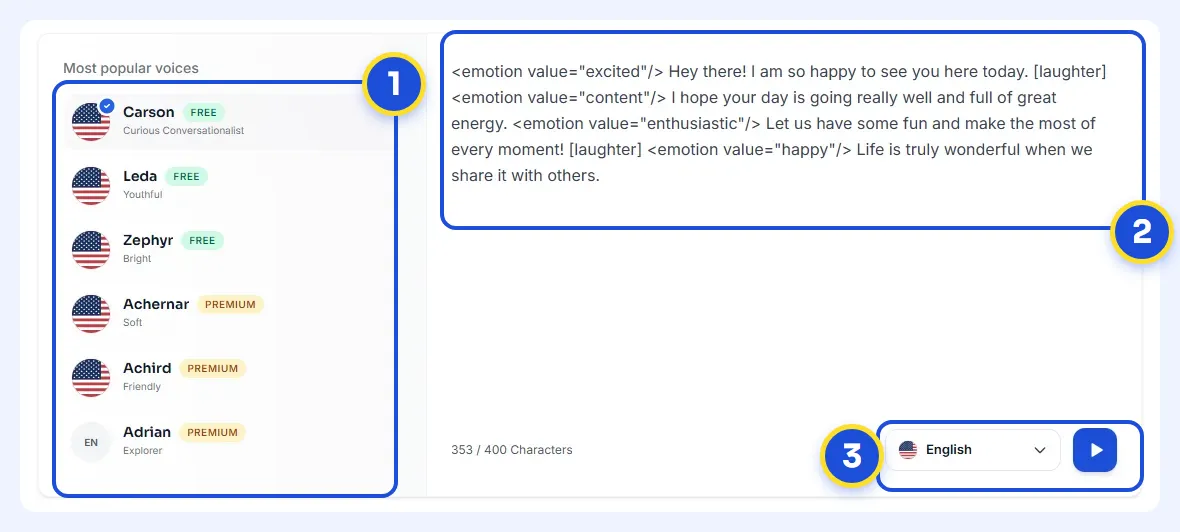
<figure style="margin:28px 0;padding:0"><a href="https://kveeky.com/"><img src="https://cdn.kveeky.com/portals/public-uploads/c033eba2-39d4-4683-a5a9-c8cf2ffc6d01.webp" alt="The Kveeky homepage voice demo with three numbered areas: the voice list, the script box and the language and play controls." width="1180" height="532" loading="lazy" decoding="async" style="display:block;width:100%;height:auto;border-radius:14px;border:1px solid #dbeafe"></a><figcaption style="margin-top:12px"><ol style="margin:0;padding:0"><li style="display:flex;gap:10px;align-items:flex-start;margin:0 0 6px;padding:0;list-style:none"><span style="flex:0 0 24px;height:24px;border-radius:50%;background:#1d4ed8;color:#fff;font:700 13px/24px var(--kv-font-heading);text-align:center">1</span><span style="font:400 15px/1.5 var(--kv-font-body);color:#1f2937"><span style="font-weight:700">Pick a voice.</span> Voices are tagged Free or Premium.</span></li><li style="display:flex;gap:10px;align-items:flex-start;margin:0 0 6px;padding:0;list-style:none"><span style="flex:0 0 24px;height:24px;border-radius:50%;background:#1d4ed8;color:#fff;font:700 13px/24px var(--kv-font-heading);text-align:center">2</span><span style="font:400 15px/1.5 var(--kv-font-body);color:#1f2937"><span style="font-weight:700">Type or paste a short line.</span> Pick an emotion if you want one.</span></li><li style="display:flex;gap:10px;align-items:flex-start;margin:0 0 6px;padding:0;list-style:none"><span style="flex:0 0 24px;height:24px;border-radius:50%;background:#1d4ed8;color:#fff;font:700 13px/24px var(--kv-font-heading);text-align:center">3</span><span style="font:400 15px/1.5 var(--kv-font-body);color:#1f2937"><span style="font-weight:700">Choose the language and press play</span> to hear it.</span></li></ol><p style="margin:6px 0 0;font:400 14px/1.5 var(--kv-font-body);color:#6b7280">Try it yourself in the free voice demo on <a href="https://kveeky.com/" style="font:inherit;color:#1d4ed8">Kveeky</a>, no sign-up needed. For longer scripts and downloads, use the free plan.</p></figcaption></figure>

## 30-second audio check

Listen to the first 30 seconds on headphones, then on a phone speaker. Ask:

1. **Is there hiss or hum** under the voice? Apply light noise reduction.
2. **Does the voice sound hollow?** Fix the room next time; for now, try a little EQ.
3. **Do any words jump out louder?** Add or adjust compression.
4. **Can you hear every word over the music?** Lower or duck the music.
5. **Does the loudness match your last video?** Check the LUFS reading.

<div style="margin:28px 0;padding:20px 22px;background:var(--kv-blue-50);border:1px solid var(--kv-blue-100);border-radius:var(--kv-radius-md)" onchange="(function(w){var all=w.querySelectorAll('input[type=checkbox]'),done=0,todo=[];all.forEach(function(c){if(c.checked){done++}else{todo.push(c.getAttribute('data-fix'))}});var t=done+' of '+all.length+' done. ';t+=todo.length?'Fix: '+todo.join(' | '):'All five pass. Publish.';document.getElementById('yc-out').textContent=t})(this)"><div style="font:700 18px/1.3 var(--kv-font-heading);color:var(--kv-blue-950);margin:0 0 8px">Tick what passes in your first 30 seconds</div><p style="margin:0 0 12px;font:400 16px/1.6 var(--kv-font-body);color:var(--kv-gray-800)">Listen on headphones, then on a phone speaker. Tick each line that is fine and the tool lists what to fix.</p><label style="display:flex;align-items:flex-start;gap:12px;min-height:44px;padding:8px 0;font:400 16px/1.5 var(--kv-font-body);color:var(--kv-gray-800);cursor:pointer"><input type="checkbox" data-fix="apply light noise reduction" style="width:22px;height:22px;margin-top:2px;flex:none;accent-color:var(--kv-blue-700)"><span>No hiss or hum under the voice.</span></label><label style="display:flex;align-items:flex-start;gap:12px;min-height:44px;padding:8px 0;font:400 16px/1.5 var(--kv-font-body);color:var(--kv-gray-800);cursor:pointer"><input type="checkbox" data-fix="fix the room next time and try a little EQ for now" style="width:22px;height:22px;margin-top:2px;flex:none;accent-color:var(--kv-blue-700)"><span>The voice does not sound hollow.</span></label><label style="display:flex;align-items:flex-start;gap:12px;min-height:44px;padding:8px 0;font:400 16px/1.5 var(--kv-font-body);color:var(--kv-gray-800);cursor:pointer"><input type="checkbox" data-fix="add or adjust compression" style="width:22px;height:22px;margin-top:2px;flex:none;accent-color:var(--kv-blue-700)"><span>No words jump out louder than the rest.</span></label><label style="display:flex;align-items:flex-start;gap:12px;min-height:44px;padding:8px 0;font:400 16px/1.5 var(--kv-font-body);color:var(--kv-gray-800);cursor:pointer"><input type="checkbox" data-fix="lower or duck the music" style="width:22px;height:22px;margin-top:2px;flex:none;accent-color:var(--kv-blue-700)"><span>I can hear every word over the music.</span></label><label style="display:flex;align-items:flex-start;gap:12px;min-height:44px;padding:8px 0;font:400 16px/1.5 var(--kv-font-body);color:var(--kv-gray-800);cursor:pointer"><input type="checkbox" data-fix="check the LUFS reading" style="width:22px;height:22px;margin-top:2px;flex:none;accent-color:var(--kv-blue-700)"><span>The loudness matches my last video.</span></label><div id="yc-out" aria-live="polite" style="margin:14px 0 0;padding:14px 16px;background:var(--kv-white);border:1px solid var(--kv-blue-100);border-radius:var(--kv-radius-sm);font:400 16px/1.6 var(--kv-font-body);color:var(--kv-gray-800)">Tick each item as you go.</div></div>

The first 30 seconds matter for retention as well. YouTube Studio's key moments report shows the share of viewers still watching after 30 seconds, which our [AI voice watch time test plan](https://kveeky.com/blog/ai-voice-watch-time-test-youtube) uses as its main metric.

## Frequently asked questions

### Why does my voice sound hollow even with a good microphone?

Your mic is recording sound that bounces off hard walls, floors and ceilings. Move closer to the mic and add soft materials, such as blankets or curtains, around where you record.

### How do I stop music from drowning out my voiceover?

Lower the music well below the voice, then use ducking, also called sidechain compression, to dip the music automatically when you speak. If your editor lacks it, lower the music by hand under each line.

### What audio settings should I use when uploading to YouTube?

YouTube recommends AAC-LC or Opus audio at 48 kHz, in stereo at 384 kbps, inside an MP4 file. Keep your editing project at 48 kHz from the start.

### How loud should my YouTube video be?

YouTube's upload guidance doesn't state a loudness target. Measure in LUFS, pick one level for your channel, such as around −14 LUFS integrated, and keep every video at that level.

### Can AI voiceovers sound professional on YouTube?

Yes, if you write for the ear, adjust speed and emotion, and mix the AI voice like any recording. Download the audio so your EQ, compression and loudness steps start from a clean file.

## How we checked this guide

This guide is written by Deepak Gupta for the [Kveeky team](https://kveeky.com/). **Disclosure: Kveeky makes an AI voice generator.**

- Upload audio settings come from YouTube Help, [recommended upload encoding settings](https://support.google.com/youtube/answer/1722171), retrieved October 6, 2026.
- The LUFS measurement method comes from [Recommendation ITU-R BS.1770](https://www.itu.int/rec/R-REC-BS.1770), retrieved October 6, 2026.
- The 30-second intro metric comes from YouTube Help on [key moments for audience retention](https://support.google.com/youtube/answer/9314415), retrieved October 6, 2026.
- EQ frequencies and the −14 LUFS level are our suggested starting points, not standards. No Kveeky usage data is used in this guide.

Ready to fix your next upload? Save the 6-step chain above as a preset, run the 30-second check, and if you narrate with AI, start from our guide to [AI voiceovers for YouTube videos](https://kveeky.com/voiceover/youtube-videos/). For more creator workflows, see our hub on [AI voiceover for video production](https://kveeky.com/blog/ai-voiceover-for-video).
<div style="margin:28px 0;padding:20px 22px;background:var(--kv-blue-50);border:1px solid var(--kv-blue-100);border-radius:var(--kv-radius-md)"><div style="font:700 18px/1.3 var(--kv-font-heading);color:var(--kv-blue-950);margin:0 0 8px">Keep reading</div><ul style="margin:0;padding-left:22px;font:400 16px/1.6 var(--kv-font-body);color:var(--kv-gray-800)"><li style="margin:0 0 8px"><a href="/blog/ai-voice-for-youtube" style="color:var(--kv-blue-700)">AI voice for YouTube</a> - the complete guide for creators</li><li style="margin:0 0 8px"><a href="/blog/ai-voiceover-script" style="color:var(--kv-blue-700)">How to write an AI voiceover script</a> - techniques and templates</li><li style="margin:0 0 8px"><a href="/blog/adding-personality-to-ai-voices-pacing-pauses-emphasis-tricks" style="color:var(--kv-blue-700)">Adding personality to AI voices</a> - pacing, pauses and emphasis</li><li style="margin:0 0 8px"><a href="/blog/adding-personality-to-ai-voices-pacing-pauses-emphasis-tricks" style="color:var(--kv-blue-700)">Pacing AI voiceovers for complex topics</a></li><li style="margin:0 0 8px"><a href="/blog/ai-voiceover-workflow-30-minutes" style="color:var(--kv-blue-700)">From script to upload in 30 minutes</a></li><li style="margin:0 0 8px"><a href="https://kveeky.com/resources/words-to-minutes-calculator" style="color:var(--kv-blue-700)">Words to minutes calculator</a></li><li style="margin:0 0 8px"><a href="/ai-voices" style="color:var(--kv-blue-700)">Browse AI voices</a></li></ul></div>

<script type="application/ld+json">
{"@context":"https://schema.org","@type":"FAQPage","mainEntity":[
{"@type":"Question","name":"Why does my voice sound hollow even with a good microphone?","acceptedAnswer":{"@type":"Answer","text":"Your mic is recording sound that bounces off hard walls, floors and ceilings. Move closer to the mic and add soft materials, such as blankets or curtains, around where you record."}},
{"@type":"Question","name":"How do I stop music from drowning out my voiceover?","acceptedAnswer":{"@type":"Answer","text":"Lower the music well below the voice, then use ducking, also called sidechain compression, to dip the music automatically when you speak. If your editor lacks it, lower the music by hand under each line."}},
{"@type":"Question","name":"What audio settings should I use when uploading to YouTube?","acceptedAnswer":{"@type":"Answer","text":"YouTube recommends AAC-LC or Opus audio at 48 kHz, in stereo at 384 kbps, inside an MP4 file. Keep your editing project at 48 kHz from the start."}},
{"@type":"Question","name":"How loud should my YouTube video be?","acceptedAnswer":{"@type":"Answer","text":"YouTube's upload guidance doesn't state a loudness target. Measure in LUFS, pick one level for your channel, such as around −14 LUFS integrated, and keep every video at that level."}},
{"@type":"Question","name":"Can AI voiceovers sound professional on YouTube?","acceptedAnswer":{"@type":"Answer","text":"Yes, if you write for the ear, adjust speed and emotion, and mix the AI voice like any recording. Download the audio so your EQ, compression and loudness steps start from a clean file."}}
]}
</script>
