Microsoft Word Text-to-Speech: Complete Integration Tutorial for Document Reading

TL;DR
- This guide covering everything about Microsoft Word's built-in text-to-speech tools like Read Aloud and Speak to help you proofread scripts or listen to documents. You'll learn how to customize voice speed, change languages, and integrate these features into your daily production workflow for better digital storytelling.
Here's how to use text to speech in Microsoft Word: open the Review tab and select Read Aloud. Word reads from your cursor, and the gear icon changes the voice and reading speed. On Windows, Ctrl + Alt + Space starts it. Read Aloud needs Microsoft 365, Office 2019 or Office 2021.
Last updated: October 6, 2026. Every step below comes from Microsoft's own support pages, checked on that date.
This tutorial covers every way Word can read a document to you: Read Aloud, Speak and Immersive Reader, on Windows, Mac, the web and mobile. It ends with fixes for the most common problems.
Key Takeaways
- Read Aloud is the main tool. Review tab > Read Aloud reads all or part of a document (Microsoft Support, retrieved 2026-10-06).
- Speak reads only what you select and is Windows-only. You add it to the Quick Access Toolbar first.
- Word for the web uses Immersive Reader. Go to View > Immersive Reader, then select Play.
- Wrong accent? Fix the proofing language. Read Aloud uses the proofing language set for the document.
- Word plays audio but doesn't export it. Microsoft's pages describe listening, not saving files. Use a voice generator if you need an MP3.
On this page: 3 ways · Windows steps · Shortcuts · Speak · Mac · Web · Mobile · Wrong language · Troubleshooting · Save audio · FAQ
3 ways to use text to speech in Word
Microsoft lists several tools for listening to Word documents. Pick the one that fits your task.
| Tool | What it reads | Where it works | Best for |
|---|---|---|---|
| Read Aloud | All or part of the document, from your cursor | Windows, Mac, iPhone, iPad, Android | Proofreading long documents |
| Speak | Only the text you select | Windows only | Checking a single sentence or paragraph |
| Immersive Reader | The document, in a reading view with tools for focus | Windows, Mac and Word for the web | Reading comprehension and focus |
Microsoft also mentions Narrator, the Windows screen reader, and Speech, a built-in macOS feature. Both read more than just Word.
How to use text to speech in Microsoft Word on Windows
Read Aloud is available in Microsoft 365, Office 2019 and Office 2021.
- Open your document and place the cursor where you want reading to start.
- Select the Review tab, then select Read Aloud.
- Select Play in the controls. Select Pause to stop for a moment.
- Select Previous or Next to move between paragraphs.
- Select Stop (x) to exit Read Aloud.
To hear only part of the document, select that text first, then start Read Aloud.
Change the voice and reading speed
- Select the gear icon in the controls at the top right.
- Drag the Reading speed slider.
- Under Voice Selection, choose the voice you want.
If you have a Microsoft Copilot license, Word may open Interactive Read Aloud instead. It works the same way, and you can unmute to ask Copilot questions about the document.
Word Read Aloud keyboard shortcuts
Shortcuts are faster than the controls once you know them. These come from Microsoft's Read Aloud page.
| Action | Windows | Mac |
|---|---|---|
| Start Read Aloud | Ctrl + Alt + Space | Ctrl + Option + Space |
| Play or pause | Ctrl + Space | Option + Space |
| Start of current paragraph | Ctrl + Left Arrow | — |
| Previous paragraph | Ctrl + Left Arrow + Left Arrow | Option + Up Arrow |
| Next paragraph | Ctrl + Right Arrow | Option + Down Arrow |
| Slower / faster | Alt + Left Arrow / Alt + Right Arrow | — |
How to add Speak to the Quick Access Toolbar
Speak reads only the text you select. It's built into Word, Outlook, PowerPoint and OneNote on Windows, but you add its button first.
- Next to the Quick Access Toolbar, select Customize Quick Access Toolbar.
- Select More Commands.
- In the Choose commands from list, select All Commands.
- Scroll to Speak, select it, then select Add.
- Select OK.
Now select a word or a block of text and choose the Speak icon on the toolbar.
How to use text to speech in Word on a Mac
On a Mac, you can use Read Aloud in Word or the macOS Speech feature.
Read Aloud on Mac
- Select the Review tab, then Read Aloud.
- Use Play, Pause, Previous, Next and Stop (x).
- Select the gear icon to change reading speed and voice.
macOS Speech
Microsoft's steps say to open the Apple menu, then System Preferences, then Accessibility, then Speech. Select Speak selected text when the key is pressed. You can then choose the key combination, voice and speaking rate. Newer macOS versions may use different menu names.
How to use text to speech in Word for the web
Word for the web uses Immersive Reader to read documents aloud.
- Select the View tab, go to Document Views and select Immersive Reader.
- Select the Play button at the bottom.
- Select Pause to stop reading, or the arrow at the top left to exit.
- Select the gear icon to open Voice Settings. Change Voice Speed, and choose Female or Male.
Microsoft notes that some languages have only one voice.
How to use Read Aloud in Word on iPhone, iPad and Android
iPad: tap the menu icon at the top, then tap Read Aloud and Play. Tap the gear icon to change reading speed.
iPhone: tap the pen icon to open the ribbon, then the Review tab. Tap the gear icon, then Read Aloud, then Play. Use the Speech Rate slider under Audio Settings to change speed.
Android phone: tap the menu icon at the top, then tap Read Aloud and Play.
In Word for iPhone, Microsoft says Read Aloud tries to detect the language of the text when you're online, and can read several languages in one document. For iPhone and iPad text to speech outside Word, see our iOS text to speech guide.
How to fix Word reading in the wrong language
Read Aloud uses the proofing language set for the document. If Word reads Spanish with an English accent, the proofing language is probably wrong.
Word for Windows and Mac
- Select the text that's in the other language.
- Go to Review > Language > Set Proofing Language.
- Choose the right language from the list, then start Read Aloud again.
If the language isn't listed, add it first under Review > Language > Language Preferences.
Troubleshooting Word text to speech
- Read Aloud is missing. Make sure you're signed in to your Microsoft 365 account, then restart Word or sign out and back in. Read Aloud also needs Office 2019, Office 2021 or Microsoft 365.
- Neural voices aren't available. Microsoft says you need a stable internet connection and to be signed in to Microsoft 365.
- Speak isn't on the ribbon. Add it to the Quick Access Toolbar using the steps above. It's Windows-only.
- The voice sounds wrong for the language. Set the proofing language for that text.
Microsoft also says Read Aloud doesn't store your content or audio data. For more fixes that apply beyond Word, see our text to speech troubleshooting guide.
Can Word save text to speech as an audio file?
Microsoft's support pages describe listening to documents with Read Aloud, Speak and Immersive Reader. They don't describe saving the speech as an audio file.
If you need an MP3 or WAV, for example to narrate a training video, paste your text into a voice generator. In Kveeky, you paste the script, pick one of 700+ AI voices, set tone, pitch and speed, and download MP3 or WAV. The free plan gives 500 credits a month, about 6.6 minutes, with no credit card.
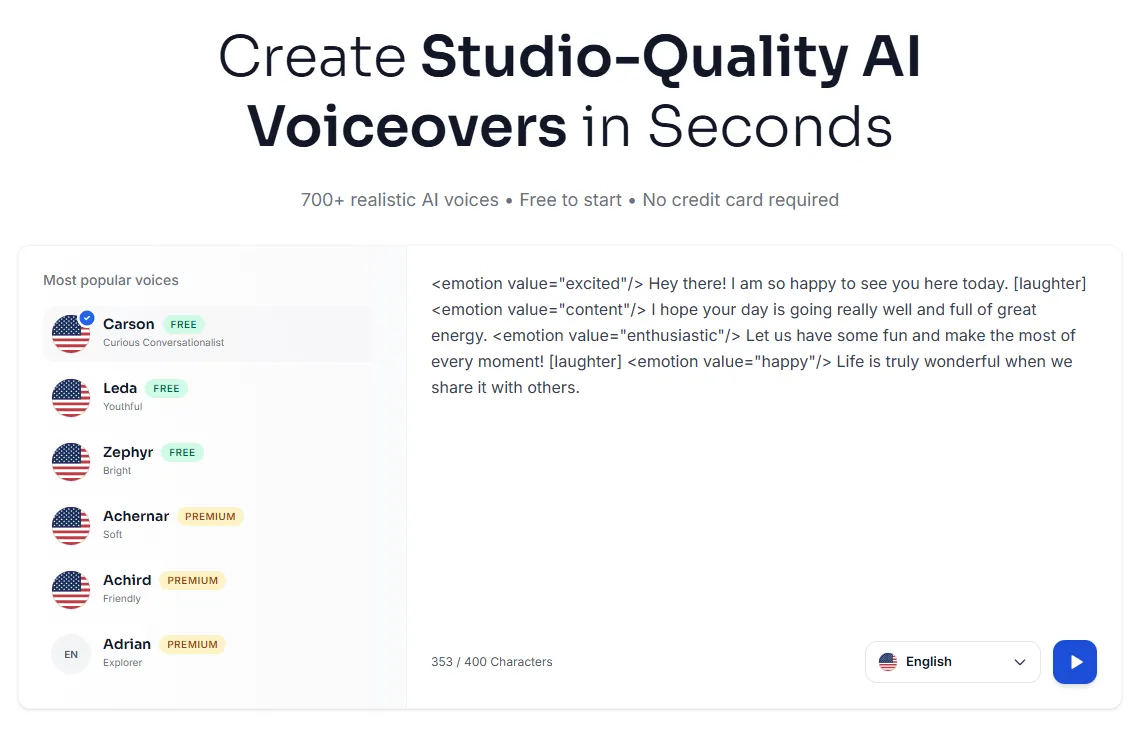
A good workflow is to proof your script with Read Aloud first, then export the final voiceover. Our guide to AI text to speech reader and exporter tools compares tools that do both.
Frequently asked questions
Can you do text to speech on Word?
Yes. Word's Read Aloud reads your document aloud from the Review tab. It's available in Microsoft 365, Office 2019 and Office 2021. Word for the web uses Immersive Reader instead.
How do I activate text to speech in Word?
Open the Review tab and select Read Aloud, or press Ctrl + Alt + Space on Windows. On a Mac, press Ctrl + Option + Space. To read only selected text on Windows, add Speak to the Quick Access Toolbar.
Why is Read Aloud missing in Word?
Make sure you're signed in to your Microsoft 365 account, then restart Word or sign out and back in. Read Aloud also needs Microsoft 365, Office 2019 or Office 2021.
Can I change the Read Aloud voice in Word?
Yes. Select the gear icon in the Read Aloud controls, then choose a voice under Voice Selection and drag the Reading speed slider. In Word for the web, Immersive Reader offers Female or Male voices.
Can Word export text to speech as an MP3?
Microsoft's support pages describe listening, not saving audio files. To get an MP3 or WAV, paste the text into a voice generator that exports audio, such as Kveeky.
How we checked this guide
This guide is written by Deepak Gupta for the Kveeky team. Disclosure: Kveeky makes an AI voice generator. Every Word step comes from Microsoft's own support pages, retrieved October 6, 2026:
- Listen to your Word documents (Read Aloud, Immersive Reader, mobile, shortcuts, troubleshooting, privacy)
- Use the Speak text-to-speech feature to read text aloud
- Set up or change the languages used to check spelling and grammar
Kveeky details come from the Kveeky pricing page. No Kveeky usage data is used in this guide.
Turning a Word document into a narrated lesson? See how Kveeky handles AI voiceovers for training videos, or compare more tools in our 10 best free AI voiceover generators.