# How to Convert Text to Speech in Videos

Published: May 16, 2026 · Author: Ankit Agarwal

To make text to speech videos, write a short script and turn it into audio with a text-to-speech tool. Then add that audio to your video and line up the visuals. You can use the TTS built into some video editors, or an AI voice generator that gives you more voices and exports an MP3 or WAV.

*Last updated: October 6, 2026. Editor features were checked on Microsoft's Clipchamp support page on that date.*

<div style="margin:24px 0;padding:18px 20px;background:var(--kv-blue-50);border:1px solid var(--kv-blue-100);border-radius:var(--kv-radius-md);box-shadow:var(--kv-shadow-xs);border-left:4px solid var(--kv-blue-700)"><div style="font:700 17px/1.3 var(--kv-font-heading);color:var(--kv-blue-950);margin:0 0 8px">Quick answer</div><p style="font:400 16px/1.6 var(--kv-font-body);color:var(--kv-gray-800);margin:0">Write a short script, turn it into audio with a text-to-speech tool, put the audio on your editor's timeline, and cut the visuals to the voice. Use your editor's built-in TTS for quick clips, or an AI voice generator when you want more voices and a file you can reuse. <a href="https://kveeky.com">Kveeky</a>'s free plan gives 500 credits a month (about 40 seconds), no credit card.</p></div>


This guide is for YouTubers, educators, marketers and social media creators who want a voiceover without recording their own voice. It covers the 2 main methods, a 6-step workflow, audio polish and multilingual videos.

> **Key Takeaways**
>
> - **2 ways to do it:** use your video editor's built-in text to speech, or generate the voice in an AI voice tool and import the file.
> - **Built-in TTS is convenient** for quick videos. Clipchamp, for example, lets you choose language, voice, pitch and speed inside the editor.
> - **A separate AI voice tool gives more choice:** Kveeky has 700+ voices in 40+ languages, 6 emotions, and audio download.
> - **Write for the ear first.** Short sentences and clear punctuation do more for quality than any setting.
> - **Generate the voice before you cut the video.** The audio sets the timing, and the visuals follow it.

**On this page:** [2 methods](#2-ways-to-make-tts-videos) · [6 steps](#making-tts-videos-in-6-steps) · [Built-in editor TTS](#tts-inside-a-video-editor) · [Audio polish](#fitting-the-voice-to-the-video) · [Other languages](#tts-videos-in-other-languages) · [Mistakes](#common-tts-video-mistakes) · [FAQ](#frequently-asked-questions)

<div style="margin:24px 0;padding:18px 20px;background:var(--kv-blue-50);border:1px solid var(--kv-blue-100);border-radius:var(--kv-radius-md);box-shadow:var(--kv-shadow-xs)"><div style="font:700 17px/1.3 var(--kv-font-heading);color:var(--kv-blue-950);margin:0 0 8px">Which method fits your video?</div><p style="font:400 16px/1.6 var(--kv-font-body);color:var(--kv-gray-800);margin:0;margin-bottom:12px">What are you making?</p><div style="display:flex;flex-wrap:wrap;gap:8px"><button type="button" data-d="vm" data-i="0" style="min-height:44px;padding:0 14px;border:1px solid var(--kv-blue-700);border-radius:var(--kv-radius-md);background:var(--kv-white);color:var(--kv-blue-700);font:600 15px/1.2 var(--kv-font-body);cursor:pointer;text-align:left">Quick social clip</button><button type="button" data-d="vm" data-i="1" style="min-height:44px;padding:0 14px;border:1px solid var(--kv-blue-700);border-radius:var(--kv-radius-md);background:var(--kv-white);color:var(--kv-blue-700);font:600 15px/1.2 var(--kv-font-body);cursor:pointer;text-align:left">YouTube or course video</button><button type="button" data-d="vm" data-i="2" style="min-height:44px;padding:0 14px;border:1px solid var(--kv-blue-700);border-radius:var(--kv-radius-md);background:var(--kv-white);color:var(--kv-blue-700);font:600 15px/1.2 var(--kv-font-body);cursor:pointer;text-align:left">Video in another language</button><button type="button" data-d="vm" data-i="3" style="min-height:44px;padding:0 14px;border:1px solid var(--kv-blue-700);border-radius:var(--kv-radius-md);background:var(--kv-white);color:var(--kv-blue-700);font:600 15px/1.2 var(--kv-font-body);cursor:pointer;text-align:left">Many videos in a series</button></div><p id="vm-r" style="font:400 16px/1.6 var(--kv-font-body);color:var(--kv-gray-800);margin:0;margin-top:14px" aria-live="polite">Pick an option to see the suggestion.</p><script>(function(){var R=["Use your editor's built-in text to speech. It is fast, and you do not export or import anything. Check <a href=\"/blog/voice-generator-text-to-speech-on-tiktok\">how TikTok's own text to speech works</a> if you post there.", "Use an AI voice generator and import the audio. You get more voices, control over speed, volume and emotion, and one file you can reuse. See <a href=\"/blog/ai-voice-for-youtube\">AI voice for YouTube</a>.", "Use an AI voice generator with voices in that language, and have a native speaker check the translated script. Browse the <a href=\"/languages/spanish-text-to-speech\">language pages</a> to check coverage first.", "Use one AI voice generator and the same voice every time, so viewers recognise your channel. The <a href=\"/blog/ai-voiceover-workflow-30-minutes\">30-minute workflow</a> keeps it repeatable."],bs=document.querySelectorAll('button[data-d="vm"]'),o=document.getElementById('vm-r');bs.forEach(function(b){b.addEventListener('click',function(){bs.forEach(function(x){x.style.background='var(--kv-white)';x.style.color='var(--kv-blue-700)'});b.style.background='var(--kv-blue-700)';b.style.color='var(--kv-white)';o.innerHTML=R[+b.getAttribute('data-i')]})})})();</script></div>


## 2 ways to make TTS videos

<table>
<thead>
<tr><th>Method</th><th>How it works</th><th>Best for</th><th>Trade-off</th></tr>
</thead>
<tbody>
<tr><td>Built-in editor TTS</td><td>Type text in your video editor; it creates the voice on the timeline</td><td>Quick social clips and simple tutorials</td><td>Fewer voices and delivery controls; tied to that editor</td></tr>
<tr><td>AI voice generator + editor</td><td>Generate the voice in a TTS tool, download the file, import it into any editor</td><td>YouTube, courses, ads and multilingual videos</td><td>One extra step to import the audio</td></tr>
</tbody>
</table>

If you post mostly on TikTok, its in-app voices are a third option. Our guide on [how to use TikTok's text-to-speech feature](https://kveeky.com/blog/voice-generator-text-to-speech-on-tiktok) covers that.

## Making TTS videos in 6 steps

This workflow works with any video editor.

1. **Write the script for the ear.** Use short sentences, contractions and plain words. If you stumble reading it aloud, the AI voice will too.
2. **Pick a voice that fits the video.** A calm voice suits tutorials; a brighter, faster voice suits short social clips.
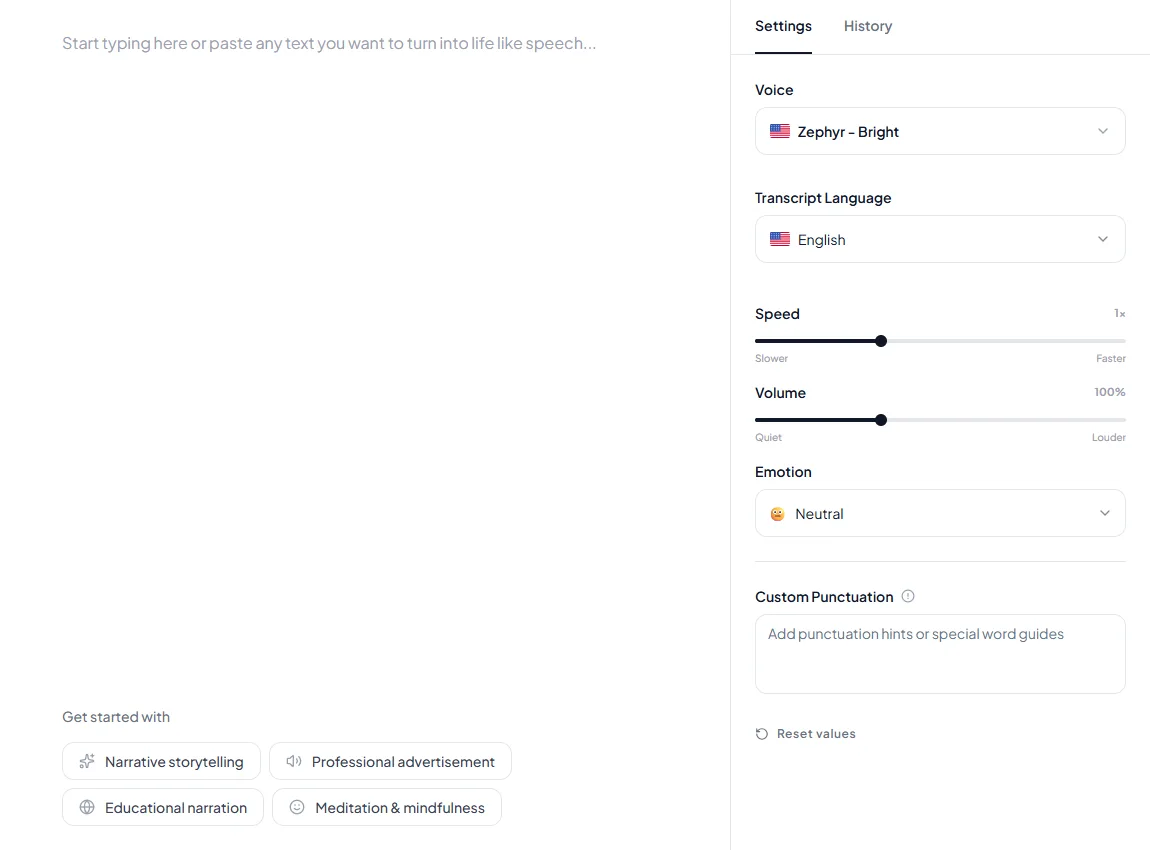
3. **Generate the voiceover.** In Kveeky, paste the script, choose from 700+ voices, and set the speed and volume, and choose an emotion (Neutral, Happy, Love, Angry, Calm or Sad) where a line needs more energy.
4. **Listen once and fix problems.** Re-spell names that sound wrong and add commas where a pause is missing.
5. **Download the audio** and import it into your editor.
6. **Cut the video to the voice.** Place the audio first, then line up each visual with the sentence it belongs to. Add captions and export.

For deeper script tips, see our guide to [writing a script for AI voiceover](https://kveeky.com/blog/ai-voiceover-script). If you're adding a voice to a tutorial or software demo, our [tips for screen recording with voiceover](https://kveeky.com/blog/how-to-convert-text-to-speech-in-videos) help.

<div style="margin:24px 0;padding:18px 20px;background:var(--kv-blue-50);border:1px solid var(--kv-blue-100);border-radius:var(--kv-radius-md);box-shadow:var(--kv-shadow-xs)"><div style="font:700 17px/1.3 var(--kv-font-heading);color:var(--kv-blue-950);margin:0 0 8px">How long will my voiceover be?</div><p style="font:400 16px/1.6 var(--kv-font-body);color:var(--kv-gray-800);margin:0;margin-bottom:12px">Type your word count. The estimate uses 150 words a minute and the free plan figure of 500 credits for about 40 seconds.</p><div style="display:flex;flex-wrap:wrap;gap:12px"><label style="flex:1 1 150px;font:600 14px/1.4 var(--kv-font-body);color:var(--kv-gray-800)">Words in your script<input id="vc-w" type="number" inputmode="decimal" min="0" step="10" value="150" style="box-sizing:border-box;width:100%;min-height:44px;padding:0 12px;border:1px solid var(--kv-gray-300);border-radius:var(--kv-radius-md);background:var(--kv-white);color:var(--kv-gray-900);font:400 16px/1.2 var(--kv-font-body);margin-top:6px"></label></div><p id="vc-o" style="font:400 16px/1.6 var(--kv-font-body);color:var(--kv-gray-800);margin:0;margin-top:14px;font-weight:600" aria-live="polite"></p><p style="font:400 14px/1.5 var(--kv-font-body);color:var(--kv-gray-600);margin:8px 0 0">An estimate only. Real length changes with the voice, the speed setting and your punctuation. Try the <a href="https://kveeky.com/resources/words-to-minutes-calculator">words to minutes calculator</a> for more detail.</p><script>(function(){var ids=["w"],o=document.getElementById('vc-o');function run(){var v={};ids.forEach(function(i){v[i]=parseFloat(document.getElementById('vc-'+i).value)||0});o.innerHTML=(function(v){var s=v.w/150*60,c=Math.round(s*500/40);return 'About '+(s/60).toFixed(1)+' minutes of speech, roughly '+c+' credits. '+(c<=500?'That fits inside the 500 free credits a month.':'That is more than the 500 free credits a month, so split it across months or see the pricing page.')})(v)}ids.forEach(function(i){document.getElementById('vc-'+i).addEventListener('input',run)});run()})();</script></div>

<figure style="margin:28px 0;padding:0"><img src="/blog/product/app-text-to-speech.webp" alt="The Kveeky text-to-speech editor with a script in the text box and the Settings panel showing Voice, Transcript Language, Speed, Volume, Emotion and Custom Punctuation." width="1150" height="850" loading="lazy" decoding="async" style="display:block;width:100%;max-width:100%;height:auto;border-radius:var(--kv-radius-md);border:1px solid var(--kv-blue-100)"><figcaption style="margin-top:12px;font:400 15px/1.5 var(--kv-font-body);color:var(--kv-gray-600)">Steps 3 to 5 happen here. Paste the script into the text box, choose a voice, and open Settings for Speed, Volume and Emotion (6 options). Generate, listen once, then fix names and pauses before you download.</figcaption></figure>


<div style="margin:24px 0;padding:18px 20px;background:var(--kv-blue-50);border:1px solid var(--kv-blue-100);border-radius:var(--kv-radius-md);box-shadow:var(--kv-shadow-xs)"><div style="font:700 17px/1.3 var(--kv-font-heading);color:var(--kv-blue-950);margin:0 0 8px">Before you export: 6-step checklist</div><ul style="margin:0;padding:0"><li style="margin:0 0 6px;list-style:none"><label style="display:flex;gap:10px;align-items:flex-start;min-height:32px;font:400 16px/1.5 var(--kv-font-body);color:var(--kv-gray-800);cursor:pointer"><input type="checkbox" data-ck="vv" style="width:20px;height:20px;margin-top:3px;flex:0 0 20px;accent-color:var(--kv-blue-700)"><span>Script written in short, spoken sentences</span></label></li><li style="margin:0 0 6px;list-style:none"><label style="display:flex;gap:10px;align-items:flex-start;min-height:32px;font:400 16px/1.5 var(--kv-font-body);color:var(--kv-gray-800);cursor:pointer"><input type="checkbox" data-ck="vv" style="width:20px;height:20px;margin-top:3px;flex:0 0 20px;accent-color:var(--kv-blue-700)"><span>Voice chosen and the same one used across the series</span></label></li><li style="margin:0 0 6px;list-style:none"><label style="display:flex;gap:10px;align-items:flex-start;min-height:32px;font:400 16px/1.5 var(--kv-font-body);color:var(--kv-gray-800);cursor:pointer"><input type="checkbox" data-ck="vv" style="width:20px;height:20px;margin-top:3px;flex:0 0 20px;accent-color:var(--kv-blue-700)"><span>Voiceover generated and listened to once</span></label></li><li style="margin:0 0 6px;list-style:none"><label style="display:flex;gap:10px;align-items:flex-start;min-height:32px;font:400 16px/1.5 var(--kv-font-body);color:var(--kv-gray-800);cursor:pointer"><input type="checkbox" data-ck="vv" style="width:20px;height:20px;margin-top:3px;flex:0 0 20px;accent-color:var(--kv-blue-700)"><span>Names and pauses fixed (re-spell, add commas)</span></label></li><li style="margin:0 0 6px;list-style:none"><label style="display:flex;gap:10px;align-items:flex-start;min-height:32px;font:400 16px/1.5 var(--kv-font-body);color:var(--kv-gray-800);cursor:pointer"><input type="checkbox" data-ck="vv" style="width:20px;height:20px;margin-top:3px;flex:0 0 20px;accent-color:var(--kv-blue-700)"><span>Audio downloaded and placed on the timeline first</span></label></li><li style="margin:0 0 6px;list-style:none"><label style="display:flex;gap:10px;align-items:flex-start;min-height:32px;font:400 16px/1.5 var(--kv-font-body);color:var(--kv-gray-800);cursor:pointer"><input type="checkbox" data-ck="vv" style="width:20px;height:20px;margin-top:3px;flex:0 0 20px;accent-color:var(--kv-blue-700)"><span>Visuals cut to the voice, captions on, music lowered under speech</span></label></li></ul><p id="vv-n" style="font:600 14px/1.4 var(--kv-font-body);color:var(--kv-blue-700);margin:8px 0 0" aria-live="polite"></p><script>(function(){var b=document.querySelectorAll('input[data-ck="vv"]'),o=document.getElementById('vv-n'),k='kv-ck-vv',s={};try{s=JSON.parse(localStorage.getItem(k)||'{}')}catch(e){}function u(){var n=0;b.forEach(function(x){if(x.checked)n++});o.textContent=n+' of '+b.length+' done'}b.forEach(function(x,i){x.checked=!!s[i];x.addEventListener('change',function(){s[i]=x.checked;try{localStorage.setItem(k,JSON.stringify(s))}catch(e){}u()})});u()})();</script></div>

### How Kveeky helps

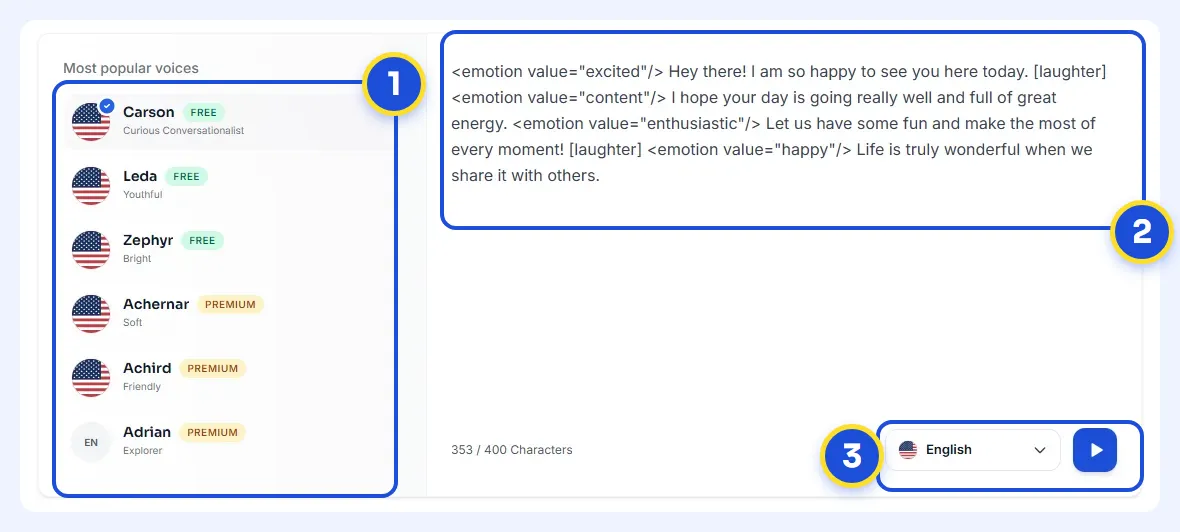
<figure style="margin:28px 0;padding:0"><a href="https://kveeky.com/"><img src="https://cdn.kveeky.com/portals/public-uploads/c033eba2-39d4-4683-a5a9-c8cf2ffc6d01.webp" alt="The Kveeky homepage voice demo with three numbered areas: the voice list, the script box and the language and play controls." width="1180" height="532" loading="lazy" decoding="async" style="display:block;width:100%;height:auto;border-radius:14px;border:1px solid #dbeafe"></a><figcaption style="margin-top:12px"><ol style="margin:0;padding:0"><li style="display:flex;gap:10px;align-items:flex-start;margin:0 0 6px;padding:0;list-style:none"><span style="flex:0 0 24px;height:24px;border-radius:50%;background:#1d4ed8;color:#fff;font:700 13px/24px var(--kv-font-heading);text-align:center">1</span><span style="font:400 15px/1.5 var(--kv-font-body);color:#1f2937"><span style="font-weight:700">Pick a voice.</span> Voices are tagged Free or Premium.</span></li><li style="display:flex;gap:10px;align-items:flex-start;margin:0 0 6px;padding:0;list-style:none"><span style="flex:0 0 24px;height:24px;border-radius:50%;background:#1d4ed8;color:#fff;font:700 13px/24px var(--kv-font-heading);text-align:center">2</span><span style="font:400 15px/1.5 var(--kv-font-body);color:#1f2937"><span style="font-weight:700">Type or paste a short line.</span> Pick an emotion if you want one.</span></li><li style="display:flex;gap:10px;align-items:flex-start;margin:0 0 6px;padding:0;list-style:none"><span style="flex:0 0 24px;height:24px;border-radius:50%;background:#1d4ed8;color:#fff;font:700 13px/24px var(--kv-font-heading);text-align:center">3</span><span style="font:400 15px/1.5 var(--kv-font-body);color:#1f2937"><span style="font-weight:700">Choose the language and press play</span> to hear it.</span></li></ol><p style="margin:6px 0 0;font:400 14px/1.5 var(--kv-font-body);color:#6b7280">Try it yourself in the free voice demo on <a href="https://kveeky.com/" style="font:inherit;color:#1d4ed8">Kveeky</a>, no sign-up needed. For longer scripts and downloads, use the free plan.</p></figcaption></figure>

## TTS inside a video editor

Some editors create the voice directly on the timeline. In Microsoft Clipchamp, the steps are:

1. Open the **record & create** tab in the toolbar.
2. Select **text to speech**. A text to speech tab opens in the property panel.
3. Choose a **language** and a **voice**, and preview it.
4. Type your text, then adjust **pitch** and **speed** in the advanced settings if needed.
5. Select **save** to add the voiceover to your timeline.

Clipchamp notes that the character limit varies by language. For longer scripts, it suggests creating several text to speech items. That's a good habit with any tool: one item per paragraph is easier to fix later.

## Fitting the voice to the video

A clean voiceover still needs a little mixing to sound right with music and sound effects.

- **Keep music well below the voice,** and lower it further while someone is speaking.
- **Match loudness across clips** so one section isn't louder than another.
- **Leave short gaps** between sections so the video has room to breathe.
- **Add captions.** Many people watch with the sound off.
- **Don't speed the voice up too much** to fit a time limit. Cut words instead.

If the voice still sounds flat, these tips on [adding pacing, pauses and emphasis to AI voices](https://kveeky.com/blog/adding-personality-to-ai-voices-pacing-pauses-emphasis-tricks) help.

## TTS videos in other languages

To reach viewers in another language, translate the script, have a native speaker check it, then generate the voice in that language. Don't translate idioms word for word; rewrite them so they make sense locally.

Kveeky has voices in 40+ languages. Our [text-to-speech language pages](https://kveeky.com/languages) let you check which voices are available for your language before you start. Check each language individually, since coverage varies.

## Common TTS video mistakes

- **Pasting a blog post as the script.** Written text is too dense for the ear. Rewrite it in short, spoken sentences.
- **Cutting the video before the voice exists.** You'll end up stretching clips to fit. Generate the voice first.
- **Generating the whole script in one go.** One wrong word then means redoing everything. Work paragraph by paragraph.
- **Changing voices between videos in a series.** A consistent voice helps viewers recognize your channel.

To turn this into a repeatable routine, see our [30-minute script-to-upload voiceover workflow](https://kveeky.com/blog/ai-voiceover-workflow-30-minutes).

<div style="margin:24px 0;padding:18px 20px;background:var(--kv-blue-50);border:1px solid var(--kv-blue-100);border-radius:var(--kv-radius-md);box-shadow:var(--kv-shadow-xs)"><div style="font:700 17px/1.3 var(--kv-font-heading);color:var(--kv-blue-950);margin:0 0 8px">Keep reading</div><ul style="margin:0;padding-left:20px;font:400 16px/1.6 var(--kv-font-body)"><li style="margin:0 0 6px"><a href="/blog/ai-voice-for-youtube">AI voice for YouTube: what works for viewers</a></li><li style="margin:0 0 6px"><a href="/blog/ai-voiceover-for-video">AI voiceover for video</a></li><li style="margin:0 0 6px"><a href="/blog/explainer-video-voiceover-conversion-tips">Explainer video voiceover tips that help conversion</a></li><li style="margin:0 0 6px"><a href="/blog/free-vs-paid-text-to-speech">Free vs paid text to speech</a></li><li style="margin:0 0 6px"><a href="/languages/spanish-text-to-speech">Spanish text to speech</a></li><li style="margin:0 0 6px"><a href="https://kveeky.com/pricing">Kveeky pricing and the free plan</a></li></ul></div>

## Frequently asked questions

### How do I make a video with text to speech for free?

Use the text to speech built into a free video editor, or generate the voice with a free AI voice plan and import it. Kveeky's free plan gives 500 credits a month (about 40 seconds) with standard voices and no credit card.

### Can I add text to speech to an existing video?

Yes. Write a script that matches the video, generate the voiceover, then place the audio on your editor's timeline. Trim or slow the clips until the voice and visuals line up.

### Which is better: built-in editor TTS or a separate AI voice tool?

Built-in TTS is quicker for simple clips. A separate AI voice tool usually gives more voices, more control over emotion and speed, and a file you can reuse in any editor.

### Can I use text to speech voices in monetized videos?

Check your tool's terms. Every paid Kveeky plan includes commercial usage rights for the audio you generate, while free plans may have limits.

### What audio format should I export for video?

MP3 works for most uploads and keeps files small. Choose WAV if you plan to do more audio editing, since it keeps full quality.

## How we checked this guide

This guide is written by Ankit Agarwal for the [Kveeky](https://kveeky.com/) team. **Disclosure: Kveeky makes an AI voice generator.**

- Clipchamp steps and its character-limit note: [Microsoft Support, How to use the text to speech feature](https://support.microsoft.com/en-us/clipchamp/how-to-use-the-text-to-speech-feature), retrieved 2026-10-06.
- Kveeky features and plans (700+ voices, 40+ languages, free plan, audio download, commercial rights on paid plans): kveeky.com/pricing and kveeky.com, retrieved 2026-10-06.
- No Kveeky usage data is used in this guide.

Next step: write a 30-second script, generate it in 2 different voices, and pick the one that fits your video. For short-form clips, our page on [AI voiceovers for social media videos](https://kveeky.com/voiceover/social-media-videos/) shows voices that suit fast formats.
<script type="application/ld+json">
{"@context":"https://schema.org","@type":"FAQPage","mainEntity":[
{"@type":"Question","name":"How do I make a video with text to speech for free?","acceptedAnswer":{"@type":"Answer","text":"Use the text to speech built into a free video editor, or generate the voice with a free AI voice plan and import it. Kveeky's free plan gives 500 credits a month (about 40 seconds) with standard voices and no credit card."}},
{"@type":"Question","name":"Can I add text to speech to an existing video?","acceptedAnswer":{"@type":"Answer","text":"Yes. Write a script that matches the video, generate the voiceover, then place the audio on your editor's timeline. Trim or slow the clips until the voice and visuals line up."}},
{"@type":"Question","name":"Which is better: built-in editor TTS or a separate AI voice tool?","acceptedAnswer":{"@type":"Answer","text":"Built-in TTS is quicker for simple clips. A separate AI voice tool usually gives more voices, more control over emotion and speed, and a file you can reuse in any editor."}},
{"@type":"Question","name":"Can I use text to speech voices in monetized videos?","acceptedAnswer":{"@type":"Answer","text":"Check your tool's terms. Every paid Kveeky plan includes commercial usage rights for the audio you generate, while free plans may have limits."}},
{"@type":"Question","name":"What audio format should I export for video?","acceptedAnswer":{"@type":"Answer","text":"MP3 works for most uploads and keeps files small. Choose WAV if you plan to do more audio editing, since it keeps full quality."}}
]}
</script>
