# Microsoft Word Text-to-Speech: Complete Integration Tutorial for Document Reading

Published: February 2, 2026 · Author: Deepak Gupta

Here's how to use text to speech in Microsoft Word: open the **Review** tab and select **Read Aloud**. Word reads from your cursor, and the gear icon changes the voice and reading speed. On Windows, Ctrl + Alt + Space starts it. Read Aloud needs Microsoft 365, Office 2019 or Office 2021.

*Last updated: October 6, 2026. Every step below comes from Microsoft's own support pages, checked on that date.*

This tutorial covers every way Word can read a document to you: Read Aloud, Speak and Immersive Reader, on Windows, Mac, the web and mobile. It ends with fixes for the most common problems.

<div style="margin:28px 0;padding:18px 20px;background:var(--kv-blue-50);border:1px solid var(--kv-blue-100);border-left:4px solid var(--kv-blue-700);border-radius:var(--kv-radius-md);box-shadow:var(--kv-shadow-xs);font:400 16px/1.6 var(--kv-font-body);color:var(--kv-gray-900)"><div style="font:700 18px/1.3 var(--kv-font-heading);color:var(--kv-blue-950);margin:0 0 10px">Quick answer</div><p style="margin:0">Open <strong>Review &gt; Read Aloud</strong> in Word and press <strong>Play</strong>. On Windows, <strong>Ctrl + Alt + Space</strong> starts it; on a Mac use <strong>Ctrl + Option + Space</strong>. The gear icon changes the voice and speed. Speak (selected text only) is Windows-only, Word for the web uses Immersive Reader, and Word does not save the speech as an audio file.</p></div>

> **Key Takeaways**
>
> - **Read Aloud is the main tool.** Review tab > Read Aloud reads all or part of a document (Microsoft Support, retrieved 2026-10-06).
> - **Speak reads only what you select** and is Windows-only. You add it to the Quick Access Toolbar first.
> - **Word for the web uses Immersive Reader.** Go to View > Immersive Reader, then select Play.
> - **Wrong accent? Fix the proofing language.** Read Aloud uses the proofing language set for the document.
> - **Word plays audio but doesn't export it.** Microsoft's pages describe listening, not saving files. Use a voice generator if you need an MP3.

**On this page:** [3 ways](#3-ways-to-use-tts-in-word) · [Windows steps](#tts-in-word-on-windows) · [Shortcuts](#read-aloud-shortcuts) · [Speak](#speak-in-quick-access-toolbar) · [Mac](#tts-in-word-on-mac) · [Web](#tts-in-word-for-the-web) · [Mobile](#read-aloud-on-mobile) · [Wrong language](#fixing-the-wrong-language) · [Troubleshooting](#troubleshooting-word-tts) · [Save audio](#saving-word-tts-as-audio) · [FAQ](#frequently-asked-questions)

## 3 ways to use TTS in Word

Microsoft lists several tools for listening to Word documents. Pick the one that fits your task.

<table>
<thead>
<tr><th>Tool</th><th>What it reads</th><th>Where it works</th><th>Best for</th></tr>
</thead>
<tbody>
<tr><td>Read Aloud</td><td>All or part of the document, from your cursor</td><td>Windows, Mac, iPhone, iPad, Android</td><td>Proofreading long documents</td></tr>
<tr><td>Speak</td><td>Only the text you select</td><td>Windows only</td><td>Checking a single sentence or paragraph</td></tr>
<tr><td>Immersive Reader</td><td>The document, in a reading view with tools for focus</td><td>Windows, Mac and Word for the web</td><td>Reading comprehension and focus</td></tr>
</tbody>
</table>

Microsoft also mentions Narrator, the Windows screen reader, and Speech, a built-in macOS feature. Both read more than just Word. For other apps, see our guide to [Google Text to Speech](/blog/google-text-to-speech) and how to [read text aloud on iPhone and iPad](/blog/ios-text-to-speech-complete-guide-iphone-ipad-2025).

<div data-pk="wordos" style="margin:28px 0;padding:18px 20px;background:var(--kv-blue-50);border:1px solid var(--kv-blue-100);border-left:4px solid var(--kv-blue-700);border-radius:var(--kv-radius-md);box-shadow:var(--kv-shadow-xs);font:400 16px/1.6 var(--kv-font-body);color:var(--kv-gray-900)"><div style="font:700 18px/1.3 var(--kv-font-heading);color:var(--kv-blue-950);margin:0 0 10px">Which steps do I need?</div><p style="margin:0 0 12px">Pick where you use Word and get the shortest route.</p><div style="display:flex;flex-wrap:wrap;gap:8px"><button type="button" aria-pressed="false" style="min-height:44px;padding:8px 16px;border:1px solid var(--kv-blue-700);border-radius:var(--kv-radius-md);background:var(--kv-white);color:var(--kv-blue-700);font:600 15px/1.2 var(--kv-font-body);cursor:pointer" onclick="var c=this.closest('[data-pk]');c.querySelectorAll('button').forEach(function(x){x.setAttribute('aria-pressed','false');x.style.background='var(--kv-white)';x.style.color='var(--kv-blue-700)'});this.setAttribute('aria-pressed','true');this.style.background='var(--kv-blue-700)';this.style.color='var(--kv-white)';c.querySelectorAll('[data-rec]').forEach(function(x){x.hidden=true});c.querySelector('[data-rec=&quot;0&quot;]').hidden=false;c.querySelector('[data-hint]').hidden=true">Windows</button><button type="button" aria-pressed="false" style="min-height:44px;padding:8px 16px;border:1px solid var(--kv-blue-700);border-radius:var(--kv-radius-md);background:var(--kv-white);color:var(--kv-blue-700);font:600 15px/1.2 var(--kv-font-body);cursor:pointer" onclick="var c=this.closest('[data-pk]');c.querySelectorAll('button').forEach(function(x){x.setAttribute('aria-pressed','false');x.style.background='var(--kv-white)';x.style.color='var(--kv-blue-700)'});this.setAttribute('aria-pressed','true');this.style.background='var(--kv-blue-700)';this.style.color='var(--kv-white)';c.querySelectorAll('[data-rec]').forEach(function(x){x.hidden=true});c.querySelector('[data-rec=&quot;1&quot;]').hidden=false;c.querySelector('[data-hint]').hidden=true">Mac</button><button type="button" aria-pressed="false" style="min-height:44px;padding:8px 16px;border:1px solid var(--kv-blue-700);border-radius:var(--kv-radius-md);background:var(--kv-white);color:var(--kv-blue-700);font:600 15px/1.2 var(--kv-font-body);cursor:pointer" onclick="var c=this.closest('[data-pk]');c.querySelectorAll('button').forEach(function(x){x.setAttribute('aria-pressed','false');x.style.background='var(--kv-white)';x.style.color='var(--kv-blue-700)'});this.setAttribute('aria-pressed','true');this.style.background='var(--kv-blue-700)';this.style.color='var(--kv-white)';c.querySelectorAll('[data-rec]').forEach(function(x){x.hidden=true});c.querySelector('[data-rec=&quot;2&quot;]').hidden=false;c.querySelector('[data-hint]').hidden=true">Word for the web</button><button type="button" aria-pressed="false" style="min-height:44px;padding:8px 16px;border:1px solid var(--kv-blue-700);border-radius:var(--kv-radius-md);background:var(--kv-white);color:var(--kv-blue-700);font:600 15px/1.2 var(--kv-font-body);cursor:pointer" onclick="var c=this.closest('[data-pk]');c.querySelectorAll('button').forEach(function(x){x.setAttribute('aria-pressed','false');x.style.background='var(--kv-white)';x.style.color='var(--kv-blue-700)'});this.setAttribute('aria-pressed','true');this.style.background='var(--kv-blue-700)';this.style.color='var(--kv-white)';c.querySelectorAll('[data-rec]').forEach(function(x){x.hidden=true});c.querySelector('[data-rec=&quot;3&quot;]').hidden=false;c.querySelector('[data-hint]').hidden=true">iPhone or iPad</button><button type="button" aria-pressed="false" style="min-height:44px;padding:8px 16px;border:1px solid var(--kv-blue-700);border-radius:var(--kv-radius-md);background:var(--kv-white);color:var(--kv-blue-700);font:600 15px/1.2 var(--kv-font-body);cursor:pointer" onclick="var c=this.closest('[data-pk]');c.querySelectorAll('button').forEach(function(x){x.setAttribute('aria-pressed','false');x.style.background='var(--kv-white)';x.style.color='var(--kv-blue-700)'});this.setAttribute('aria-pressed','true');this.style.background='var(--kv-blue-700)';this.style.color='var(--kv-white)';c.querySelectorAll('[data-rec]').forEach(function(x){x.hidden=true});c.querySelector('[data-rec=&quot;4&quot;]').hidden=false;c.querySelector('[data-hint]').hidden=true">Android</button></div><div data-hint style="margin-top:12px;font:400 14px/1.5 var(--kv-font-body);color:var(--kv-gray-600)">Tap an option to see the answer.</div><div data-rec="0" hidden style="margin-top:14px;padding:12px 14px;background:var(--kv-white);border:1px solid var(--kv-blue-100);border-radius:var(--kv-radius-md);font:400 16px/1.6 var(--kv-font-body);color:var(--kv-gray-900)">Select <strong>Review</strong>, then <strong>Read Aloud</strong>, then <strong>Play</strong>. Shortcut: <strong>Ctrl + Alt + Space</strong>. Gear icon: reading speed and voice. For one selected sentence, add <strong>Speak</strong> to the Quick Access Toolbar first (see the Speak section).</div><div data-rec="1" hidden style="margin-top:14px;padding:12px 14px;background:var(--kv-white);border:1px solid var(--kv-blue-100);border-radius:var(--kv-radius-md);font:400 16px/1.6 var(--kv-font-body);color:var(--kv-gray-900)">Select <strong>Review</strong>, then <strong>Read Aloud</strong>. Shortcut: <strong>Ctrl + Option + Space</strong>. Play or pause with <strong>Option + Space</strong>. The gear icon changes speed and voice. macOS also has its own Speech setting under Accessibility.</div><div data-rec="2" hidden style="margin-top:14px;padding:12px 14px;background:var(--kv-white);border:1px solid var(--kv-blue-100);border-radius:var(--kv-radius-md);font:400 16px/1.6 var(--kv-font-body);color:var(--kv-gray-900)">Select <strong>View</strong>, then <strong>Immersive Reader</strong>, then <strong>Play</strong>. The gear icon opens Voice Settings: voice speed, and Female or Male.</div><div data-rec="3" hidden style="margin-top:14px;padding:12px 14px;background:var(--kv-white);border:1px solid var(--kv-blue-100);border-radius:var(--kv-radius-md);font:400 16px/1.6 var(--kv-font-body);color:var(--kv-gray-900)">iPad: menu icon, <strong>Read Aloud</strong>, <strong>Play</strong>. iPhone: pen icon for the ribbon, <strong>Review</strong> tab, gear icon, <strong>Read Aloud</strong>, <strong>Play</strong>. Use the Speech Rate slider for speed.</div><div data-rec="4" hidden style="margin-top:14px;padding:12px 14px;background:var(--kv-white);border:1px solid var(--kv-blue-100);border-radius:var(--kv-radius-md);font:400 16px/1.6 var(--kv-font-body);color:var(--kv-gray-900)">Tap the menu icon at the top, then <strong>Read Aloud</strong>, then <strong>Play</strong>.</div></div>

## TTS in Word on Windows

Read Aloud is available in Microsoft 365, Office 2019 and Office 2021.

1. Open your document and place the cursor where you want reading to start.
2. Select the **Review** tab, then select **Read Aloud**.
3. Select **Play** in the controls. Select **Pause** to stop for a moment.
4. Select **Previous** or **Next** to move between paragraphs.
5. Select **Stop (x)** to exit Read Aloud.

To hear only part of the document, select that text first, then start Read Aloud.

**Change the voice and reading speed**

1. Select the **gear icon** in the controls at the top right.
2. Drag the **Reading speed** slider.
3. Under **Voice Selection**, choose the voice you want.

If you have a Microsoft Copilot license, Word may open **Interactive Read Aloud** instead. It works the same way, and you can unmute to ask Copilot questions about the document.

<div style="margin:28px 0;padding:18px 20px;background:var(--kv-blue-50);border:1px solid var(--kv-blue-100);border-left:4px solid var(--kv-blue-700);border-radius:var(--kv-radius-md);box-shadow:var(--kv-shadow-xs);font:400 16px/1.6 var(--kv-font-body);color:var(--kv-gray-900)"><div style="font:700 18px/1.3 var(--kv-font-heading);color:var(--kv-blue-950);margin:0 0 10px">Test paragraph for Read Aloud</div><div id="word-test" style="padding:12px 14px;background:var(--kv-white);border:1px solid var(--kv-blue-100);border-radius:var(--kv-radius-md);font:400 15px/1.6 var(--kv-font-body);color:var(--kv-gray-900);overflow-wrap:anywhere"><div>Order 4417 ships on 03/04/2026. Please call Dr. Nguyen at 555-0142 before 9:30 a.m.</div><div>The CEO of NASA-backed startup Zeta Labs said, "We grew 12% in Q3." Is that right? Yes, it is!</div></div><div style="margin-top:12px"><button type="button" aria-live="polite" style="min-height:44px;padding:8px 16px;border:1px solid var(--kv-blue-700);border-radius:var(--kv-radius-md);background:var(--kv-blue-700);color:var(--kv-white);font:600 15px/1.2 var(--kv-font-body);cursor:pointer" onclick="var e=document.getElementById('word-test'),t=e.innerText,b=this;function ok(){b.textContent='Copied';setTimeout(function(){b.textContent='Copy'},1800)}try{if(navigator.clipboard){navigator.clipboard.writeText(t).then(ok,function(){})}else{var r=document.createRange();r.selectNodeContents(e);var s=window.getSelection();s.removeAllRanges();s.addRange(r)}}catch(x){}">Copy</button></div><p style="margin:10px 0 0;font:400 14px/1.5 var(--kv-font-body);color:var(--kv-gray-600)">Paste this into a blank document and press Read Aloud. Listen for how the voice handles the date, the phone number, the acronym and the question. If it reads the wrong language, fix the proofing language (see below).</p></div>

## Read Aloud shortcuts

Shortcuts are faster than the controls once you know them. These come from Microsoft's Read Aloud page.

<table>
<thead>
<tr><th>Action</th><th>Windows</th><th>Mac</th></tr>
</thead>
<tbody>
<tr><td>Start Read Aloud</td><td>Ctrl + Alt + Space</td><td>Ctrl + Option + Space</td></tr>
<tr><td>Play or pause</td><td>Ctrl + Space</td><td>Option + Space</td></tr>
<tr><td>Start of current paragraph</td><td>Ctrl + Left Arrow</td><td>—</td></tr>
<tr><td>Previous paragraph</td><td>Ctrl + Left Arrow + Left Arrow</td><td>Option + Up Arrow</td></tr>
<tr><td>Next paragraph</td><td>Ctrl + Right Arrow</td><td>Option + Down Arrow</td></tr>
<tr><td>Slower / faster</td><td>Alt + Left Arrow / Alt + Right Arrow</td><td>—</td></tr>
</tbody>
</table>

## Speak in Quick Access Toolbar

Speak reads only the text you select. It's built into Word, Outlook, PowerPoint and OneNote on Windows, but you add its button first.

1. Next to the Quick Access Toolbar, select **Customize Quick Access Toolbar**.
2. Select **More Commands**.
3. In the **Choose commands from** list, select **All Commands**.
4. Scroll to **Speak**, select it, then select **Add**.
5. Select **OK**.

Now select a word or a block of text and choose the **Speak** icon on the toolbar.

## TTS in Word on Mac

On a Mac, you can use Read Aloud in Word or the macOS Speech feature.

**Read Aloud on Mac**

1. Select the **Review** tab, then **Read Aloud**.
2. Use **Play**, **Pause**, **Previous**, **Next** and **Stop (x)**.
3. Select the **gear icon** to change reading speed and voice.

**macOS Speech**

Microsoft's steps say to open the Apple menu, then System Preferences, then Accessibility, then Speech. Select **Speak selected text when the key is pressed**. You can then choose the key combination, voice and speaking rate. Newer macOS versions may use different menu names.

## TTS in Word for the web

Word for the web uses Immersive Reader to read documents aloud.

1. Select the **View** tab, go to **Document Views** and select **Immersive Reader**.
2. Select the **Play** button at the bottom.
3. Select **Pause** to stop reading, or the arrow at the top left to exit.
4. Select the **gear icon** to open Voice Settings. Change **Voice Speed**, and choose **Female** or **Male**.

Microsoft notes that some languages have only one voice.

## Read Aloud on mobile

**iPad:** tap the menu icon at the top, then tap **Read Aloud** and **Play**. Tap the gear icon to change reading speed.

**iPhone:** tap the pen icon to open the ribbon, then the **Review** tab. Tap the gear icon, then **Read Aloud**, then **Play**. Use the **Speech Rate** slider under Audio Settings to change speed.

**Android phone:** tap the menu icon at the top, then tap **Read Aloud** and **Play**.

In Word for iPhone, Microsoft says Read Aloud tries to detect the language of the text when you're online, and can read several languages in one document. For iPhone and iPad text to speech outside Word, see our [iOS text to speech guide](https://kveeky.com/blog/ios-text-to-speech-complete-guide-iphone-ipad-2025).

## Fixing the wrong language

Read Aloud uses the proofing language set for the document. If Word reads Spanish with an English accent, the proofing language is probably wrong.

**Word for Windows and Mac**

1. Select the text that's in the other language.
2. Go to **Review > Language > Set Proofing Language**.
3. Choose the right language from the list, then start Read Aloud again.

If the language isn't listed, add it first under **Review > Language > Language Preferences**.

## Troubleshooting Word TTS

- **Read Aloud is missing.** Make sure you're signed in to your Microsoft 365 account, then restart Word or sign out and back in. Read Aloud also needs Office 2019, Office 2021 or Microsoft 365.
- **Neural voices aren't available.** Microsoft says you need a stable internet connection and to be signed in to Microsoft 365.
- **Speak isn't on the ribbon.** Add it to the Quick Access Toolbar using the steps above. It's Windows-only.
- **The voice sounds wrong for the language.** Set the proofing language for that text.

<div data-cl="word-fix" onchange="var c=this.closest('[data-cl]'),b=c.querySelectorAll('input'),n=0,k=c.getAttribute('data-cl'),s='';b.forEach(function(x){if(x.checked){n++;s+='1'}else{s+='0'}});c.querySelector('[data-n]').textContent=n+' of '+b.length+' ticked'+(n==b.length?'. If it still fails, see the troubleshooting guide linked below.':'');try{localStorage.setItem('kvcl-'+k,s)}catch(e){}" style="margin:28px 0;padding:18px 20px;background:var(--kv-blue-50);border:1px solid var(--kv-blue-100);border-left:4px solid var(--kv-blue-700);border-radius:var(--kv-radius-md);box-shadow:var(--kv-shadow-xs);font:400 16px/1.6 var(--kv-font-body);color:var(--kv-gray-900)"><div style="font:700 18px/1.3 var(--kv-font-heading);color:var(--kv-blue-950);margin:0 0 10px">Read Aloud problem? Tick through the fixes</div><label style="display:flex;gap:12px;align-items:flex-start;min-height:44px;padding:8px 0;cursor:pointer"><input type="checkbox" data-i="0" style="width:22px;height:22px;margin-top:2px;flex:none;accent-color:var(--kv-blue-700)"><span style="font:400 16px/1.5 var(--kv-font-body);color:var(--kv-gray-900)">I am signed in to my Microsoft 365 account (restart Word, or sign out and back in).</span></label><label style="display:flex;gap:12px;align-items:flex-start;min-height:44px;padding:8px 0;cursor:pointer"><input type="checkbox" data-i="1" style="width:22px;height:22px;margin-top:2px;flex:none;accent-color:var(--kv-blue-700)"><span style="font:400 16px/1.5 var(--kv-font-body);color:var(--kv-gray-900)">My version is Microsoft 365, Office 2019 or Office 2021.</span></label><label style="display:flex;gap:12px;align-items:flex-start;min-height:44px;padding:8px 0;cursor:pointer"><input type="checkbox" data-i="2" style="width:22px;height:22px;margin-top:2px;flex:none;accent-color:var(--kv-blue-700)"><span style="font:400 16px/1.5 var(--kv-font-body);color:var(--kv-gray-900)">For neural voices I have a stable internet connection.</span></label><label style="display:flex;gap:12px;align-items:flex-start;min-height:44px;padding:8px 0;cursor:pointer"><input type="checkbox" data-i="3" style="width:22px;height:22px;margin-top:2px;flex:none;accent-color:var(--kv-blue-700)"><span style="font:400 16px/1.5 var(--kv-font-body);color:var(--kv-gray-900)">I used the Review tab (or View &gt; Immersive Reader in Word for the web).</span></label><label style="display:flex;gap:12px;align-items:flex-start;min-height:44px;padding:8px 0;cursor:pointer"><input type="checkbox" data-i="4" style="width:22px;height:22px;margin-top:2px;flex:none;accent-color:var(--kv-blue-700)"><span style="font:400 16px/1.5 var(--kv-font-body);color:var(--kv-gray-900)">For Speak, I added it to the Quick Access Toolbar (Windows only).</span></label><label style="display:flex;gap:12px;align-items:flex-start;min-height:44px;padding:8px 0;cursor:pointer"><input type="checkbox" data-i="5" style="width:22px;height:22px;margin-top:2px;flex:none;accent-color:var(--kv-blue-700)"><span style="font:400 16px/1.5 var(--kv-font-body);color:var(--kv-gray-900)">The proofing language matches the text (Review &gt; Language &gt; Set Proofing Language).</span></label><div data-n aria-live="polite" style="margin-top:8px;font:600 15px/1.4 var(--kv-font-body);color:var(--kv-blue-700)">0 of 6 ticked</div></div>

Microsoft also says Read Aloud doesn't store your content or audio data. For more fixes that apply beyond Word, see our [text to speech troubleshooting guide](https://kveeky.com/blog/text-to-speech-not-working-troubleshooting-guide).

## Saving Word TTS as audio

Microsoft's support pages describe listening to documents with Read Aloud, Speak and Immersive Reader. They don't describe saving the speech as an audio file.

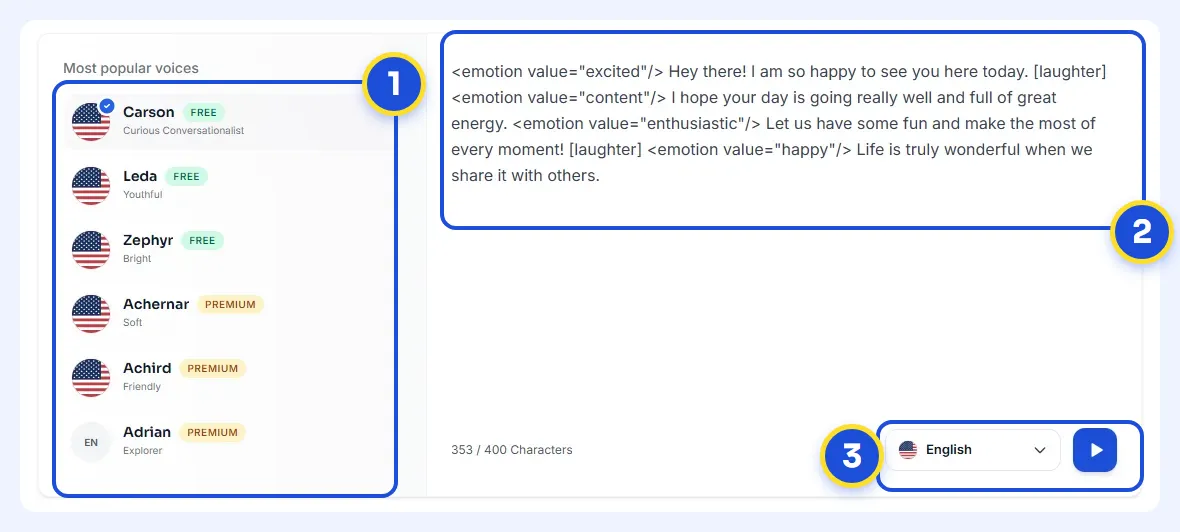
If you need an audio file, for example to narrate a training video, paste your text into a voice generator. In [Kveeky](https://kveeky.com/), you paste the script, pick one of 700+ AI voices, set emotion and speed, and download the audio. The free plan gives 500 credits a month, about 40 seconds, with no credit card.

<figure style="margin:28px 0;padding:0"><a href="https://kveeky.com/"><img src="https://cdn.kveeky.com/portals/public-uploads/c033eba2-39d4-4683-a5a9-c8cf2ffc6d01.webp" alt="The Kveeky homepage voice demo with three numbered areas: the voice list, the script box and the language and play controls." width="1180" height="532" loading="lazy" decoding="async" style="display:block;width:100%;height:auto;border-radius:14px;border:1px solid #dbeafe"></a><figcaption style="margin-top:12px"><ol style="margin:0;padding:0"><li style="display:flex;gap:10px;align-items:flex-start;margin:0 0 6px;padding:0;list-style:none"><span style="flex:0 0 24px;height:24px;border-radius:50%;background:#1d4ed8;color:#fff;font:700 13px/24px var(--kv-font-heading);text-align:center">1</span><span style="font:400 15px/1.5 var(--kv-font-body);color:#1f2937"><span style="font-weight:700">Pick a voice.</span> Voices are tagged Free or Premium.</span></li><li style="display:flex;gap:10px;align-items:flex-start;margin:0 0 6px;padding:0;list-style:none"><span style="flex:0 0 24px;height:24px;border-radius:50%;background:#1d4ed8;color:#fff;font:700 13px/24px var(--kv-font-heading);text-align:center">2</span><span style="font:400 15px/1.5 var(--kv-font-body);color:#1f2937"><span style="font-weight:700">Type or paste a short line.</span> Pick an emotion if you want one.</span></li><li style="display:flex;gap:10px;align-items:flex-start;margin:0 0 6px;padding:0;list-style:none"><span style="flex:0 0 24px;height:24px;border-radius:50%;background:#1d4ed8;color:#fff;font:700 13px/24px var(--kv-font-heading);text-align:center">3</span><span style="font:400 15px/1.5 var(--kv-font-body);color:#1f2937"><span style="font-weight:700">Choose the language and press play</span> to hear it.</span></li></ol><p style="margin:6px 0 0;font:400 14px/1.5 var(--kv-font-body);color:#6b7280">Try it yourself in the free voice demo on <a href="https://kveeky.com/" style="font:inherit;color:#1d4ed8">Kveeky</a>, no sign-up needed. For longer scripts and downloads, use the free plan.</p></figcaption></figure>

<div data-calc="word-time" oninput="var c=this.closest('[data-calc]'),g=function(i){var v=parseFloat(c.querySelector('[data-f='+i+']').value);return isNaN(v)?0:v};c.querySelector('[data-out]').innerHTML=(function(){var w=g('words'),m=g('mult')||1,min=w/(150*m),cr=min*60*500/40;return 'About &lt;strong>'+min.toFixed(1)+' min&lt;/strong> to listen to '+Math.round(w)+' words at '+m+'x. As a Kveeky voiceover at normal speed that is roughly &lt;strong>'+Math.round(w/150*60*500/40)+' credits&lt;/strong> (the free plan has 500 credits a month, about 40 seconds).'})()" style="margin:28px 0;padding:18px 20px;background:var(--kv-blue-50);border:1px solid var(--kv-blue-100);border-left:4px solid var(--kv-blue-700);border-radius:var(--kv-radius-md);box-shadow:var(--kv-shadow-xs);font:400 16px/1.6 var(--kv-font-body);color:var(--kv-gray-900)"><div style="font:700 18px/1.3 var(--kv-font-heading);color:var(--kv-blue-950);margin:0 0 10px">How long will it read my document?</div><p style="margin:0 0 12px">Paste your word count and the speed multiplier you use in the gear menu. This planning estimate assumes about 150 words a minute at 1x; Word does not publish its own rate.</p><label style="display:block;margin:0 0 10px;font:600 15px/1.4 var(--kv-font-body);color:var(--kv-gray-900)">Words in the document<input data-f="words" type="number" min="0" step="100" value="2000" inputmode="decimal" style="display:block;box-sizing:border-box;width:100%;min-height:44px;margin-top:6px;padding:0 12px;border:1px solid var(--kv-gray-300);border-radius:var(--kv-radius-md);background:var(--kv-white);color:var(--kv-gray-900);font:400 16px/1.2 var(--kv-font-body)"></label><label style="display:block;margin:0 0 10px;font:600 15px/1.4 var(--kv-font-body);color:var(--kv-gray-900)">Speed multiplier (1 = normal)<input data-f="mult" type="number" min="0.25" step="0.25" value="1" inputmode="decimal" style="display:block;box-sizing:border-box;width:100%;min-height:44px;margin-top:6px;padding:0 12px;border:1px solid var(--kv-gray-300);border-radius:var(--kv-radius-md);background:var(--kv-white);color:var(--kv-gray-900);font:400 16px/1.2 var(--kv-font-body)"></label><div data-out aria-live="polite" style="margin-top:14px;padding:12px 14px;background:var(--kv-white);border:1px solid var(--kv-blue-100);border-radius:var(--kv-radius-md);font:400 16px/1.6 var(--kv-font-body);color:var(--kv-gray-900)">About <strong>13.3 min</strong> to listen to 2000 words at normal speed. As a Kveeky voiceover that is roughly <strong>1010 credits</strong> (the free plan has 500 credits a month, about 40 seconds).</div><p style="margin:10px 0 0;font:400 14px/1.5 var(--kv-font-body);color:var(--kv-gray-600)">Estimate only. Credits assume 500 credits is about 40 seconds of audio, as on the free plan.</p></div>

A good workflow is to proof your script with Read Aloud first, then export the final voiceover. Our guide to [AI text to speech reader and exporter tools](https://kveeky.com/blog/ai-text-to-speech-reader-exporter-tools) compares tools that do both.

## Frequently asked questions

### Can you do text to speech on Word?

Yes. Word's Read Aloud reads your document aloud from the Review tab. It's available in Microsoft 365, Office 2019 and Office 2021. Word for the web uses Immersive Reader instead.

### How do I activate text to speech in Word?

Open the Review tab and select Read Aloud, or press Ctrl + Alt + Space on Windows. On a Mac, press Ctrl + Option + Space. To read only selected text on Windows, add Speak to the Quick Access Toolbar.

### Why is Read Aloud missing in Word?

Make sure you're signed in to your Microsoft 365 account, then restart Word or sign out and back in. Read Aloud also needs Microsoft 365, Office 2019 or Office 2021.

### Can I change the Read Aloud voice in Word?

Yes. Select the gear icon in the Read Aloud controls, then choose a voice under Voice Selection and drag the Reading speed slider. In Word for the web, Immersive Reader offers Female or Male voices.

### Can Word export text to speech as an MP3?

Microsoft's support pages describe listening, not saving audio files. To get an audio file, paste the text into a voice generator that exports audio, such as Kveeky.

<div style="margin:28px 0;padding:18px 20px;background:var(--kv-blue-50);border:1px solid var(--kv-blue-100);border-left:4px solid var(--kv-blue-700);border-radius:var(--kv-radius-md);box-shadow:var(--kv-shadow-xs);font:400 16px/1.6 var(--kv-font-body);color:var(--kv-gray-900)"><div style="font:700 18px/1.3 var(--kv-font-heading);color:var(--kv-blue-950);margin:0 0 10px">Keep reading</div><ul style="margin:0;padding-left:22px"><li style="margin:0 0 8px"><a href="/blog/google-text-to-speech" style="color:var(--kv-blue-700)">Google Text to Speech: How to Use It, Change the Voice and When to Use Something Else (2026)</a></li><li style="margin:0 0 8px"><a href="/blog/ios-text-to-speech-complete-guide-iphone-ipad-2025" style="color:var(--kv-blue-700)">iOS Text-to-Speech: Complete Guide to Voice Features on iPhone &amp; iPad (2025)</a></li><li style="margin:0 0 8px"><a href="/blog/text-to-speech-not-working-troubleshooting-guide" style="color:var(--kv-blue-700)">Text-to-Speech Not Working? Complete Troubleshooting Guide &amp; Solutions</a></li><li style="margin:0 0 8px"><a href="/blog/ai-text-to-speech-reader-exporter-tools" style="color:var(--kv-blue-700)">AI Text to Speech Reader and Exporter Tools</a></li><li style="margin:0 0 8px"><a href="/blog/is-text-to-speech-beneficial-for-adhd" style="color:var(--kv-blue-700)">Is Text to Speech Beneficial for ADHD?</a></li><li style="margin:0 0 8px"><a href="/blog/free-vs-paid-text-to-speech" style="color:var(--kv-blue-700)">Free vs Paid Text to Speech: What You Actually Get in 2026</a></li><li style="margin:0 0 8px"><a href="/blog/how-to-convert-text-to-speech-in-videos" style="color:var(--kv-blue-700)">How to Convert Text to Speech in Videos</a></li><li style="margin:0 0 8px"><a href="https://kveeky.com/resources/words-to-minutes-calculator" style="color:var(--kv-blue-700)">Words to minutes calculator (check script length)</a></li><li style="margin:0 0 8px"><a href="/voice-providers" style="color:var(--kv-blue-700)">AI voice generator comparisons</a></li></ul></div>

## How we checked this guide

This guide is written by Deepak Gupta for the Kveeky team. **Disclosure: Kveeky makes an AI voice generator.** Every Word step comes from Microsoft's own support pages, retrieved October 6, 2026:

- [Listen to your Word documents](https://support.microsoft.com/en-us/word/listen-to-your-word-documents) (Read Aloud, Immersive Reader, mobile, shortcuts, troubleshooting, privacy)
- [Use the Speak text-to-speech feature to read text aloud](https://support.microsoft.com/en-us/accessibility/office-accessibility/use-the-speak-text-to-speech-feature-to-read-text-aloud)
- [Set up or change the languages used to check spelling and grammar](https://support.microsoft.com/en-us/word/set-up-or-change-the-languages-used-to-check-spelling-and-grammar)

Kveeky details come from the [Kveeky pricing page](https://kveeky.com/pricing/). No Kveeky usage data is used in this guide.

Turning a Word document into a narrated lesson? See how Kveeky handles [AI voiceovers for training videos](https://kveeky.com/voiceover/training-videos/), or compare more tools in our [10 best free AI voiceover generators](https://kveeky.com/blog/10-best-free-ai-voice-generatorover-tools).
<script type="application/ld+json">
{"@context":"https://schema.org","@type":"FAQPage","mainEntity":[
{"@type":"Question","name":"Can you do text to speech on Word?","acceptedAnswer":{"@type":"Answer","text":"Yes. Word's Read Aloud reads your document aloud from the Review tab. It's available in Microsoft 365, Office 2019 and Office 2021. Word for the web uses Immersive Reader instead."}},
{"@type":"Question","name":"How do I activate text to speech in Word?","acceptedAnswer":{"@type":"Answer","text":"Open the Review tab and select Read Aloud, or press Ctrl + Alt + Space on Windows. On a Mac, press Ctrl + Option + Space. To read only selected text on Windows, add Speak to the Quick Access Toolbar."}},
{"@type":"Question","name":"Why is Read Aloud missing in Word?","acceptedAnswer":{"@type":"Answer","text":"Make sure you're signed in to your Microsoft 365 account, then restart Word or sign out and back in. Read Aloud also needs Microsoft 365, Office 2019 or Office 2021."}},
{"@type":"Question","name":"Can I change the Read Aloud voice in Word?","acceptedAnswer":{"@type":"Answer","text":"Yes. Select the gear icon in the Read Aloud controls, then choose a voice under Voice Selection and drag the Reading speed slider. In Word for the web, Immersive Reader offers Female or Male voices."}},
{"@type":"Question","name":"Can Word export text to speech as an MP3?","acceptedAnswer":{"@type":"Answer","text":"Microsoft's support pages describe listening, not saving audio files. To get an audio file, paste the text into a voice generator that exports audio, such as Kveeky."}}
]}
</script>
