TL;DR
- Google text to speech, step by step: change the voice on Android, hear Translate and Chrome read aloud, what's free, and when you need a voiceover tool.
On this page
Google text to speech is the free speech engine built into Android, plus the read-aloud features in Chrome, Google Docs and Google Translate. On Android, you change the voice in Settings > Accessibility > Text-to-speech output. It's made for listening, not for saving audio, so use a voiceover tool when you need an MP3.
Last updated: October 7, 2026. Every step below was checked on Google's, Apple's, Amazon's and OpenAI's own help pages on that date.
This guide is for anyone who wants their phone, browser or documents read aloud, and for creators who wonder if Google's voices can narrate a video. It covers Android, Chrome, Docs and Translate step by step, what costs money, and how Google compares with ChatGPT, Siri and Alexa.
Key Takeaways
- Android: open Settings > Accessibility > Text-to-speech output to pick the engine, language, speech rate and pitch (Android Accessibility Help, retrieved 2026-10-07).
- Change the voice: tap Settings next to "Preferred engine", then Install voice data, pick a language and preview voices such as "Voice I" or "Voice II".
- Google Translate reads translations aloud: click or tap Listen, and choose Normal, Slow or Slower speed in Settings.
- The consumer features are free. Docs' "Listen to this tab" needs an eligible Workspace or Google AI plan, and the Cloud API is billed per character.
- None of the 4 built-in assistants we compared (Google, ChatGPT, Siri, Alexa) gives you a downloadable voiceover file. For MP3 or WAV with commercial rights, use a voiceover tool.
On this page: What it is · Android · Change the voice · Chrome and Docs · Google Translate · Real-time audio · Is it free? · Downloads and limits · ChatGPT, Siri, Alexa · Cloud API · When to switch · FAQ
Tap the closest match and jump to the right section.
Turn on Select to Speak in Settings > Accessibility, then tap the shortcut and tap or drag over text. Steps: Google text to speech on Android.
Settings > Accessibility > Text-to-speech output, then Settings next to Preferred engine, then Install voice data. Steps: change the voice.
Open Chrome reading mode (right-click the page, then Open in reading mode) and select Play. See Chrome and Google Docs.
Tools > Audio > Listen to this tab, which needs an eligible Workspace or Google AI plan. Without one, turn on screen reader support. See Chrome and Google Docs.
Translate the text, then click or tap Listen. You can slow it down in Settings. See Google Translate.
Google's consumer features do not save audio files, so use a voiceover tool. Kveeky's free plan gives 500 credits a month (about 40 seconds) with no credit card. See when to use a voiceover tool.
What is Google TTS
Google text to speech is the speech engine that reads text aloud on Android, and the name people use for Google's other read-aloud features. On the Play Store, the engine is the free app "Speech Recognition & Synthesis" from Google LLC (Google Play listing, retrieved 2026-10-07).
That listing says the engine is used by Google Play Books for Read Aloud, by Google Translate to speak translations, and by TalkBack and other accessibility apps. Any app that reads text on your phone can use it, so one setting changes the voice in many apps.
Google also has read-aloud features that don't depend on your phone's engine:
- Chrome reading mode on a computer, with its own voice list.
- Google Docs, which can generate an audio version of a tab on eligible plans.
- Google Translate, which speaks translations and can translate live speech.
- Google Cloud Text-to-Speech, a paid developer API (covered briefly below).
If you want the technical side, our explainer on how text-to-speech works covers the models behind these voices.
Google TTS on Android
Turn it on in Settings > Accessibility > Text-to-speech output, then use Select to Speak or an app like Play Books to hear text. Google's help page says the engine choices "vary by device" and can include Google's engine, your phone maker's engine and engines from the Play Store.
| Step | Where to tap | What you get |
|---|---|---|
| 1. Open the speech settings | Settings > Accessibility > Text-to-speech output | The engine, language, speech rate and pitch controls |
| 2. Pick Google's engine | Preferred engine > Speech Recognition and Synthesis from Google | Google's voices in every app that reads text aloud |
| 3. Test it | Tap Play | A short sample of the current voice |
| 4. Read anything on screen | Settings > Accessibility > Select to Speak > turn on Select to Speak shortcut | Tap the shortcut, then tap or drag over text to hear it |
| 5. Read ebooks | Play Books > open a book > Menu > Read aloud | The book read with your default engine |
Sources: Text-to-speech output, Use Select to Speak and Hear books read out loud on Google Play Books, all on Google Help, retrieved 2026-10-07.
Expected result: when you tap Play, you hear a short sample in the language you picked. Select to Speak opens a small player with pause, skip and speed buttons.
On some phones, the menu sits under Languages & input instead of Accessibility. The Play Store listing gives that path: Settings > Languages & Input > Text-to-Speech output. If you can't find either, search your Settings app for "text-to-speech".
Changing the Google voice
Go to Settings > Accessibility > Text-to-speech output, tap Settings next to "Preferred engine", then tap Install voice data. Choose your language, then tap each voice to hear a sample and pick one.
Google's full path, from its Play Books help page (retrieved 2026-10-07):
- Open the Settings app and tap Accessibility.
- At the bottom, tap Text-to-speech output.
- Next to Preferred engine, tap Settings.
- Tap Install voice data to see the available languages and locales.
- Choose the language or locale you want, such as English (India) or English (United Kingdom).
- If you see a list like "Voice I" or "Voice II", tap each one to hear a sample.
- Select the voice you prefer. It stays your default for that language.
Expected result: apps that use your default engine, such as Play Books and TalkBack, now speak with the new voice. Google notes that voice options vary by location, and some regions offer only 1 high-quality voice for offline use.
Tick each one after you change the voice. These are the usual reasons it does not work.
Ticked: 0 of 4
Speed and pitch are separate settings on the same screen:
| You want to change… | Where |
|---|---|
| The voice | Text-to-speech output > Settings next to Preferred engine > Install voice data > your language |
| The language | Text-to-speech output > Language |
| How fast it reads | Text-to-speech output > Speech rate |
| How high or low it sounds | Text-to-speech output > Pitch |
| Google Assistant's voice | Say "Hey Google, open Assistant settings", then tap Assistant voice & sounds |
| Chromebook voice | Settings > Accessibility > Text-to-Speech voice settings > Speech Engines |
The Google Assistant voice is a separate setting. Changing it doesn't change the voice that reads your books or screen, and the reverse is also true (Google Assistant Help, retrieved 2026-10-07).
On a Chromebook, Google's accessibility help lists 2 engines: Chrome OS TTS, which sounds more human, and eSpeak, which covers more languages. You set rate, pitch and volume under Speech Properties.
Common mistakes:
- Changing the Assistant voice and expecting Play Books to change too. They're different settings.
- Picking a language with no voice data installed. Install the voice data first, or the phone may fall back to another voice.
- Leaving another engine as the default. If your phone maker's engine is the preferred engine, Google's voice list won't apply.
If the voice still won't change, our text-to-speech troubleshooting guide walks through the usual fixes. On an iPhone, the settings are different; see our iPhone and iPad text-to-speech guide.
To compare Google's voice with an AI voice generator, see our roundup of free text-to-speech generator apps.
Paste this into Google Translate (then click Listen), your phone's voice preview or any voiceover tool. Listen for how each voice handles the title, the time, the price and the percentage. If one is wrong, respell it or write it out as words.
TTS in Chrome and Docs
In Chrome on a computer, open reading mode and select Play. In Google Docs, click Tools > Audio > Listen to this tab, which needs an eligible Workspace or Google AI plan.
| Where | How to start it | Change the voice and speed | Who can use it |
|---|---|---|---|
| Chrome reading mode (computer) | Right-click the page > Open in reading mode, then select Play | Settings > Voice selection; Playback speed in the player | Chrome on a computer; not every website works |
| Google Docs audio | Tools > Audio > Listen to this tab, or Listen to this tab in the toolbar | More > Change voice (Narrator, Educator, Teacher, Persuader, Explainer, Coach, Motivator); Playback speed | Eligible Google Workspace or Google AI plan |
| Chromebook Select-to-speak | Settings > Accessibility > Text-to-Speech > turn on Select-to-speak | Select-to-speak settings > Speech | Any Chromebook |
| Android Chrome | Use Select to Speak from Android's accessibility settings | Android's Text-to-speech output settings | Any Android phone |
Sources: Use reading mode in Chrome, Generate audio with Gemini in Google Docs and Change the language or voice of spoken text, Google Help, retrieved 2026-10-07.
Chrome's keyboard shortcut for reading mode is Alt + Shift + r on Windows, Linux and ChromeOS, and ⌘ + Option + r on a Mac. Google says reading mode downloads Google natural voices for your current language, and uses the system voice if that download fails.
If your Docs plan doesn't include audio, you can still have a screen reader read the document. Turn on screen reader support from Tools > Accessibility settings (Google Docs Editors Help, retrieved 2026-10-07). For Word users, our Microsoft Word text-to-speech tutorial covers Read Aloud and Speak.
Google Translate TTS
Yes. Google Translate reads translations aloud: type or paste your text, then click or tap Listen, the speaker icon next to the translation. You can slow the voice down and, in some languages, change the accent or voice tone.
| Task | On a computer (translate.google.com) | In the Android app |
|---|---|---|
| Hear a translation | Click Listen | Tap Listen |
| Change speed | Settings (top right) > Normal, Slow or Slower | Menu > Settings > Speed > Normal, Slow or Slower |
| Change the accent | Not described on the help page | Menu > Settings > Region > pick a region |
| Choose a male or female voice | Not described on the help page | Menu > Settings > Tone > male or female (some languages only) |
| Speak translations automatically | Not described on the help page | Menu > Settings > Speech input > turn on Speak output |
| Length limit | Up to 5,000 characters at a time when you paste text | Not stated |
Sources: Translate written words and Translate by speech, Google Translate Help, retrieved 2026-10-07.
Translate is a good way to hear how a word or short phrase sounds in another language. It isn't built for narration: there's no voice library and no file to save. For longer audio in another language, see our AI voices by language, which lists the languages with voices.
For a whole language, such as Hindi text to speech, the language pages list voices you can try.
Translate handles up to 5,000 characters at a time when you paste text. Paste your text here to count characters, words and listening time. Nothing is sent anywhere; it is counted in your browser.
Listening time uses 150 words a minute (our estimate). Free Kveeky credits: 500 a month is about 40 seconds of audio.
Real-time audio translation
Yes. In the Translate app, tap live translate at the bottom of the screen, pick a mode and your 2 languages, and start speaking. Google says the microphone "automatically detects when one language stops and the other language starts".
You can choose from 4 live translation modes (Hear live speech to speech translations with live translate, retrieved 2026-10-07):
- Listening: connect headphones or hold the phone to your ear to hear real-time translations.
- Conversation: translations play out loud on the speaker or headphones while you take turns speaking.
- Text only: read the translation with no audio.
- Custom settings: choose text only, speaker or headphones.
Face to face mode splits the screen so each person sees their own language. Offline live translation is only on Pixel 9, 10 and 11 phones, for 10 language pairs that each include English.
Is Google TTS free
Yes, for personal use on your own devices. The Android engine and the Google Translate app are both listed at $0 on Google Play, and Chrome reading mode has no separate charge. Docs audio and the Cloud API are the exceptions.
| Google feature | Cost | Source (retrieved 2026-10-07) |
|---|---|---|
| Android engine (Speech Recognition & Synthesis) | Free ($0 on Google Play) | Google Play listing |
| Google Translate speech and live translate | Free ($0 on Google Play) | Google Play listing |
| Chrome reading mode read aloud | Part of Chrome, no separate fee | Chrome Help |
| Google Docs "Listen to this tab" | Needs an eligible Google Workspace or Google AI plan | Docs Editors Help |
| Google Cloud Text-to-Speech API | Free monthly character allowance, then billed per character; billing must be enabled | Cloud pricing page |
"Free" here means free to listen. It doesn't mean you get audio files you can publish, which is the next question most creators ask.
Downloading Google TTS audio
No, not from the consumer features. The Google help pages for Android, Chrome, Docs and Translate describe playing audio, not saving it as a file. If you need an MP3 for a video or podcast, a built-in reader is the wrong tool.
Other limits to know before you rely on Google's built-in voices:
- Length: Translate handles up to 5,000 characters at a time when you paste text.
- Books: Play Books Read Aloud only works in flowing text mode, and publishers choose whether a book allows it.
- Voices: the voice list depends on your language, region and device, and some regions get only 1 offline voice.
- Rights: Google's Terms of Service (effective July 30, 2026, retrieved 2026-10-07) let you use Google's content only "as allowed by these terms and any service-specific additional terms".
Some people record their screen while Google reads aloud. Before you publish that audio in a monetized video, check the terms that apply to that Google service. A voiceover tool that gives you a file and a written commercial-use term is the simpler route.
Google, ChatGPT, Siri, Alexa
All 4 can speak to you, but none of them is built to hand you a voiceover file. They're assistants and readers. The table compares them with a voiceover tool, using each company's own help pages.
| Tool | What it does with speech | Change the voice | Download the audio? | Fit for a commercial voiceover? | Cost |
|---|---|---|---|---|---|
| Google (Android, Chrome, Translate) | Reads screens, books, web pages and translations aloud | Text-to-speech output settings; Chrome Voice selection | No, playback only | No export or voice license described | Free; Docs audio on eligible plans |
| ChatGPT | Spoken conversations with ChatGPT Voice | Settings > Voice > Voice | No, playback only in the help pages | No export or voice license described | Free plan has limited Voice access; more on paid plans |
| Siri | Voice assistant that answers out loud | Settings > Siri > Voice | No | No export or voice license described | Built into Apple devices |
| Alexa | Voice assistant on Echo devices and the Alexa app | Say "Change your voice", or Alexa app > Devices > Device Settings > Alexa's Voice | No | No export or voice license described | Alexa+ free with Prime, otherwise $19.99/month |
| Kveeky (voiceover tool) | Turns a script into a voiceover file | Pick from 700+ voices; adjust speed, volume and emotion | Yes, audio download | Commercial usage rights on every paid plan | Free plan 500 credits/month; paid from $9/month |
Sources, all retrieved 2026-10-07: ChatGPT Voice (OpenAI Help Center), Change Siri settings on iPhone (Apple Support), Change Alexa's Voice (Amazon Help), Introducing Alexa+ (Amazon), and Kveeky pricing.
Can ChatGPT do text to speech?
Yes. ChatGPT Voice lets you speak with ChatGPT and hear a spoken reply on the web, iOS and Android. You pick from voices such as Arbor, Breeze and Juniper under Settings > Voice, and the Free plan gets limited access (OpenAI Help Center, retrieved 2026-10-07).
It's useful for hearing an answer while you cook or drive. OpenAI's help pages describe listening, not exporting, so ChatGPT isn't a way to produce a narration file.
Is Siri an AI voice?
Yes. Siri is Apple's voice assistant, and its spoken replies are generated by software rather than recorded clips. Apple now markets it as part of "Apple Intelligence and Siri". Siri AI (Beta) adds Expressive Voices, with Voice, Pace and Expressivity controls (Apple Support, retrieved 2026-10-07).
Apple says Siri AI (Beta) is currently available only in English. Expressive Voices need it on a supported device, such as iPhone 17 Pro models (Apple Support, retrieved 2026-10-07). To change the voice, go to Settings > Siri > Voice and pick an option under Variations or Voices.
Is Alexa an AI voice?
Yes. Amazon describes Alexa+ as "Powered by generative AI" and built on large language models available on Amazon Bedrock (Amazon, updated July 21, 2026, retrieved 2026-10-07). Alexa+ is free with Prime and $19.99/month without it.
To change Alexa's voice, say "Change your voice". To change its speed, use the Speaking Rate slider in the Alexa app under Settings > Voice Responses (Amazon Help, retrieved 2026-10-07).
Google Cloud Text-to-Speech
Google Cloud Text-to-Speech is the developer API, not a consumer app: you send text through code and get audio back. Google lists more than 380 voices across more than 75 languages and variants on its product page, and requires billing to be enabled.
On the pricing page (retrieved 2026-10-07), Standard voices are free for the first 4 million characters a month, then US$4 per 1 million characters. Chirp 3: HD voices are free for the first 1 million characters, then US$30 per 1 million. It suits developers building apps, not someone who wants to paste a script and download a file.
Show me: what 3 million characters costs on the Cloud API
Using the pricing above (retrieved 2026-10-07):
- Standard voices: the first 4 million characters a month are free, so 3 million costs $0.
- Chirp 3: HD voices: the first 1 million are free, then US$30 per 1 million, so 2 million paid characters cost US$60.
For a comparison with Amazon and Microsoft, see Google, Microsoft and Amazon text to speech compared.
When to use a voiceover tool
Use Google's built-in text to speech when you only need to listen. Switch to a voiceover tool when you need an audio file, the right to use it commercially, or more control over how the voice sounds.
| Your goal | Built-in Google TTS | Voiceover tool such as Kveeky |
|---|---|---|
| Listen to articles, books or messages | Best fit. Free and already on your phone | Not needed |
| Hear how a word sounds in another language | Best fit. Google Translate's Listen button | Not needed |
| Accessibility for daily use | Best fit. Select to Speak and TalkBack | Not needed |
| An MP3 or WAV for a video, podcast or course | No download in the help pages | Best fit. audio download |
| Commercial use (ads, client work, monetized videos) | No voice license described | Best fit. Commercial usage rights on every paid plan |
| More voices and delivery control | A few voices per language, rate and pitch | Best fit. 700+ voices, speed, volume and a choice of 6 emotions |
| A narration in your own voice | Not offered | Check the plans. Voice cloning is not on every plan, so see the pricing page |
Basic costs $9/month, or $7.50/month billed yearly, for 100 minutes a month and all 700+ voices. Every paid plan includes commercial usage rights for the audio you generate (Kveeky pricing, retrieved 2026-10-07).
Where Kveeky falls short: the free plan has standard voices only, every plan is credit-metered, and it isn't a screen reader. Keep Google's free tools for listening. To compare more options, see our roundup of the best free AI voice generators.
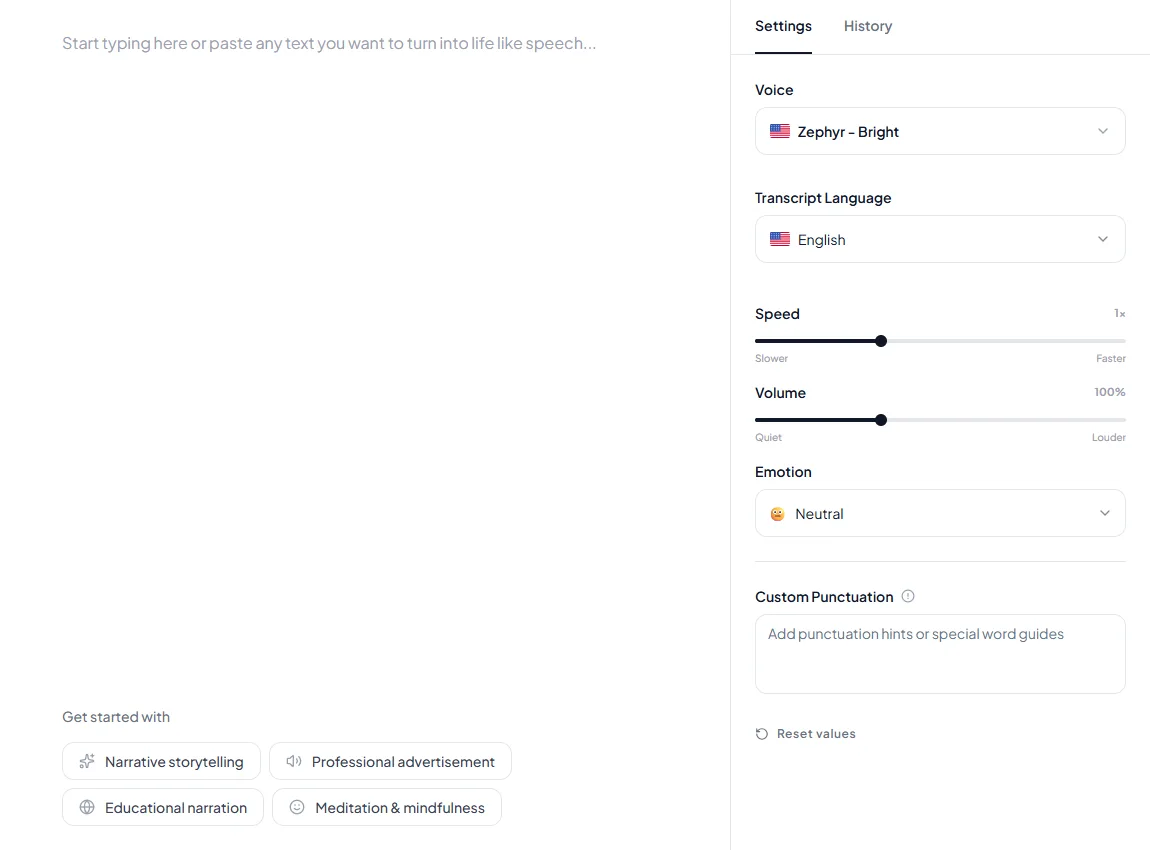
How Kveeky helps
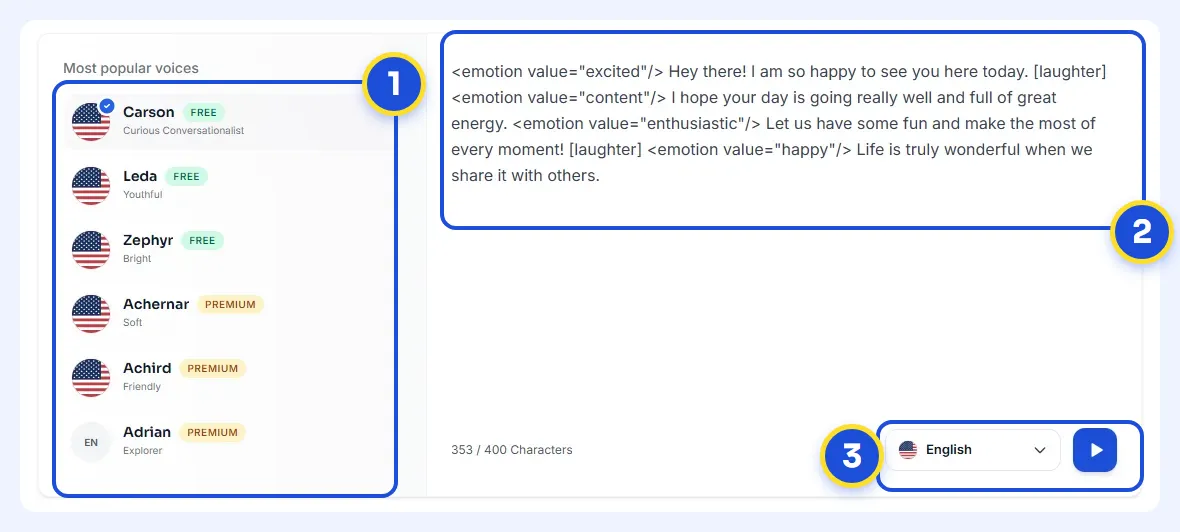
- 1Pick a voice. Voices are tagged Free or Premium.
- 2Type or paste a short line. Pick an emotion if you want one.
- 3Choose the language and press play to hear it.
Try it yourself in the free voice demo on Kveeky, no sign-up needed. For longer scripts and downloads, use the free plan.
Kveeky is an AI voice generator: paste a script, pick a voice and download the audio. It has 700+ voices in 40+ languages. The free plan gives 500 credits a month (about 40 seconds) with standard voices and no credit card.
Frequently asked questions
How do I change the Google text to speech voice on Android?
Open Settings > Accessibility > Text-to-speech output. Next to "Preferred engine", tap Settings, then Install voice data and choose your language. Tap each voice, such as "Voice I" or "Voice II", to hear a sample, then select the one you prefer.
How do I use Google text to speech to read my screen?
Turn on Select to Speak in Settings > Accessibility > Select to Speak. Then use the shortcut and tap or drag over text to hear it. It reads with the engine set in Text-to-speech output.
Can Google Translate read text out loud?
Yes. After you translate text, click or tap Listen next to the translation. In Settings, you can set the speed to Normal, Slow or Slower, and in the Android app you can change the accent with Region.
Is Google text to speech free?
Yes for personal use. The Android engine and the Google Translate app are free on Google Play, and Chrome reading mode is part of Chrome. Docs audio needs an eligible Workspace or Google AI plan, and the Cloud API is billed per character after a free monthly allowance.
Can I download Google text to speech as an MP3?
Not from the consumer features. Google's help pages for Android, Chrome, Docs and Translate describe playback, not saving files. For an MP3 or WAV you can use in a video, use a voiceover tool that exports audio and states its commercial-use terms.
Is Alexa an AI?
Yes. Amazon describes Alexa+ as powered by generative AI and built on large language models available on Amazon Bedrock. It's free with Prime and $19.99/month without it.
More quick answers
How many characters can Google Translate read aloud?
Google says Translate handles up to 5,000 characters at a time when you paste text. For longer text, paste it in pieces.
Does Google text to speech work offline?
It depends on the voice data you installed. Google notes that some regions offer only 1 high-quality voice for offline use. Offline live translation is limited to Pixel 9, 10 and 11 phones.
Can I read a Google Doc aloud without a paid plan?
Docs' Listen to this tab needs an eligible Workspace or Google AI plan. Without one, turn on screen reader support from Tools > Accessibility settings.
Can I use Google's read-aloud audio in a monetized video?
Google's consumer features describe playback, not saving audio. Check the terms that apply to that Google service before you publish anything recorded from it, or use a voiceover tool with written commercial-use terms.
How much does Google Cloud Text-to-Speech cost?
Standard voices are free for the first 4 million characters a month, then US$4 per 1 million. Chirp 3: HD voices are free for the first 1 million, then US$30 per 1 million.
- How does text to speech work? - the models behind these voices
- Google vs Amazon Polly vs Azure - cloud prices per minute
- Free vs paid text to speech - what you actually get
- Can you use AI voiceovers commercially? - rights by plan
- Articles read aloud - listening to the web
- AI voice for YouTube - the complete guide for creators
- Words to minutes calculator
- Kveeky pricing - free plan and paid plans
How we checked this guide
This guide is written by Ankit Agarwal for the Kveeky team. Disclosure: Kveeky makes an AI voice generator. We followed each company's own help pages, not third-party guides, and didn't test devices for this article.
- Google steps: Android Accessibility, Google Play, Google Assistant, Chrome, Docs Editors, Google Accessibility and Google Translate help pages on support.google.com, retrieved 2026-10-07.
- Google prices: Google Play listings for Speech Recognition & Synthesis and Google Translate, and the Google Cloud Text-to-Speech product and pricing pages, retrieved 2026-10-07.
- Assistants: OpenAI Help Center (ChatGPT Voice), Apple Support (2 Siri pages), Amazon Help (2 Alexa voice pages) and Amazon's Alexa+ page, retrieved 2026-10-07.
- Kveeky facts come from kveeky.com/pricing, retrieved 2026-10-07. No Kveeky usage data is used in this guide.
Menus change with app updates. If a step looks different on your device, check the linked help page.
Need a voice you can actually publish? Paste your script into Kveeky, pick from 700+ voices and download the audio for your next YouTube video voiceover.
Turn your script into a voiceover
Paste your text, pick a voice and download the audio. Free to start, no credit card.