TL;DR
- To get text to speech MP3 audio, paste your text into a text-to-speech tool, pick a voice, generate and download. Kveeky downloads include MP3 and WAV.
On this page
To make a text to speech MP3, paste your text into a text-to-speech tool, choose a voice, generate the speech and download the file. Kveeky works this way: you generate in the editor, listen, then download the audio. MP3 is the right pick for sharing; WAV suits further editing.
Last updated: October 29, 2026. Kveeky plan facts come from kveeky.com/pricing, retrieved that day.
Most people who search for this want one thing: a file they can send, upload or put in a video. This guide shows the 4 steps, when to pick MP3 or WAV, and how many credits a given length needs.
Key Takeaways
- 4 steps make a text to speech MP3. Paste text, pick a voice, generate, download.
- MP3 for sharing, WAV for editing. MP3 files are smaller. WAV files are not compressed, so they suit further editing.
- Credits follow your text. 1 credit is 1 character, and paid plans give about 750 credits per minute of audio.
- Free is a test. Kveeky’s free plan gives 500 credits a month (about 40 seconds). Sign-up is required, no credit card.
- Check rights before you publish. Kveeky lists commercial usage rights on paid plans, not on Free.
On this page: The 4 steps · MP3 or WAV? · Credits per length · Before you download · Where Kveeky fits · FAQ
The 4 steps
Turning text into an MP3 takes 4 steps in any text-to-speech tool. In Kveeky they look like this:
- Paste the text. Use the script you want to hear. Clean out headings, links and brackets first.
- Pick a voice. Choose a language and voice, then adjust Speed if you need it.
- Generate and listen. Press Generate speech and play it back before you download.
- Download the file. Kveeky offers MP3 and WAV downloads. Choose MP3 for sharing.
Show me: the editor you generate in
The editor you generate in.
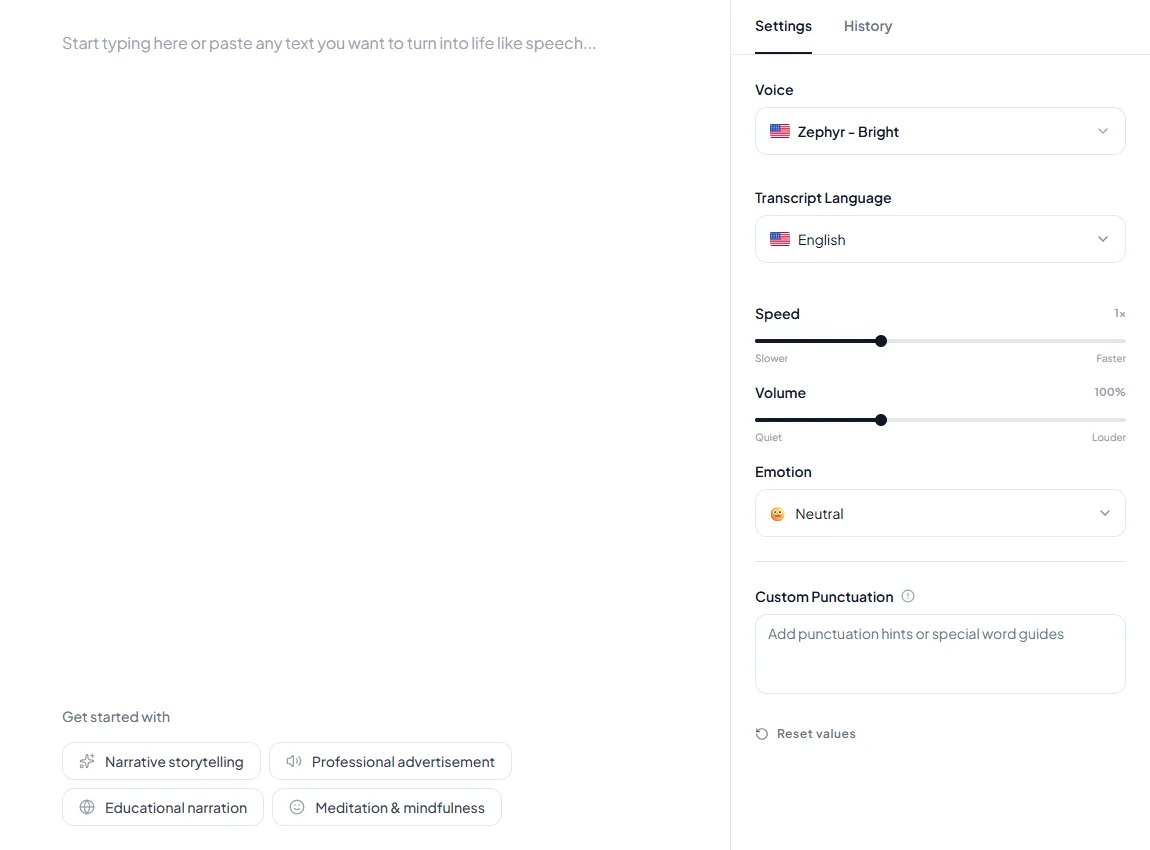
About 210 characters. Paste it into the editor to hear a voice before you spend credits on a long text.
MP3 or WAV?
MP3 is a compressed file that is small and plays everywhere. WAV is not compressed, so the file is much larger and loses nothing when you edit it. The table shows when to choose each.
| Your goal | Pick | Why |
|---|---|---|
| Send or share the audio | MP3 | Small file, plays on almost any device |
| Upload to a website or podcast host | MP3 | Hosts commonly ask for it, so check yours |
| Edit in a video or audio editor | WAV | No compression before you edit |
| Keep a master copy | WAV | You can export MP3 from it later |
These are general rules about the two file types, not Kveeky specifics. If you add the audio to a video, see how to add a voiceover to a video.
Credits per length
A text to speech MP3 uses credits by character count, not by file type. At 750 credits per minute, 1 credit is 1 character. This table is our calculation.
| Audio length | Credits needed | Fits the 500-credit Free plan? |
|---|---|---|
| 0.5 minutes | 375 | Yes |
| 1 minute | 750 | No |
| 2 minutes | 1,500 | No |
| 5 minutes | 3,750 | No |
| 10 minutes | 7,500 | No |
So the free plan is for tests of about 40 seconds. A 5-minute narration needs 3,750 credits, which a paid plan covers: Basic gives 75,000 credits a month, about 100 minutes. To size a script, use the words to minutes calculator or the character counter in the Kveeky script tools.
Before you download
Check the audio once before you spend credits on the final file. Regenerating a long script costs credits again.
Tick each step as you go. Nothing is stored.
Hard words and names are the most common fix. Respell them in the text, add a comma where you want a pause, and generate again. Our guide to the free vs paid text to speech covers what you get at each tier, and free text to speech in Mandarin as an MP3 covers one language in detail. For a specific use, try Kveeky voices for YouTube videos.
Where Kveeky fits
Kveeky is a good fit when you want to paste a script and get a file back without code. The free plan is about 40 seconds of standard voices, with a sign-up and no credit card. Paid plans list commercial usage rights: Basic is $9 a month, or $7.50 a month billed yearly. See the pricing page.
Where Kveeky is weaker: it is a generator, not a file converter. It doesn’t turn an existing audio file into MP3, and it doesn’t read a web page aloud for you. For reading pages aloud, see our comparison of text to speech Chrome extensions.
Paste your script and download the file. Start free on app.kveeky.com. The free plan needs a sign-up and no credit card.
Frequently asked questions
How do I convert text to speech MP3?
Paste your text into a text-to-speech tool, choose a voice, generate the speech and download the file as an MP3. In Kveeky, you do this in the editor on app.kveeky.com. A free account is enough to try it with a short script.
Is text to speech MP3 free?
For short scripts, yes. Kveeky’s free plan gives 500 credits a month, about 40 seconds of audio, with standard voices. A sign-up is required and no credit card is needed. Longer audio needs a paid plan, which starts at $9 a month or $7.50 billed yearly.
MP3 or WAV: which should I pick?
Pick MP3 for sharing, uploading and anything where file size matters. Pick WAV when you will edit the audio further in a video or audio editor, because WAV is not compressed. If you are unsure, download both and keep the WAV as your master.
Can I use the MP3 commercially?
It depends on the plan. Kveeky lists commercial usage rights on every paid plan and does not list them for the Free plan, so use Free for testing. Always read the plan terms of any tool before you publish audio for a client or an ad.
How many credits does an MP3 use?
The credits depend on the text, not on the file type. In Kveeky, 1 credit is 1 character, and paid plans give about 750 credits per minute. A 2-minute MP3 needs about 1,500 credits. Use the character counter to check your script first.
Can I turn a long article into one MP3?
Yes, if you have the credits. A 1,000-word article is about 6 or 7 minutes at 150 words a minute, which is our estimate, so plan for several thousand credits. Split long texts into sections so one edit never means regenerating everything.
Conclusion
A text to speech MP3 takes 4 steps and a few credits. Test a short slice first, pick MP3 for sharing or WAV for editing, and check the plan covers the length and the rights you need.
How we checked this guide
This guide is written by Govind Kumar for the Kveeky team. Disclosure: Kveeky makes an AI voice generator. Kveeky plans, credits and rights: kveeky.com/pricing, retrieved October 29, 2026. The MP3 and WAV download options follow Kveeky’s brand rules; we did not check other tools’ formats or limits, so we state nothing about them. The MP3 vs WAV table is general knowledge about the file types. The credit table and the 150 words a minute estimate are our calculations.
Related guides
- How to add a voiceover to a video
- 8 text to speech Chrome extensions compared
- Canva text to speech
Turn your script into a voiceover
Paste your text, pick a voice and download the audio. Free to start, no credit card.